
Header tags are the HTML elements H1 to H6 that mark the headings on a web page, from the main title down to small sub-points. They give a page a clear outline that people, screen readers and search engines can follow. They matter because a page with a clean heading structure is easier to scan, easier to navigate and easier for search engines to understand.
Key Takeaways
- There are six levels of heading, from H1 (the most important) to H6 (the least).
- A page should generally have one H1 that describes the whole page.
- Don’t skip levels on the way down. An H2 should not jump straight to an H4.
- Use headings for structure, never just to make text bigger. That is a job for CSS.
- Google says heading order doesn’t matter for search, but it does matter for screen reader users.
What Are Header Tags?
MDN, the web developer reference, explains that “the <h1> to <h6> HTML elements represent six levels of section headings.” The H1 is the top level, and each level below it marks a smaller section.
The name is a little misleading. In HTML, the <header> element is something else: it wraps the top area of a page or section, such as a logo and menu. When SEO people say “header tags”, they almost always mean heading tags, H1 to H6. Both names appear in job listings and tools, so it helps to know they refer to the same thing.
Think of headings like the contents page of a book. The H1 is the book title. Each H2 is a chapter, and each H3 is a section inside that chapter. If you pulled out only the headings, a reader should still understand what the page covers.
How Header Tags Work
Headings work as a nested outline. The W3C Web Accessibility Initiative puts it simply: “Headings communicate the organization of the content on the page.” Browsers, plug-ins and assistive technology can then use that outline to help people move around the page.
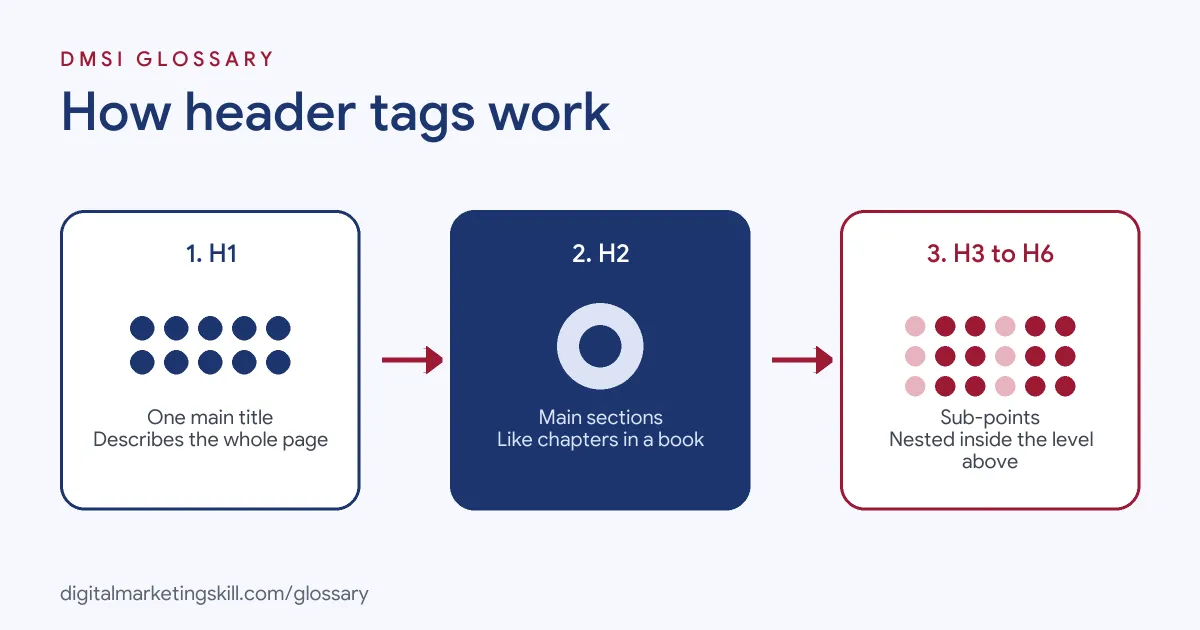
The Heading Hierarchy
The W3C advises you to “nest headings by their rank (or level).” A heading of the same or higher rank starts a new section. A lower-rank heading starts a sub-section inside the current one. So an H3 belongs to the H2 above it.
MDN adds a firm rule: “Do not skip heading levels: always start from <h1>, followed by <h2> and so on.” However, the W3C notes one exception. When you close a sub-section, it is fine to jump back up, for instance from an H4 to a new H2.
One H1 per Page
According to MDN, “a page should generally have a single <h1> element that describes the content of the page.” HTML allows more than one, but MDN says this is “not considered a best practice.” In WordPress, most themes print the post title as the H1 for you. That’s why you usually start your own content at H2.
How Screen Readers Use Headings
Headings are a key navigation tool for blind and partially sighted users. MDN notes that screen reader users often “jump from heading to heading” to work out what a page contains. Most screen readers can also list every heading on the page. As a result, a skipped level can leave someone wondering where the missing section went.
Header Tags Examples
Here are three made-up examples of good heading structure:
- Example: blog post. H1 “How to Start a Vegetable Garden”. H2s for “Choosing a Spot”, “Preparing the Soil” and “What to Plant First”. H3s under “What to Plant First” for “Tomatoes” and “Lettuce”.
- Example: service page. H1 “Wedding Photography in Leeds”. H2s for “Packages”, “How Booking Works”, “Recent Weddings” and “Questions”.
- Example: product page. H1 is the product name. H2s for “Features”, “Sizes and Fit”, “Delivery and Returns” and “Reviews”.
In each case, a reader who skims only the headings can still find what they need in seconds.
Now take a made-up messy page. It has the logo as an H1, the real title as an H2, and section headings picked by size, jumping from H2 to H5. To fix it, you turn the logo into a plain image, make the title the only H1, and set every main section to H2. After that, the outline reads like a clear list of contents.
Header Tags From H1 to H6
Here is what each level is usually for:
| Tag | Typical use | How many per page |
|---|---|---|
| H1 | The main topic of the page | Usually one |
| H2 | Main sections | As many as the content needs |
| H3 | Sub-sections inside an H2 | As needed |
| H4 | Points inside an H3 | Only on long or detailed pages |
| H5 and H6 | Very deep levels | Rare on most marketing pages |
There is also no target number. Google’s SEO Starter Guide says “there’s also no magical, ideal amount of headings a given page should have.”
Header Tags and SEO
So how much do headings help with rankings? Google’s SEO Starter Guide recommends that you “provide headings to help users navigate your pages.” It also says that while semantic order helps screen readers, “from Google Search perspective, it doesn’t matter if you’re using them out of order.”
In other words, headings are mainly about people. Still, they help in indirect ways. Google says it can use “other headings on the page”, alongside the title element, when it creates the title link shown in search results. Clear headings also make your content easier to skim, which keeps readers on the page.
How to Use Header Tags
Follow these steps when you write or edit a page:
- Write one H1. Make it describe the whole page. In WordPress, this is usually the post title.
- Outline your H2s first. List the main questions the page answers, then turn each into an H2.
- Add H3s only where a section has clear parts. For example, three methods or three steps.
- Use plain, descriptive words. A heading should tell the reader what the section covers.
- Include your main keyword where it fits naturally. Don’t force it into every heading.
- Check the outline. Use a browser extension or your SEO plugin to list the headings and spot skipped levels.
For a wider checklist, see our on-page SEO checklist, which covers headings alongside titles, links and images.
Best Practices for Header Tags
- Style with CSS, not heading levels. MDN says “do not use heading elements to resize text.” Pick the level by meaning, then style it.
- Keep headings short. A few words is often enough to tell readers what comes next.
- Keep sidebars consistent. The W3C says heading ranks in fixed areas, such as sidebars, should not change from page to page.
- Write for skimmers. Many readers scan headings first, then decide where to read.
Common Mistakes
Many beginners use an H1 for every big line of text, or pick H4 because it “looks right”. Others make the logo an H1 on every page, so the real page topic never gets the top heading. Some stuff the same keyword into every heading, which reads badly. Finally, page builders sometimes use heading tags for buttons or footers, which clutters the outline for screen reader users.
Where You’ll Use Header Tags at Work
Headings come up in SEO, content and website roles. For example, real remote job listings ask candidates to:
- “Execute on-page SEO tasks such as optimising titles, meta descriptions, headings, URLs, and internal linking” (SEO Executive).
- “Develop SEO-friendly titles, headings, and subheadings” (Content Writer).
- “Optimise images, alt text, metadata, structured data, headings, and on-page presentation” (SEO Content Editor).
So whether you aim to be an SEO Specialist, a WordPress Developer or a Website Manager, you will set up and audit heading structures as part of everyday on-page SEO.
Learn It in the WordPress and SEO Track
You can practise header tags in the AI-Powered WordPress and SEO Specialist track. There, you build a WordPress site or store and rank it with an SEO content plan, so you get real practice structuring pages. You also join a U.S. Project Internship from day one, with unlimited 1-on-1 mentoring.
Frequently Asked Questions
What are header tags in SEO?
They are the H1 to H6 heading elements in a page’s HTML. They mark the title and section headings, so readers and search engines can follow the page’s structure.
Can a page have more than one H1?
HTML allows it, but MDN says it is not considered best practice. Most pages work best with one H1 that describes the whole page.
Does heading order affect Google rankings?
Google says it doesn’t matter for search if headings are out of order. However, correct order still helps screen reader users and makes pages easier to read.
Is a header tag the same as a title tag?
No. The title tag sits in the page’s head and often appears in search results and browser tabs. Header tags, by contrast, are the visible headings in the page content.
How many H2s should a page have?
As many as the content needs. Google says there is no ideal number of headings for a page.
Sources: MDN Web Docs: The HTML Section Heading elements; W3C WAI: Headings; Google Search Central: SEO Starter Guide; remote job listings on Himalayas.