
WordPress is free, open-source software for building and managing websites, from simple blogs to large online stores. You install it on a web server, then add pages, posts, themes and plugins through an admin dashboard instead of writing code. It matters because a huge share of the web runs on it, so these skills are useful in SEO, content and web roles.
Key Takeaways
- This is a content management system (CMS), which stores your content in a database and displays it through a theme.
- The software is open source and licensed under the GPLv2 or later, so anyone can use, study, change and share it.
- W3Techs reports that it runs close to 40% of all websites and well over half of sites with a known CMS.
- Themes control how a site looks. Plugins add features, and the official directory lists more than 76,000 free ones.
- The .org version gives you the software to self-host, while the .com version is a hosted service built on the same code.
What Is WordPress?
Think of it as the engine behind a website. You write a page in an editor, press publish, and the software handles the rest. It saves the words in a database, then builds the finished page each time someone visits.
The project began as a fork of an older blogging tool called b2/cafelog. Today, according to the project’s About page, it “is built on PHP and MariaDB, and licensed under the GPLv2.” As a result, it has grown from a blog tool into a platform for business sites, news sites, membership sites and shops.
The licence is important. The project lists four freedoms: to run the program for any purpose, to study and change it, to redistribute it, and to share modified versions. In other words, you never pay a licence fee for the core software, although you may pay for hosting, premium themes or premium plugins.
How WordPress Works
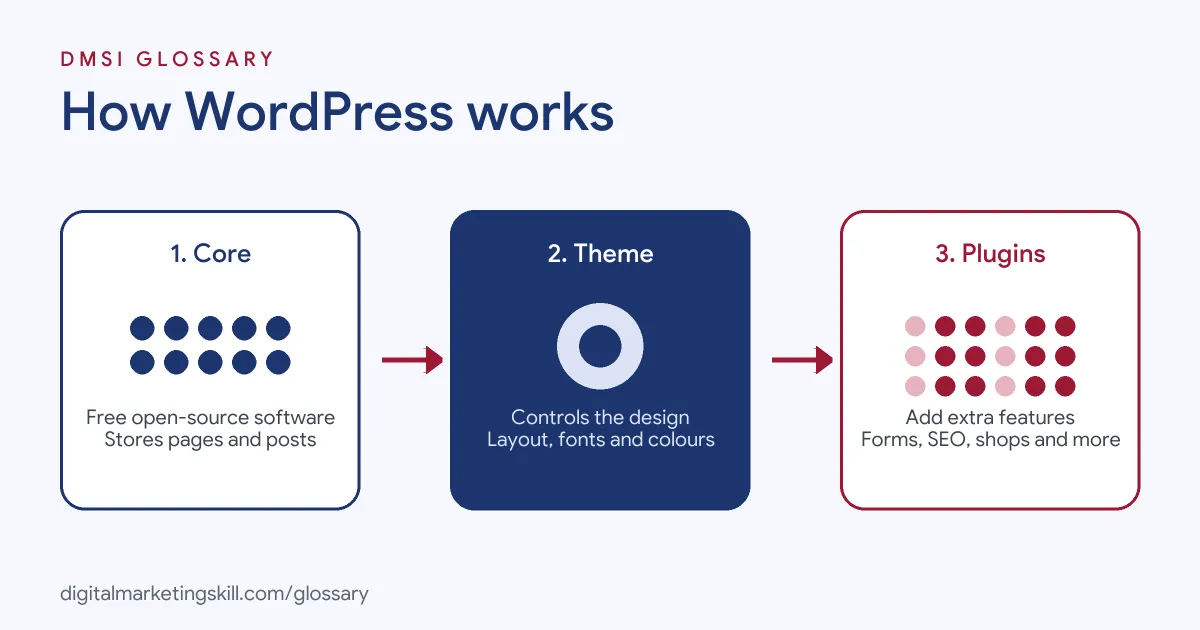
Every site built this way has three layers. First, the core software runs on a web server. Next, a database stores your content and settings. Finally, a theme turns that content into the pages people see, while plugins add extra features on top.
The Server and Database
The software needs a web host to run. The official requirements page recommends a host that supports PHP version 8.3 or greater, MariaDB 10.11 or greater (or MySQL 8.0 or greater) and HTTPS. It also says Apache or Nginx is the most robust choice, but any server with PHP and MySQL support will do.
When someone visits a page, the server runs the PHP code, pulls the right content from the database and sends back a finished web page. That’s why speed depends partly on your host.
Themes and the Dashboard
You manage everything from the admin dashboard. There, you write posts and pages, upload images, manage menus and change settings. Meanwhile, the theme decides the layout, fonts and colours. So you can change the whole look of a site by switching themes, without rewriting your content.
Plugins Add Features
Plugins add features that the core does not include, such as contact forms, SEO tools or a shop. The official plugin directory lets you “browse over 76,000 free plugins.” Similarly, the developer handbook explains that plugins let you “greatly extend the functionality of WordPress without touching WordPress core itself.”
WordPress Examples
Here are three made-up examples of how different businesses might use the platform:
- Local service business: A plumber builds a five-page site with a services page, a contact form plugin and an SEO plugin. As a result, the site can rank for local searches and collect enquiries.
- Online shop: A small clothing brand adds an eCommerce plugin, then lists products, takes payments and manages orders from the same dashboard.
- Content site: A training company publishes a blog of how-to guides. Each guide targets a keyword, links to related posts and ends with a sign-up form.
In each case, the owner works mostly in the dashboard. Code only comes in when they need something custom.
WordPress.org vs WordPress.com
Beginners often mix these up, because both use the same name. The .com support guide says the two “both run on the same WordPress software.” Here is how they differ:
| Option | What you get | Best for |
|---|---|---|
| WordPress.org (self-hosted) | The free software, which you install with a separate hosting provider | Full control over plugins, themes, code and the server environment |
| WordPress.com (hosted) | A hosted service that runs WordPress for you, with paid plans | People who want less technical set-up and maintenance |
| Managed hosting | A host that installs, updates and secures a self-hosted site for you | Businesses that want control without managing a server |
According to that guide, self-hosting gives you “great technical freedom,” including changes to the PHP environment. However, you also take on updates, backups and security yourself.
How to Set Up a WordPress Site
The steps below follow the usual self-hosted route. The menu names vary by host, but the order stays the same.
- Register a domain name and choose a host that meets the WordPress requirements.
- Install the software. Most hosts offer a one-click installer.
- Log in to the dashboard, then set your site title, time zone and permalink structure.
- Choose and install a theme. After that, set your logo, colours and menus.
- Add only the plugins you need, such as an SEO plugin, a form plugin and a backup plugin.
- Create your key pages: home, about, services and contact.
- Turn on HTTPS, connect analytics and submit your sitemap to Google Search Console.
For a step-by-step walkthrough with screenshots, see our guide on how to build a WordPress website.
Best Practices
A few habits keep a site fast, safe and easy to rank:
- Keep everything updated. Update core, themes and plugins regularly, because updates often fix security issues.
- Use fewer, better plugins. Each plugin adds code, so choose well-maintained ones and remove any you don’t use.
- Never edit core files. The plugin handbook calls this its “cardinal rule”, since updates overwrite those files.
- Back up on a schedule. Store backups away from your host, so you can restore the site if something breaks.
- Plan your structure first. Clear categories, clean permalinks and good internal links make the site easier to use and to crawl.
Common Mistakes to Avoid
Beginners tend to repeat the same few errors. First, they install dozens of plugins, which slows the site and creates conflicts. Second, they pick a theme for looks alone and later find it slow or hard to edit. Third, they skip backups until something goes wrong. Finally, they ignore updates for months, which leaves known security holes open. Each of these is easy to avoid with a simple monthly maintenance routine.
Where You’ll Use WordPress at Work
This CMS appears in web, SEO and marketing job listings all the time. For example, recent remote listings ask for:
- “Strong experience with website development and CMS platforms (WordPress preferred).” (Junior and Mid-Level Web Developer & Digital Marketing Specialists).
- Experience with “WordPress or another CMS, and site migrations” (Senior SEO Specialist).
- Someone who will be “responsible for creating visually appealing and functional websites using WordPress” (WordPress Designer).
So whether you aim to be a WordPress Developer, an SEO Specialist or a Website Manager, employers will expect you to build pages, manage plugins and keep a site healthy. They will also want to see a live site you have built.
Learn It in the WordPress and SEO Track
You can learn the platform hands-on in the AI-Powered WordPress and SEO Specialist track. It covers website and eCommerce development, search engine optimisation and content marketing. Your portfolio project is to build a WordPress site or store and rank it with an SEO content plan. You also join a U.S. Project Internship from day one, with unlimited 1-on-1 mentoring.
Once your site is live, our guide to WordPress SEO shows how to help it rank.
Frequently Asked Questions
Is WordPress free to use?
Yes. The core software is free and open source under the GPLv2 or later. However, you usually pay for a domain and hosting, and you may pay for premium themes or plugins.
Do I need to code to build a site?
No. You can build a full site with themes, the block editor and plugins. That said, basic HTML and CSS help when you want to fix small layout issues.
What is the difference between WordPress.org and WordPress.com?
The .org site offers the software you install on your own host. The .com site is a hosted service that runs the same software for you, with less control over the server.
Is it good for SEO?
Yes, it gives you control over titles, URLs, headings and site structure. Even so, rankings depend on your content, speed and links, not on the CMS alone.
Can it run an online shop?
Yes. With an eCommerce plugin, you can list products, take payments and manage orders from the same dashboard.
Sources: About the project and server requirements (WordPress.org); W3Techs: CMS usage statistics; Support guide comparing the .com and .org versions; Plugin Handbook: Introduction; remote job listings on Himalayas.