Most people overcomplicate the first step. You can build a WordPress website in under an hour if you follow the right order. Start with domain and hosting, then a secure install, then design, then content. This guide walks through each stage with the decisions that actually matter.
Key Takeaways
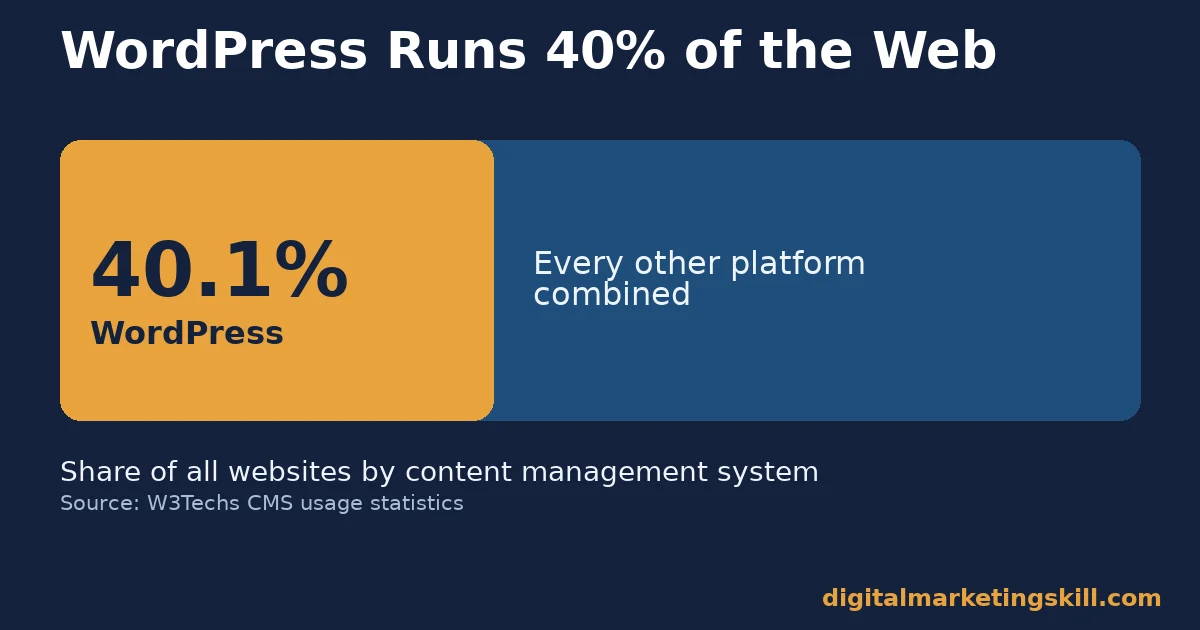
- WordPress now powers 40.1% of all websites. That is 58.6% of sites with a known content management system, more than every other platform combined.
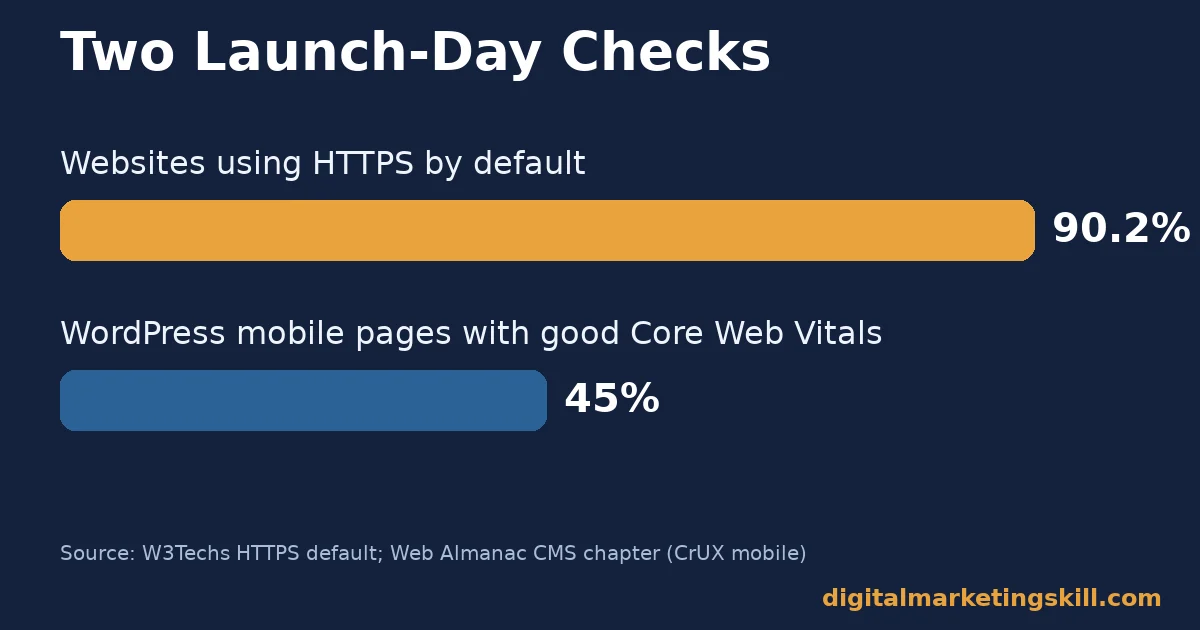
- 90.2% of all websites now use HTTPS by default. A new WordPress website without it looks dated to both visitors and search engines.
- About 60% of WordPress sites use a page builder. Elementor alone runs on 43% of WordPress sites on mobile. Picking a builder is normal, not a shortcut.
- Mobile WordPress sites rank among the lowest for Core Web Vitals performance, at only 45% good scores. That makes speed a launch-day task, not an afterthought.
- A site with roughly 500 pages or fewer that is well linked internally may not need an XML sitemap at all. That is good news for a first website.
In this guide
- Where Most “Build a WordPress Website” Guides Fall Short
- How Building a WordPress Website Actually Works
- What Differs By Stage
- Build a WordPress Website: What To Do At Each Stage
- Mistakes That Quietly Sink a New WordPress Website
- How To Measure Whether a New WordPress Website Launch Worked
- The One Decision Rule: Fix Speed and Security Before Design
- What a Well-Built WordPress Website Looks Like
- A Step-By-Step Checklist To Build a WordPress Website
- Frequently Asked Questions About How To Build a WordPress Website
- Your Next Step To Build a WordPress Website
Where Most “Build a WordPress Website” Guides Fall Short
Most guides jump straight into themes and plugins. That skips the two decisions that determine everything else: your domain name and your host. A slow host makes every later choice, theme, plugin, content, feel sluggish no matter how well you optimise it.
The other gap is security. Guides show you how to install WordPress, then stop. They rarely explain the handful of settings that keep a new site safe. Those settings matter most in the site’s first weeks online.
This guide, from the team at Digital Marketing Skill Institute, is built from documented platform data, not opinion. Platform numbers shift over time. Treat every figure here as a comparison point, not a permanent ranking.
The order matters here too. Picking a domain and host costs a small amount of money, decided once, and securing the install costs only a few minutes after that. Design costs a few hours, while content costs ongoing time for as long as the site exists. Spend your effort in that order, not the order that feels most exciting to start with.
How Building a WordPress Website Actually Works
WordPress is free, open-source software that runs on a web server. To build a WordPress website, you need three things working together. A domain name. Hosting space to run the software. And the WordPress install itself.
Once installed, WordPress separates structure from appearance. A theme controls how the site looks. Plugins add features without touching the core code. Content lives in a database, independent of both. That is why you can change your entire design later without losing a single post.
This separation is also why WordPress now powers 40.1% of all websites, 58.6% of sites with a known content management system, more than any single rival. No other platform lets you change so much without starting over.
Think of it as a relay race, not a single sprint. Hosting hands off to installation, installation hands off to design, and design hands off to content. A fast host still underperforms if the install is insecure, and a secure install still underperforms if nobody can find the finished content.
What Differs By Stage
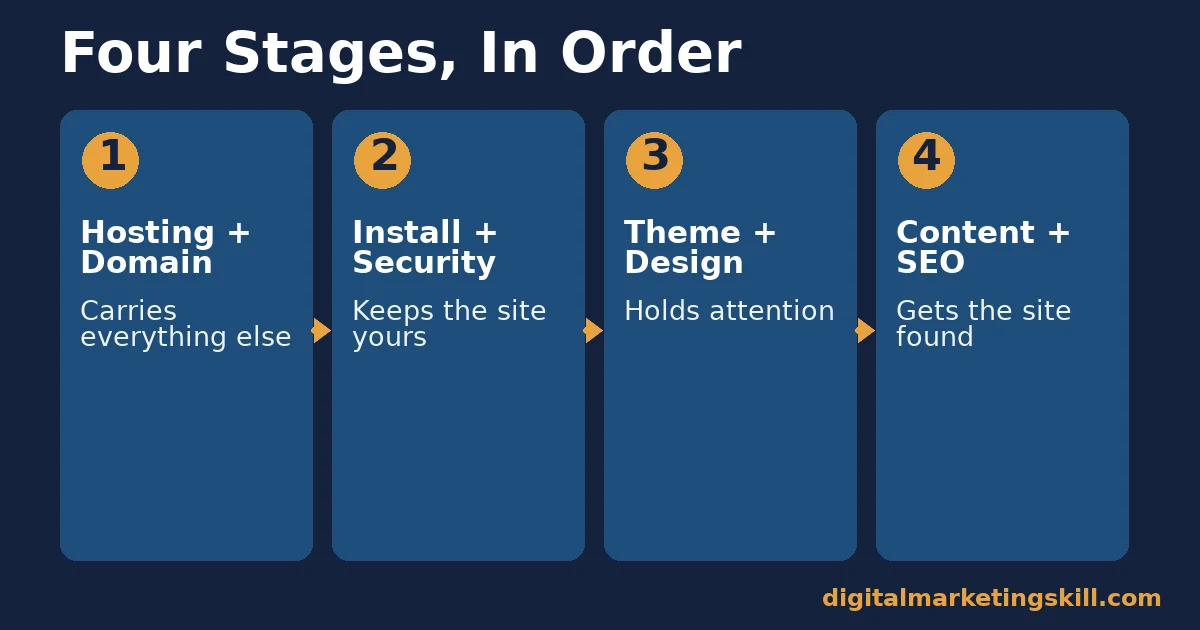
Four stages make up a new WordPress website. Hosting and domain. Installation and security. Theme and design. Content and SEO setup. Each stage has a different job. Rushing one creates problems in the next.
Hosting and Domain: Where You Build a WordPress Website From
Your host is the computer your site lives on. Every other stage runs on top of it, so a slow or unreliable host caps your site’s speed no matter how light your theme is.
Installation and Security: Built to Keep the Site Yours
A fresh WordPress install is a known target the moment it goes live online, because its default settings are already public knowledge. This stage decides whether the site stays yours.
Theme and Design: Built to Hold Attention
About 60% of WordPress sites use a page builder instead of hand-coding a theme. The Web Almanac’s CMS chapter puts Elementor alone on 43% of WordPress sites on mobile. This stage is where most of a visitor’s first impression forms.
Content and SEO Setup: Built to Be Found
A finished site nobody can find has not really launched. This stage covers the settings that decide whether search engines can read and rank your pages at all. It is also where a content marketing plan starts to pay off, once the site can actually be found.
Build a WordPress Website: What To Do At Each Stage
Knowing each stage’s job only helps once you act on it. Here is what to actually do at each one.
Hosting and Domain: Choose Speed Over Price
Pick a domain name that is short, spells easily when spoken aloud, and avoids hyphens. Google’s own URL structure guidance recommends hyphens over underscores inside a URL path. Your domain name itself should avoid needing either.
For hosting, prioritise speed test results and uptime guarantees over the cheapest monthly price. A host that is $3 cheaper a month but noticeably slower costs you more in lost visitors than it saves.
Shared hosting works fine for most new sites, and moving to managed WordPress hosting only makes sense once traffic grows enough that shared resources start slowing the site down during busy periods. There is no need to overpay for capacity you do not yet use.
Installation and Security: Lock the Basics Down First
Most hosts now offer a one-click WordPress install, which handles the technical setup. Once it is live, change the default admin username, install a security plugin, and confirm automatic updates are switched on.
Confirm HTTPS is active before you do anything else. W3Techs reports 90.2% of all websites now default to HTTPS. A site without it stands out for the wrong reason, to visitors and to search engines alike.
Theme and Design: Pick One Builder and Learn It Well
Choose a lightweight theme built for speed, then add a page builder only if you need one. With roughly 60% of WordPress sites already using a builder, this is a normal choice, not a shortcut to a worse result.
Resist installing a dozen different plugins before launch. Each one adds a small amount of load time. Mobile WordPress sites already rank among the lowest for Core Web Vitals, with only about 45% scoring well.
Content and SEO Setup: Make the Site Crawlable Before You Publish
Install an SEO plugin before you add your first page. Yoast SEO alone reports over 10 million active installs. That scale shows how standard this step has become.
Check that your site is not set to “discourage search engines,” a WordPress setting documented on WordPress.org that quietly outputs a noindex tag on every page when left on by mistake. Then confirm your sitemap is reachable, usually at a path like /wp-sitemap.xml on a fresh install. Once that is working, a deeper WordPress SEO pass will help the site rank, not just get crawled.
Mistakes That Quietly Sink a New WordPress Website
These five mistakes show up across almost every new site. Each one caps results no matter how good the content is.
- Choosing a host on price alone. A slow host caps every later improvement, no matter how well the theme and content are optimised.
- Skipping HTTPS at launch. With 90.2% of websites already defaulting to it, a site without HTTPS reads as neglected rather than new.
- Installing too many plugins before launch. Each plugin adds load time, and mobile Core Web Vitals scores on WordPress are already weak at about 45% good.
- Leaving “discourage search engines” switched on. This single setting can keep a finished site invisible to search engines for weeks before anyone notices.
- Publishing content before checking the sitemap. A site search engines cannot properly crawl delays every page from being found, no matter how good the writing is.
- Treating the launch as finished. A website is a maintained system, not a one-time project; updates, backups, and monitoring continue long after the first page goes live and the launch excitement fades.
These mistakes compound. A slow host, a missing sitemap, and too many plugins are not three small issues. Together they can keep a finished site invisible for months.
How To Measure Whether a New WordPress Website Launch Worked
Four checks tell you whether a launch actually worked, each defined in one sentence:
- Uptime: the share of time your site is actually reachable. Most hosts report this in their own dashboard, and it should sit above 99.9%.
- Page speed: how long a page takes to become usable. It is measured against Core Web Vitals, the metric mobile WordPress sites often score weakly on.
- Index coverage: how many of your pages a search engine has actually crawled and stored. A free search console tool shows this.
- Broken links: the number of links on your site that lead nowhere. They quietly damage both visitor trust and search visibility.
Illustrative, invented numbers: imagine a new site launches with 20 pages. A search console tool shows only 12 indexed after a few weeks. Fixing a missing sitemap and removing the noindex setting could plausibly bring the remaining 8 pages into the index within days. No new content needs to be written at all.
The same fix usually starts to increase website traffic once those pages are actually discoverable. Treat that as a planning estimate, not a guarantee. Check your own exact numbers after each fix.
The One Decision Rule: Fix Speed and Security Before Design
If you only change one thing after reading this, check two things first: your host’s speed and your site’s HTTPS status. Do this before you spend another hour on visual design. A beautiful theme on a slow, insecure host still underperforms a plain theme on a fast, secure one.
This rule outranks every design choice in this guide, because speed and security affect every single page on the site at once. A new font choice affects how a page looks. A slow host affects whether anyone waits to see it.
What a Well-Built WordPress Website Looks Like
WordPress is not a platform for small sites alone. W3Techs’ own tracking shows it running 40.1% of all websites, a scale that includes everything from single-page portfolios to large publishers, because the same separation of structure, design, and content scales in both directions.
The practical read: the fundamentals do not change as a site grows. Fast hosting, HTTPS, a crawlable sitemap, a lightweight theme. Get them right at launch, and they stay right as you add pages for years.
The limit on this evidence: market share shows adoption, not quality. A badly built WordPress site and a well-built one both count toward that 40.1%, so the number tells you WordPress scales, not that every WordPress site is well built. The checklist above is what separates the two outcomes, more than the platform itself does.
Honesty matters here too. A result that cannot survive “over what period” or “compared to what” does more harm than no result at all. Use real figures with their limits stated, or label an invented example clearly, as this guide does throughout.
A Step-By-Step Checklist To Build a WordPress Website
Use this as a launch-day checklist, not a theory lesson. Work through it in order, since each step depends on the one before it.
Before You Install WordPress
- Register a short, hyphen-free domain name. Say it out loud. If it is hard to spell from hearing it alone, pick a different one before you commit to it.
- Choose a host based on speed test results, not price alone. A cheap, slow host costs more in lost visitors than it saves in monthly fees.
- Install WordPress through your host’s one-click installer. Most hosts handle the technical setup automatically.
- Confirm HTTPS is active. Check for the padlock icon in the browser bar before you do anything else.
- Change the default admin username and set a strong password. Default settings are public knowledge, so this step matters more than it seems.
After WordPress Is Installed
- Install one lightweight theme and, if needed, one page builder. Resist adding more than one builder; it slows the site and confuses the editing workflow.
- Install an SEO plugin before publishing your first page. It handles meta descriptions, sitemaps, and basic schema automatically.
- Check that “discourage search engines” is switched off. This single setting can keep a finished site invisible for weeks.
- Publish one page and test it on mobile. Confirm it loads quickly before you build out the rest of the site.
- Submit your sitemap and monitor index coverage. This confirms search engines can actually find what you just built.
Most steps take only a few minutes once the host and domain are sorted. The slowest part is usually waiting for DNS to update, which can take a few hours on its own.
Frequently Asked Questions About How To Build a WordPress Website
How long does it take to build a WordPress website?
A basic site can go live in under an hour once hosting is set up, using a one-click installer and a pre-built theme. Custom design work takes longer, but the core steps stay the same.
Do I need coding skills to build a WordPress website?
No. A page builder and a theme handle the visual layout without code. Coding skills help for custom features, but are not required to launch a working site.
Is WordPress still the best platform to build a website on?
It is the most widely used, running 40.1% of all websites. Widely used is not the same as best for every case, but its scale means more themes, plugins, and support exist for it than for most alternatives.
How much does it cost to build a WordPress website?
WordPress itself is free. The ongoing cost is hosting and your domain name, plus any premium theme or plugin you choose. A basic site can launch on a modest hosting plan with no premium purchases at all.
Why is my new WordPress website not showing up in search results?
Check the “discourage search engines” setting first; it silently blocks indexing when left switched on. Then confirm your sitemap is reachable and that your SEO plugin is active.
Do I need an XML sitemap for a small WordPress website?
Not always. Google’s own sitemap guidance notes that a site with roughly 500 pages or fewer that is well linked internally may not need one, though most SEO plugins generate one automatically at no extra effort.
What is the most common mistake when building a WordPress website?
Choosing a host on price alone. A slow host caps every later improvement, including content and design work that would otherwise pay off.
Can I switch hosts after I build a WordPress website?
Yes. WordPress separates your content from the server it runs on, so moving hosts means transferring files and a database, not rebuilding the site. It takes planning, but it is a normal, well-documented process. Most hosts offer a free migration service for exactly this reason, which removes most of the technical risk from switching later.
Should I build a WordPress website myself or hire someone?
Build it yourself if you are comfortable following a step-by-step process and want to learn the platform. Hire someone if your time is better spent elsewhere, or if the design needs are genuinely custom.
What do I need before I start to build a WordPress website?
A domain name, a hosting account, and a rough idea of your site’s purpose. You do not need a finished logo or copy on day one; those can follow once the technical foundation is live. A simple list of the pages you expect to need is enough to get started.
Can I build a WordPress website for an online store?
Yes. The same core steps apply, with one addition: a commerce plugin to handle products, payments, and checkout. Get hosting, security, and speed right first, since a slow store loses sales faster than a slow blog loses readers. Checkout pages in particular need HTTPS without exception, since payment details pass through them. Test a full purchase yourself, from browsing to checkout, before inviting real customers to try it.
How do I keep a WordPress website secure after launch?
Keep WordPress core, your theme, and your plugins updated. Use a security plugin, a strong password, and limit how many people have admin access. Most breaches exploit outdated software sitting unpatched for months, not a sophisticated, targeted attack.
A weekly check is enough once the initial setup is done; this is not a daily task. Set a recurring reminder if you tend to forget routine maintenance once a site feels finished.
Your Next Step To Build a WordPress Website
Pick a fast host first, confirm HTTPS is active, then install one lightweight theme and one SEO plugin before you touch anything else. Publish one page, check it loads quickly on mobile, then build out the rest.
Want a structured path instead of piecing this together alone? The Master Diploma in Digital & AI Marketing at Digital Marketing Skill Institute covers WordPress and SEO alongside social media advertising, lead generation, and email automation. It comes with unlimited 1-on-1 coaching and mentoring, plus real project work inside a US partner company.
The diploma is dual US and UK accredited and recognised in more than 100 countries, delivered 100% online, so you can build these skills anywhere in your country. See full details and apply here, browse more guides on the blog, or read real outcomes on the reviews page first.
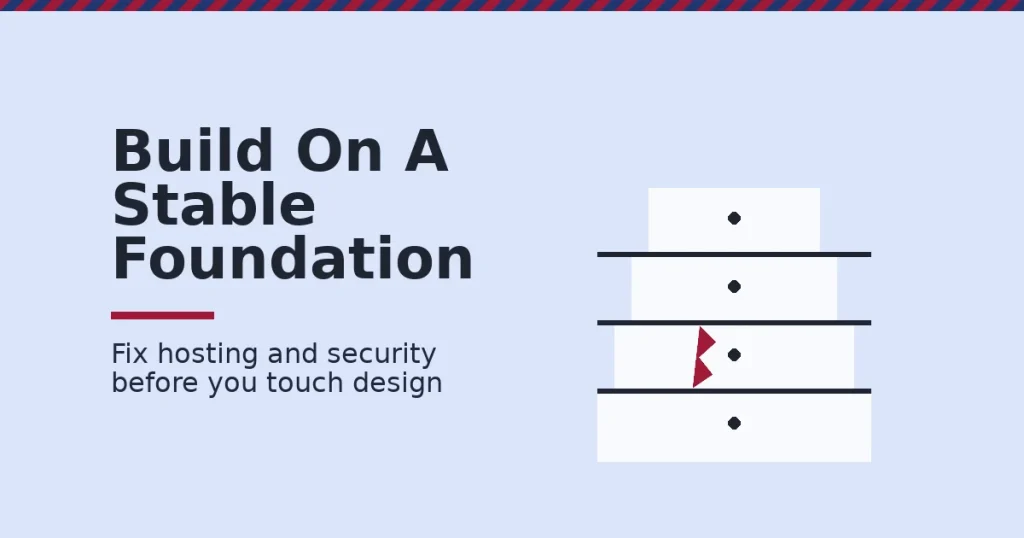
Wherever you live, the order stays the same. Fix hosting and security first. Design second. Content third. Then measure before you expand.
Every figure in this guide was checked against its original source before publication. Figures marked as illustrative are invented examples, not real results.
![9 Amazing Digital Marketing Skills to Make Money Online [With Proof]](https://digitalmarketingskill.com/wp-content/uploads/2019/07/9-Amazing-Digital-Marketing-Skills-to-Make-Money-Online-With-Proof-17.png)