
A website backup is a saved copy of everything that makes your website work, so you can restore it if something goes wrong. For most sites, that means the files and the database, stored somewhere other than the live server. It matters because hacks, failed updates, human error and server problems happen, and a good backup turns a disaster into a short delay.
Key Takeaways
- A full copy of a WordPress site has two parts: the files and the database. You need both to restore it.
- WordPress advises you to back up the database regularly and always before an upgrade.
- Its documentation suggests keeping at least three to five recent copies in different places.
- The UK’s National Cyber Security Centre (NCSC) warns that ransomware can lock your data, so keep one copy away from your main systems.
- A backup is only useful if you know how to restore it, so test the process.
What Is a Website Backup?
Think of it as a spare key to your house. You hope you never need it. But if you lose the main key, the spare saves you hours of stress and a big bill.
In the same way, a copy of your site lets you undo almost any problem. A plugin update breaks the layout? Restore last night’s copy. A hacker defaces the home page? Clean up and restore a version from before the attack. Someone deletes a key page by mistake? Bring it back in minutes.
The NCSC advises businesses to “make a copy (also known as a backup) of all the data that your business needs to operate.” It lists “your website” first among the examples. So for most firms, the site sits right at the top of the backup list.
How a Website Backup Works
Every backup follows the same pattern. First, you copy the site. Next, you store that copy somewhere safe and separate. Finally, when you need it, you restore it and check that everything works.
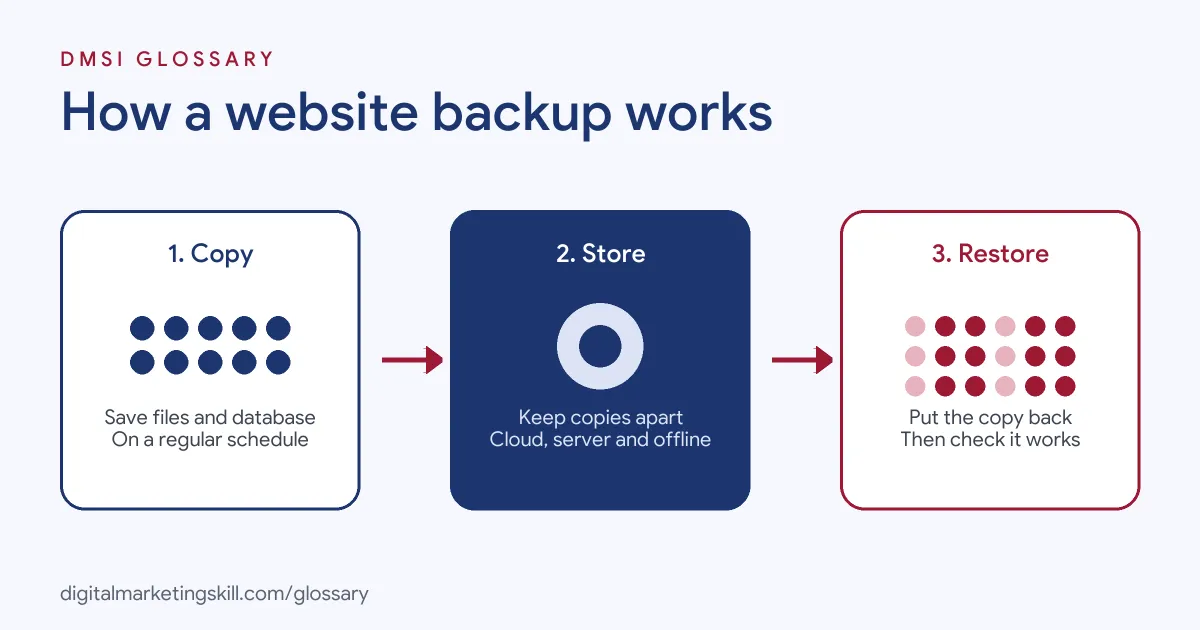
Files and Database
The WordPress documentation is clear: “There are two parts to backing up your WordPress site: Database and Files. You need both to be able to fully restore a typical WordPress site.”
The files include your theme, plugins, images and settings files. Meanwhile, the database holds your posts, pages, comments, users and most settings. If you copy only the files, you lose your content. If you copy only the database, you lose your design and uploads.
Where to Store Backups
A copy stored on the same server as the site is better than nothing. Yet if that server fails or gets hacked, the copy may go with it. So WordPress recommends keeping “at least 3–5 recent WordPress backups” in different locations. For example, it suggests one on your hosting server, one in cloud storage and one on your own computer.
The NCSC adds a useful warning. If you use an external drive, it “should not stay connected” when not in use, “as some viruses will also affect devices that are connected to an infected computer.” For cloud storage, it advises turning on 2-step verification.
Restoring a Backup
Restoring means putting the saved copy back in place of the broken site. Many hosts and backup plugins offer a one-click restore. However, the NCSC stresses that “it’s important you know how to restore it, and to check that it contains all your important data.” In practice, that means you should test a restore before you ever need one.
Website Backup Examples
Here are three made-up examples that show why backups matter:
- Failed update: A florist updates a page builder plugin, and the home page goes blank. Because her host took a copy that morning, she restores it in five minutes.
- Hacked site: A consultant’s site starts redirecting visitors to a spam page. After cleaning the server, his developer restores a clean copy from the week before.
- Human error: A shop assistant deletes a product category by mistake. The owner restores only the database from the previous night, and the products return.
In each case, the copy turned a crisis into a minor job.
Website Backup Options Compared
| Option | How it works | Watch out for |
|---|---|---|
| Host backups | Your host copies the site on a schedule | Copies may sit on the same system as the site |
| Backup plugin | A plugin copies files and database and sends them to cloud storage | Needs updating and checking like any plugin |
| Manual backup | You download files and export the database yourself | Easy to forget; takes time |
| Offline copy | You save a copy to a drive you then disconnect | Must be kept up to date and stored safely |
Most small businesses combine two of these. For instance, they use host backups plus a plugin that sends copies to the cloud.
How to Back Up a Website
- Check what your host does. Find out how often it backs up, how long it keeps copies and how you restore one.
- Add a second copy. Install a trusted backup plugin and send copies to separate cloud storage.
- Include both parts. Make sure each copy covers the files and the database.
- Set a schedule. Match it to how often the site changes. A busy shop may need daily copies; a brochure site may need fewer.
- Back up before changes. Always take a fresh copy before updates, redesigns or moves.
- Protect access. Use strong passwords and 2-step verification on the storage account.
- Test a restore. Restore a copy to a test area every few months to confirm it works.
Best Practices for a Website Backup
- Keep more than one copy. The NCSC suggests using online storage and a storage device to create two backups.
- Store copies off the server. A copy in a different place survives problems that hit the main site.
- Back up before every upgrade. WordPress says to back up “regularly, and always before an upgrade or a move to a new location.”
- Label your copies clearly. Use names that show what each copy contains and when it was taken.
- Write down the restore steps. Then anyone on the team can follow them in an emergency.
Common Mistakes to Avoid
First, many owners assume their host keeps copies, but never check. Second, they store every copy on the same server as the site. Third, they back up the files but forget the database. Finally, they never test a restore, so the first attempt happens during a real emergency. Each of these mistakes is easy to fix in an afternoon.
Why It Matters for Marketing
Your website carries your ads, emails, search traffic and sales. If it goes down for days, every campaign stops working. In addition, lost content can mean lost rankings and lost leads. A reliable copy keeps that downtime short. That’s why backups belong in every website maintenance plan, alongside updates and security checks.
Where You’ll Use a Website Backup at Work
Backup tasks appear in many WordPress and web roles. For example, remote job listings ask candidates to:
- “Perform regular website maintenance, security updates, and backups.” (WordPress Developer Intern).
- “Conduct regular updates, maintenance, and backups for WordPress websites.” (WordPress Developer).
- “Manage hosting environments, domains, DNS, SSL, backups, and performance optimization.” (Junior and Mid-Level Web Developer and Digital Marketing Specialists).
So if you plan to work as a WordPress Developer or Website Manager, you will set up and test backups for clients. It is often the first thing a careful developer checks when they take over a site.
Learn It in the WordPress and SEO Track
You can learn to build, protect and look after WordPress sites in the AI-Powered WordPress and SEO Specialist track. Your portfolio project is a WordPress site or store that you rank with an SEO content plan. The track is about 90% hands-on, with unlimited 1-on-1 mentoring and a U.S. Project Internship from day one.
If you are setting up a new site, our guide on how to install WordPress is a good place to start.
Frequently Asked Questions
What does a website backup include?
For WordPress, it includes the files, such as themes, plugins and images, and the database, which holds your content and settings. You need both for a full restore.
How often should I back up my website?
It depends on how often the site changes. Busy shops may need daily copies. Always take one before updates or big changes.
Is my host’s backup enough?
Often not on its own. Keep at least one extra copy in a separate place, such as cloud storage, in case the host has a problem.
How many backups should I keep?
WordPress suggests at least three to five recent copies, stored in different locations.
How do I know my backup works?
Test it. Restore a copy to a test area and check that pages, images and forms all work.
Sources: WordPress Developer Resources: Backups; WordPress.org: Updating WordPress; NCSC: Backing up your data; remote job listings on Himalayas.