
Alt text is a short written description of an image, added to the image’s HTML code, that tells people and search engines what the picture shows or why it is there. Screen readers read it aloud to people who can’t see the image, and browsers show it if the image fails to load. It matters because it makes your pages accessible to more people and helps search engines like Google understand your images.
Key Takeaways
- You add it with the alt attribute on an image, for example alt=”Dalmatian puppy playing fetch”.
- Google says it is “the most important attribute” for giving search engines information about an image.
- Good descriptions explain the image’s purpose in context, in a short phrase or sentence.
- Purely decorative images should have an empty alt attribute (alt=””), so screen readers skip them.
- Stuffing keywords into the attribute can make your site look like spam to Google.
What Is Alt Text?
“Alt” is short for alternative. It is the text alternative to an image. Google’s SEO Starter Guide describes it as “a short, but descriptive piece of text that explains the relationship between the image and your content.” You add it with the alt attribute of the img element.
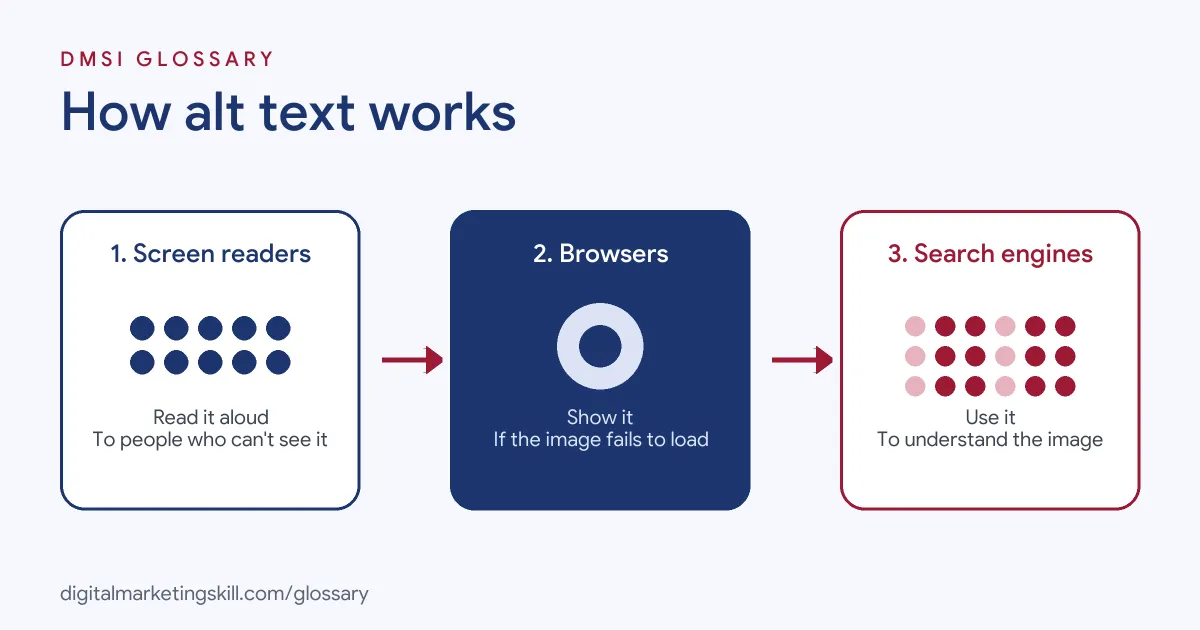
Here is what it looks like in code: <img src=”puppy.jpg” alt=”Dalmatian puppy playing fetch”>. Most people never see this text. However, it does three jobs. First, screen readers read it to blind and partially sighted users. Second, it appears in place of the image if the image doesn’t load. Third, search engines read it to understand what the image shows.
In WordPress, you don’t need to touch code. Instead, you type the description into a box in the image settings, and WordPress adds the attribute for you.
How Alt Text Works
It helps to picture three different readers. A screen reader user hears the description in place of the image. Google combines the text with its own image analysis. Meanwhile, a visitor on a slow connection sees the words while the picture loads, or if it never does.
For Accessibility
The W3C Web Accessibility Initiative says the text alternative “should convey the meaning or content that is displayed visually.” In other words, you describe what the image means on that page, not every detail in it. For example, a phone icon next to a number can simply say “Telephone”.
The W3C also notes that the choice depends on why you included the image. The same photo might need different descriptions on two different pages.
For Search Engines
Google’s image SEO guide says that “Google uses alt text along with computer vision algorithms” and the page’s content to understand images. It also calls this attribute “the most important attribute when it comes to providing more metadata for an image.” If an image is a link, Google treats the description much like anchor text.
For Decorative Images
Not every image needs a description. Borders, spacers and purely decorative pictures add no information. For these, the W3C says to use a null value, alt=””, so assistive technology can skip them. Don’t leave the attribute out entirely, though. Without it, some screen readers read out the file name instead.
Alt Text Examples
Google’s own guide gives a simple scale from bad to best:
| Rating | Example | Why |
|---|---|---|
| Bad | No alt attribute at all | Screen readers and search engines get nothing |
| Bad | alt=”puppy dog baby dog pup pups puppies…” | Keyword stuffing, which can look like spam |
| Better | alt=”puppy” | Accurate, but very thin |
| Best | alt=”Dalmatian puppy playing fetch” | Short, specific and descriptive |
Here are three more made-up examples for common marketing images:
- Example: product photo. “Black leather ankle boots with a side zip” tells shoppers and Google exactly what the item is.
- Example: chart in a blog post. “Bar chart showing email sign-ups doubling after the new pop-up” gives the point of the chart, not just “chart”.
- Example: team photo on an About page. “Our support team at the office” works, because the image’s purpose is to show real people.
Decorative vs Informative Images
The W3C treats informative and decorative images differently. Use this table to decide what each image needs:
| Image type | What it does | What to write |
|---|---|---|
| Informative | Shares a fact or idea, such as a product, chart or icon | A short phrase or sentence that gives its meaning |
| Decorative | Adds style only, such as a border or a mood image | An empty value: alt=”” |
The W3C says “whether to treat an image as decorative or informative is a judgment that only the author can make.” So think about why the image is on the page before you write anything.
How to Write Alt Text
Follow these steps for every image you add:
- Ask why the image is there. If it adds nothing, mark it as decorative.
- Describe the purpose, not every pixel. Write what a reader would miss if the image vanished.
- Keep it short. The W3C says a short phrase or sentence is usually enough for informative images.
- Be specific. “Dalmatian puppy playing fetch” beats “dog”.
- Use a keyword only if it fits. Google asks for content “that uses keywords appropriately”, never a list of them.
- Add it in WordPress. Open the Image block settings and find the Alternative text field, or set it in the Media Library.
- Check your pages. Use an SEO plugin or accessibility checker to find images with no description.
WordPress notes one useful detail. Text you add in the Media Library “sets the default alt text when you insert the image elsewhere,” while text added in a block applies only to that page.
Auditing Images on an Existing Site
Many older sites have lots of images with weak or missing descriptions. Rather than fixing them all at once, start where it counts. First, list your most visited pages and your key product or service pages. Next, check every image on those pages and sort it into informative or decorative. Then write or update the descriptions, starting with images that carry real information, such as products and charts. Finally, set a simple rule for your team, so every new upload gets a description before it goes live.
Best Practices
- Match the page context. Google asks you to keep descriptions “in context of the content of the page.”
- Name image files well too. Google says my-new-black-kitten.jpg is better than IMG00023.JPG.
- Don’t repeat nearby text. If a caption already explains the image, the W3C says it may count as decorative.
- Write for the reader first. If the description helps a person who can’t see the image, it usually helps search engines too.
Common Mistakes
Many sites leave images with no description at all, especially in galleries and sliders. Others paste the same keyword into every image on the page. Some use the file name, such as “IMG_0042”, or write “image” as the whole description. Finally, people often describe decorative shapes and icons, which adds clutter for screen reader users.
Where You’ll Use Alt Text at Work
Image descriptions are part of everyday SEO and content work. For example, one real remote listing for an SEO Content Editor asks candidates to “optimise images, alt text, metadata, structured data, headings, and on-page presentation so content is both search-friendly and easy to read.” Another, for a freelance SEO assistant, lists alt texts alongside page copy and metadata as core tasks.
So whether you aim to be an SEO Specialist, a WordPress Developer or a Website Manager, you will write and audit image descriptions, along with header tags and other on-page elements. Our on-page SEO checklist shows where images fit in.
Learn It in the WordPress and SEO Track
You can practise writing alt text in the AI-Powered WordPress and SEO Specialist track. There, you build a WordPress site or store and rank it with an SEO content plan, so every image you add is a chance to practise. You also join a U.S. Project Internship from day one, with unlimited 1-on-1 mentoring.
Frequently Asked Questions
What is alt text in simple terms?
It is a short description of an image, hidden in the page’s code. Screen readers read it aloud, and search engines use it to understand the image.
How long should alt text be?
There is no official character limit in the W3C guidance. Aim for a short phrase or sentence that gives the image’s meaning.
Does alt text help SEO?
Yes. Google says it uses the description along with computer vision to understand images, and calls it the most important attribute for image metadata.
Should every image have alt text?
Every image should have the alt attribute. However, decorative images should use an empty value, alt=””, so screen readers skip them.
Where do I add alt text in WordPress?
Select the image, open the block settings and fill in the Alternative text field. You can also set a default in the Media Library.
Sources: Google Search Central: Image SEO best practices; W3C WAI: Informative images; W3C WAI: Decorative images; WordPress.org: Image block; remote job listings on Himalayas.