Most people only install WordPress once or twice in their life. Every menu feels unfamiliar. Every warning feels risky. This guide walks through the real decision points: which method to use, what to configure first, and which three settings quietly cause the most support tickets later.
Key Takeaways
- WordPress now runs 39.7% of all websites and 58.5% of sites whose content management system is known. The skills in this guide stay in demand (W3Techs).
- WordPress.org recommends PHP 8.3 or greater, plus MariaDB 10.11+ or MySQL 8.0+, before you install WordPress. Older stacks still run, but they are no longer maintained (WordPress.org).
- CISA recommends passwords of at least 16 characters, stored in a password manager, plus multi-factor authentication on any account that can install WordPress plugins (CISA).
- WordPress’s own security guidance is direct: “keep your code up to date.” New security holes in plugins and themes appear as the software around them changes (WordPress Developer Resources).
- A one-click installer and a manual install both finish fast. They fail in different places later. Pick the method that matches how much control you want, not just how quick the first screen loads.
In this guide
- Why This Still Trips People Up
- What Happens When You Install WordPress
- What Differs By Install Method
- How To Fix The Most Common Setup Mistakes
- Choosing a Domain and Host Before You Install WordPress
- What To Install In The First Week
- How To Measure a Healthy WordPress Install
- The One Rule For Choosing Your Install Method
- A Worked Example: Launching a New Blog From Zero
- Frequently Asked Questions About How To Install WordPress
- Where to Go From Here
Why This Still Trips People Up
The steps to install WordPress have barely changed in a decade. The stack around them has. Hosting dashboards now hide the manual steps inside one-click wizards. That is convenient, until something breaks. There is no written record of what the wizard actually configured.
Most tutorials skip the two decisions that matter most. Where do the files live? Who can log in once the install finishes? Those two choices shape every support problem you will have for years. A rushed answer to either one now usually turns into a slow, repeated fix later, so it is worth the extra few minutes before the install script even starts.
This is not a single fixed process. A personal blog, a client site, and a multi-author publication all install WordPress the same way technically. But each one needs different follow-up steps right afterward. Treat every number and default below as a sensible starting point. None of it is a permanent configuration.
Two ground rules keep the rest of this guide honest. First, every setting is explained in plain terms before any step asks you to change it. Second, nothing here promises a specific ranking, income, or traffic outcome. It only covers what the software requires and what independent security guidance recommends.
What Happens When You Install WordPress
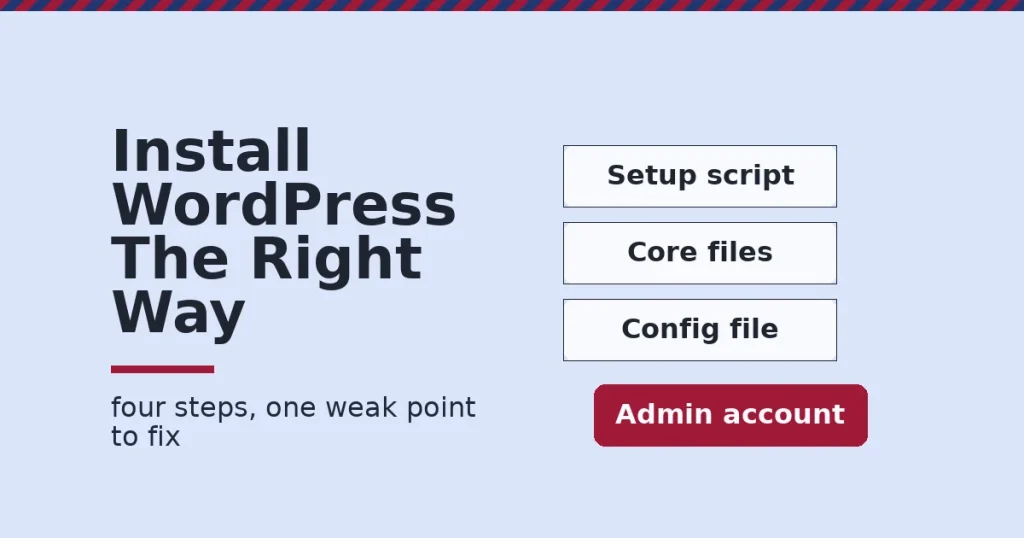
Underneath the one-click button, installing WordPress always does four things. It creates a database. It writes a configuration file that points WordPress at that database. It copies the WordPress core files to your hosting account. Then it runs a short setup script that asks for your site title, admin username, password, and email address.
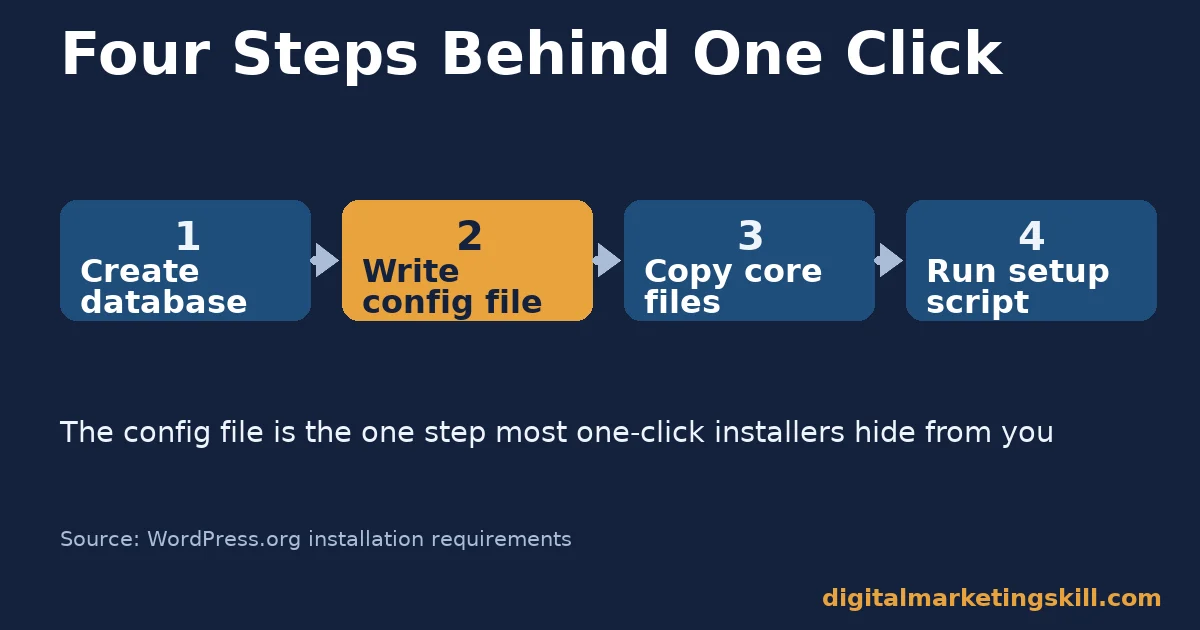
The database stores your posts, pages, settings, and comments as structured records. The configuration file, wp-config.php, is the bridge between those records and the core files. Together they turn raw data into a working website. If you ever move hosts, this is the one file you must update with the new database name, username, and password.
WordPress.org’s own requirements page recommends PHP 8.3 or greater. It also recommends MariaDB 10.11 or greater, or MySQL 8.0 or greater, with HTTPS support. The software still runs on PHP 7.4 and MySQL 5.5.5.
But WordPress.org says plainly that these older versions “are no longer maintained and may expose your site to security vulnerabilities.” Check your host’s control panel for the PHP version before you install WordPress, not after.
Every install also creates one administrator account. That account can add themes. It can install plugins. It can edit any page on the site. This is exactly why its username, password, and email need to be deliberate choices, not whatever the installer suggests by default.
HTTPS deserves one extra line here. Most hosts now issue a free SSL certificate automatically through Let’s Encrypt or a similar provider during setup. Confirm the padlock shows before you install WordPress on top of it; adding HTTPS after launch means updating every internal link and image URL from http:// to https://.
What Differs By Install Method
There are two real paths to install WordPress today. One is a hosting dashboard’s one-click installer. The other is a manual install through file transfer and a database tool. Both produce identical software. They differ in what you learn, what gets logged, and how much you can change before the first page loads.
One-Click Installers: Built For Speed
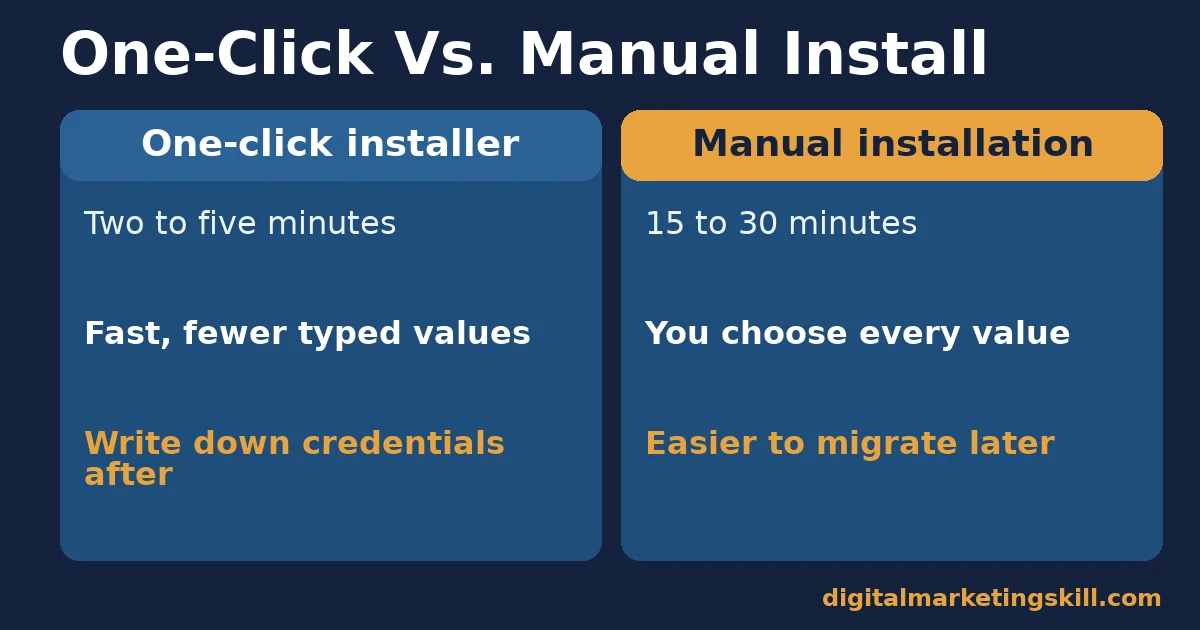
A one-click installer asks for a site title, an admin username, a password, and sometimes a starter theme. It handles the database creation and file copying for you, in the background. This is the right choice when you want a working site today and your host is reputable. It removes almost every chance to mistype a database credential by hand.
The trade-off is visibility. Most one-click installers generate the database name and admin username automatically. Not every dashboard shows you those values clearly afterward. Write down, or store in a password manager, the database name, database username, and admin login the moment the installer finishes. Do this before you navigate away from the success screen.
Manual Installation: Built For Control
A manual install means downloading the WordPress core files from WordPress.org. You create a database yourself through your host’s database tool. You upload the files by file transfer. Then you fill in wp-config.php with the database details, and run the five-minute setup script in your browser.
This path takes longer, usually 15 to 30 minutes instead of two or three. In exchange, you choose every name and password yourself. You know exactly which database belongs to which site, if you manage several. You keep a file-level record of the configuration for your own documentation. It also makes a later migration between hosts easier, because nothing about the setup was hidden from you in the first place.
How To Fix The Most Common Setup Mistakes
The two methods above do not fail in the same places. Knowing where each one tends to go wrong is more useful than a generic checklist. It tells you exactly where to spend your extra five minutes.
One-Click Installers: Lead With Security Checks
A one-click installer hides the setup. It is easy to click through without reading what username it chose. Before you do anything else, open Users in the WordPress dashboard. Confirm the admin account does not use “admin” as its username; that is a common installer default, and the first guess of any automated login attempt. Rename or replace it.
Turn on multi-factor authentication if your host or a plugin supports it. Generate a fresh password of 16 characters or more through a password manager, matching the CISA baseline above.
Manual Installation: Lead With Verified Backups
A manual install gives you more control, but also more places to mistype a value in wp-config.php. A wrong database host or password produces the generic “error establishing a database connection” message, with no further detail. Before you change anything else, confirm the site loads once with the exact values your host’s database tool gave you.
Then take a full backup of the files and database, and actually open it. A backup you have never restored is not a verified backup. Open the archive once, so you know it is complete before you rely on it.
Choosing a Domain and Host Before You Install WordPress
Two choices happen before either installer runs: the domain name and the hosting plan. Pick a domain that is short, easy to say out loud, and free of hyphens where possible. Avoid a trademarked term unless it is your own brand.
Register it through an accredited registrar, and keep the WHOIS contact details current; a domain tied to an old email address is the single most common reason owners lose access to it years later.
For hosting, match the plan to the PHP and database versions covered above, check that automatic daily backups are included or easy to add, and read the host’s own uptime guarantee rather than a marketing headline. A shared plan is fine for a first blog. A client site or anything taking payments usually needs managed or VPS hosting with faster time to first byte and a dedicated support line.
What To Install In The First Week
Once the core software is live, a short list of first plugins does more for security and speed than any theme choice. Add them one at a time.
Check each plugin’s active install count and last-updated date in the official WordPress plugin directory before you activate it. A plugin with millions of active installs, like the SEO plugin Yoast, which reports over 10 million active installations, is a reasonable signal of ongoing maintenance, though never a guarantee on its own.
- A caching plugin to reduce time to first byte on every page view.
- A security plugin that scans for malware and limits repeated login attempts.
- A backup plugin, or a backup feature from your host, that you actually test by restoring it once.
- An SEO plugin to manage titles, meta descriptions, and the sitemap your site submits to search engines.
Submit that sitemap to Google Search Console in the same first week. Search Console measures a site’s search traffic and performance, flags technical issues, and confirms Google can actually reach and index the pages you just published. Skipping this step is one of the most common reasons a new install goes unseen for months after launch.
A content delivery network, often free on the smallest tier from providers like Cloudflare, is worth adding at the same time if your audience is spread across more than one country; it serves cached pages from a server physically closer to each visitor, which lowers load time without any change to the WordPress install itself.
How To Measure a Healthy WordPress Install
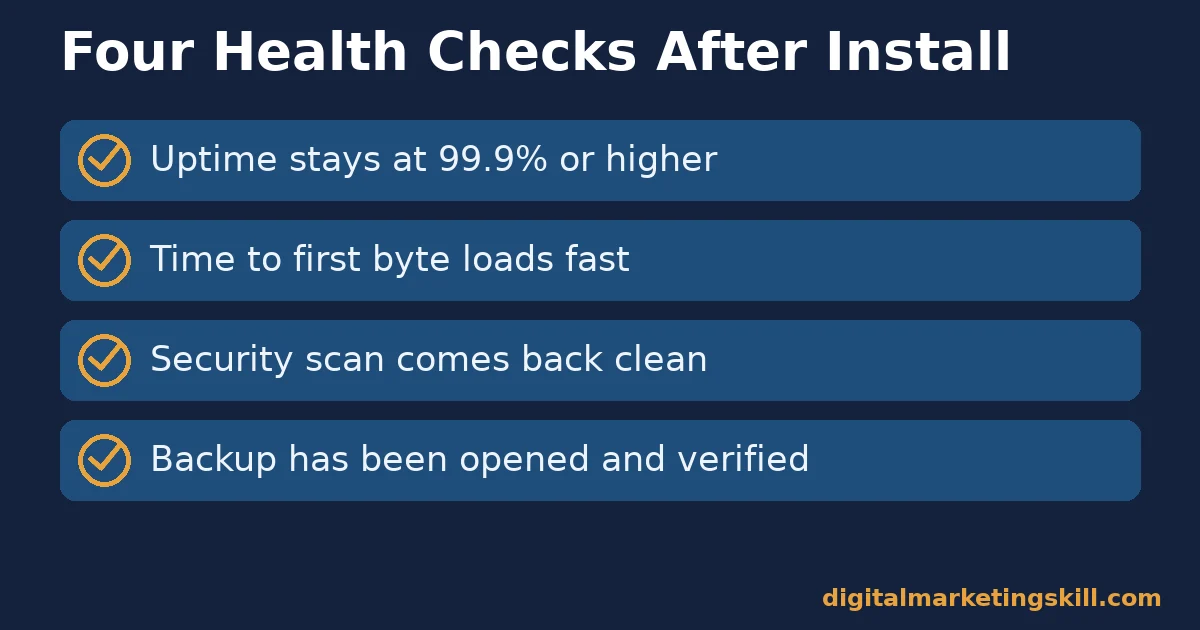
Once the software runs, four simple checks tell you whether the install is actually healthy, not just technically finished.
- Uptime: the percentage of time the site responds to a request. Most reputable hosts publish a monthly uptime figure. Anything consistently below 99.9% is worth raising with your host.
- Time to first byte (TTFB): how long the server takes to start sending a response, in milliseconds. A slow TTFB usually points to the hosting plan or an unoptimized database, not the install itself.
- Security scan pass rate: whether a security plugin or your host’s malware scanner reports a clean result. Run this check right after you install WordPress, to set a known-good baseline. Run it again after every major plugin or theme change.
- Backup recency: the age of your most recent verified, restorable backup. A backup schedule only counts once a backup has been opened and confirmed restorable at least one time.
None of these four checks needs special tools. Most hosting dashboards, and the free WordPress Site Health screen under Tools → Site Health, surface all four in one place.
The One Rule For Choosing Your Install Method
Decision rule: if you manage one site and trust your host, use the one-click installer, then spend the time you saved on the security checklist above. If you manage multiple sites, plan to migrate hosts, or need to document the exact configuration for a client or employer, install WordPress manually instead.
Illustrative, invented numbers: picture a freelancer who manages one personal blog and three client sites across different hosts. A one-click installer on all four might save about 20 minutes in total.
But without a written record of each database name, a lost password three months later could cost an hour of support-ticket back-and-forth per site. In this illustrative example, a manual install with one shared password-manager folder set up from day one removes that repeated cost entirely.
A Worked Example: Launching a New Blog From Zero
Illustrative, invented numbers: this is a step-by-step walkthrough, not a real company’s results. A new blogger buys a domain and a hosting plan that already meets the recommended PHP and database versions above. They open the host’s one-click installer, name the site, and let it generate the admin account.
Before publishing a single post, they do three things, in order. They rename the admin username away from the installer’s default. They turn on multi-factor authentication. They install one caching plugin and one security plugin from the official WordPress plugin directory, checking each plugin’s last-updated date to avoid abandoned software. Only after that do they choose a theme and write a first page.
In this illustrative walkthrough, the whole process, from install to security hardening to a published first page, takes under an hour. The security steps alone take longer than the install itself. That ratio is the point: the install is the easy part.
Frequently Asked Questions About How To Install WordPress
Do I need coding knowledge to install WordPress?
No. A one-click installer needs no code at all. A manual install only needs you to copy a database name, username, and password into a configuration file exactly as your host gives them to you. Neither path requires programming.
How long does it take to install WordPress?
A one-click installer usually finishes in two to five minutes. A manual install, including creating the database and editing the configuration file yourself, typically takes 15 to 30 minutes the first time, and faster after that.
What is the difference between WordPress.org and WordPress.com?
WordPress.org is the free, self-hosted software this guide covers. You choose your own host, plugins, and theme. WordPress.com is a separate hosted service that runs that same core software for you on its own servers, with fewer configuration choices and its own plans and limits.
What should I do immediately after I install WordPress?
Rename the default admin username if an installer created one automatically. Set a password of at least 16 characters through a password manager. Turn on multi-factor authentication if it is available. Take one verified backup before you add any content.
Can I move a WordPress site to a new host after installing it there?
Yes. The database and the core files are separate pieces. Export both, create a fresh database on the new host, update wp-config.php with the new database details, then upload the files. Those are the same four components that install WordPress in the first place.
Why do I see “error establishing a database connection” after installing WordPress?
This message almost always means one of four values in wp-config.php does not exactly match your hosting account’s database tool: the database name, username, password, or host. Compare each value character by character before checking anything else.
Is it safe to install WordPress plugins and themes from anywhere?
Install plugins and themes from the official WordPress plugin and theme directories, or from a developer whose site and support history you can verify. WordPress’s own developer security guidance is explicit that outdated or poorly maintained plugins and themes are a common source of new security holes. Check each one’s last-updated date before you activate it.
Do I need a separate SSL certificate before I install WordPress?
Not usually. Most hosts issue a free SSL certificate automatically as part of setup, often through Let’s Encrypt. Confirm the padlock appears in your browser before you install WordPress on the domain, since adding HTTPS afterward means updating internal links and image URLs from http:// to https:// across the whole site.
How do I keep WordPress updated safely after I install it?
Update core, themes, and plugins as soon as a new version is available, but take a verified backup first. Most security problems on established sites trace back to one outdated plugin or theme, not the core software itself, which is why the developer guidance above treats “keep your code up to date” as the single most important habit after the install itself.
Should I install WordPress Multisite instead of a single site?
Only if you plan to run several related sites from one dashboard, such as a network of local chapters or a franchise group. Multisite shares one WordPress install, one set of core files, and one database across every site in the network, which simplifies updates but makes each site depend on the same server resources and the same uptime.
For one blog or one business site, a standard single install is simpler to manage and easier to migrate later.
Where to Go From Here
Installing WordPress is the easy five minutes of running a site. Everything after that is where most people actually need guidance: structure, security habits, and the skills to grow a site, wherever in your country you happen to be running it.
This site’s guide to how to build a WordPress website covers the next stage. The WordPress SEO guide covers what to configure before your first post gets indexed. If you are choosing a host or a domain first, see the notes on website hosting services and how to choose the right domain name.
At Digital Marketing Skill Institute, WordPress setup and security sit inside the AI-Powered WordPress and SEO Specialist track of the Master Diploma in Digital & AI Marketing. It is one of four AI-powered tracks, totalling ten courses, with a Full Stack option if you want all four.
Every track includes unlimited 1-on-1 coaching and mentoring, a U.S. Project Internship with a verified U.S. Work Reference Letter, and dual US and UK accreditation recognised in more than 100 countries. The program runs 100% online, wherever you live.
See real outcomes on the reviews page, read the full program on the Master Diploma page, browse more guides on the blog, or go straight to the application page to start. Learn more at digitalmarketingskill.com, and start your application at digitalmarketingskill.com today.
Every figure in this guide was checked against its original source before publication. Figures marked as illustrative are invented examples, not real results.
![9 Amazing Digital Marketing Skills to Make Money Online [With Proof]](https://digitalmarketingskill.com/wp-content/uploads/2019/07/9-Amazing-Digital-Marketing-Skills-to-Make-Money-Online-With-Proof-17.png)