
Caching is the practice of saving a copy of data, such as a web page, image or database result, so it can be served again quickly without rebuilding or downloading it from scratch. The copy is called a cache, and it can live in the browser, on the server or on a network in between. For websites, caching is one of the simplest ways to make pages load faster and to reduce the load on your hosting.
Key Takeaways
- Caching stores a ready-made copy, so repeat requests skip slow work.
- The WordPress handbook calls caching “the fastest way to improve performance.”
- There are several layers: browser, page, object and server caching, plus CDNs.
- The Cache-Control header tells browsers how long to keep a file and whether to check it first.
- Versioned file names let you cache files for a long time and still push updates instantly.
What Is Caching?
Think about a busy coffee shop. If every customer orders the same flat white, the barista could make each one from scratch. Or, at the morning rush, they could keep a few ready to go. The second approach is faster, and the barista works less hard.
Websites work the same way. Without a saved copy, a WordPress server rebuilds each page for every visitor. It runs code, queries the database and assembles the HTML each time. With caching, it builds the page once, saves the result and hands that copy to the next visitors.
The benefit shows up in two places. First, visitors get pages faster. Second, the server does far less work, so it copes better with traffic spikes from ads or emails.
How Caching Works
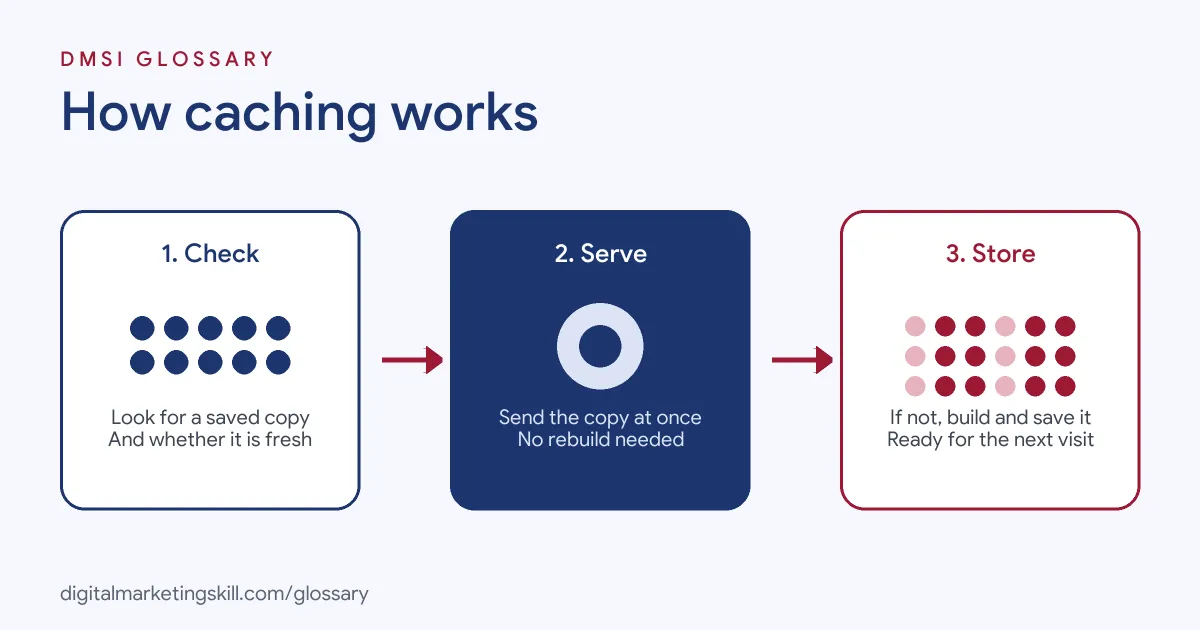
Every cache follows the same basic idea. First, the system checks whether it already has a fresh copy. If it does, it serves that copy at once. If not, it fetches or builds the item, serves it and saves a copy for next time.
Browser Caching
Your browser keeps its own store of files. According to web.dev, “all HTTP requests that the browser makes are first routed to the browser cache” to see if a valid copy already exists. If one does, the file loads from the device instead of the network.
MDN calls this a private cache, because it belongs to one user. By contrast, a shared cache sits between the user and the server and can serve the same copy to many people. CDNs and proxies are shared caches.
Server-Side Caching
On the server, WordPress supports several types. Page caching saves the finished HTML of a page. Object caching, as the WordPress handbook puts it, is “the act of moving data from a place of expensive and slow retrieval to a place of cheap and fast retrieval.” It usually stores database results in memory. Plugins such as W3 Total Cache, WP Super Cache and Cache Enabler handle much of this for you.
Cache-Control Headers
The server tells browsers how to treat each file through HTTP headers. Web.dev lists a few useful values:
- no-cache: the browser “must revalidate with the server every time before using a cached version.”
- no-store: browsers and other caches, such as CDNs, should “never store any version of the file.”
- private: browsers can cache the file, but intermediate caches cannot.
- max-age: how long, in seconds, the file stays fresh.
In addition, an ETag gives each file a small token. When a cached copy expires, the browser can send that token to check whether the file has changed, rather than downloading it again.
Caching Examples
Here are three made-up examples that show caching in action:
- Blog: A food blogger installs a page caching plugin. Her recipe pages now load from saved HTML instead of being rebuilt for every reader.
- Online shop: A store caches product images and style files in browsers for a long time. However, it excludes the cart and checkout pages, because they change for each shopper.
- Campaign launch: A brand expects a traffic spike from a TV mention. It turns on server caching and a CDN, so the site stays up under the extra load.
In each case, caching saves repeated work while keeping personal pages fresh. The trick is deciding which pages are the same for everyone and which are unique to each visitor. Get that split right, and most sites become noticeably quicker.
Types of Caching Compared
| Type | Where it lives | What it stores |
|---|---|---|
| Browser cache | The visitor’s device | Images, styles, scripts and pages |
| Page cache | The web server | Finished HTML pages |
| Object cache | Server memory | Database query results |
| CDN cache | Servers around the world | Copies of files close to visitors |
Most fast websites use more than one layer. For example, they combine a page cache on the server with browser caching and a CDN.
How to Set Up Caching on WordPress
- Check your host first. Many managed hosts include server caching. If so, you may not need a separate plugin.
- Install one caching plugin. Choose a trusted option and avoid running two at once.
- Turn on page caching. This gives the biggest gain for most sites.
- Exclude dynamic pages. Leave out the cart, checkout, account pages and anything personalised.
- Set browser caching. Give images, fonts and style files a long max-age.
- Add a CDN if needed. The WordPress handbook says a CDN “is most effective if used with a WordPress caching plugin.”
- Test and clear. Check pages while logged out, then clear the cache after each big change.
Best Practices for Caching
- Use versioned file names. Web.dev calls versioned URLs “a good practice because they make it easier to invalidate cached responses.”
- Cache versioned files for a long time. Web.dev suggests max-age=31536000 for versioned resources, which is one year in seconds.
- Always send Cache-Control. MDN advises that “basically all responses should explicitly specify a Cache-Control header.”
- Keep personal data private. Use the private directive for pages built for one user.
- Measure the result. Track page speed and Core Web Vitals before and after.
Common Mistakes to Avoid
First, owners cache the checkout, so shoppers see someone else’s basket or an old price. Second, they run two caching plugins that fight each other. Third, they make a design change, forget to clear the cache, and think the update failed. Finally, they test only while logged in, when many plugins skip caching, so they never see what visitors see. Each of these is easy to avoid with a short checklist that you run after every change to the site.
Why It Matters for Marketing
Speed affects almost every marketing number. Slow pages lose visitors before they see your offer. In addition, paid traffic costs the same whether a page loads fast or slow, so a slow site wastes ad budget. Good caching also keeps a site online during traffic spikes from launches, sales and viral posts. In short, it protects both the experience and the spend.
Where You’ll Use Caching at Work
Caching appears in many web and WordPress roles. For example, remote job listings ask for:
- “Experience with performance optimization (caching, image optimization, etc.)” (WordPress Developer).
- The ability to “Improve site speed via caching, lazy loading, and optimized code” (WordPress Developer).
- “Solid foundation in web fundamentals: HTTP, caching, cookies, security headers/CSP, OAuth/OIDC, secure coding.” (Senior Full Stack Software Engineer).
So if you plan to work as a WordPress Developer or Website Manager, you will set up and tune caching often. SEO Specialists also need to understand it, because speed problems show up in their reports.
Learn It in the WordPress and SEO Track
You can learn to build fast WordPress sites in the AI-Powered WordPress and SEO Specialist track. Your portfolio project is a WordPress site or store that you rank with an SEO content plan. The track is about 90% hands-on, with unlimited 1-on-1 mentoring and a U.S. Project Internship from day one.
For more ways to speed up a site, read our guide to website page speed.
Frequently Asked Questions
What is caching in simple terms?
It means keeping a ready-made copy of something, so it can be shown again quickly. On websites, it makes pages load faster.
Does caching help SEO?
Indirectly. It makes pages faster, which improves the visitor experience and speed measures such as Core Web Vitals.
What should I not cache?
Avoid caching pages that change for each user, such as the cart, checkout, account and login pages.
Why do I not see my changes after editing?
You may be seeing a saved copy. Clear the plugin, server or CDN cache, then reload the page.
Is caching the same as a CDN?
No. A CDN is one type of shared cache spread across many locations. Caching can also happen in the browser and on your own server.
Sources: MDN Web Docs: HTTP caching; web.dev: Prevent unnecessary network requests with the HTTP Cache; WordPress Developer Resources: Cache; WordPress Developer Resources: Optimization; remote job listings on Himalayas.