
Google Ads Editor is a free desktop application from Google that lets you download your Google Ads campaigns, edit them offline and upload the changes in bulk. It saves a lot of time when you manage large accounts or many accounts at once. As a result, tasks that take hours in the web interface can take minutes. It also lets you review every edit before it goes live.
Key Takeaways
- Google Ads Editor is a free, downloadable program for managing Google Ads campaigns.
- You download an account, make changes offline, then post them back to Google Ads.
- It is built for bulk work, such as editing hundreds of ads or keywords at once.
- Changes stay as drafts on your computer until you choose to post them.
- It checks for errors before posting, so you can fix problems first.
What Is Google Ads Editor?
Most people manage Google Ads in a web browser. That works well for small changes. However, it gets slow when you need to change many things at once. Google Ads Editor solves that problem with a program you install on your computer.
Google describes it as “a free, downloadable application for managing your Google Ads campaigns.” The basic idea is simple. You “download one or more accounts, make changes offline, then upload the changes to Google Ads.” So you can work on a train, on a plane or anywhere without a stable connection.
Think of it like editing a document in a word processor before you email it. You can draft, undo and check your work first. Then, only when you are happy, do you send it. In the same way, Editor keeps your changes as drafts until you post them.
Also, the tool is made for scale. Google says it “can help you save time and make it easier to make changes in bulk.” For example, you can copy a whole campaign, swap a word across thousands of ads or update many bids in one step.
Why It Matters
Why does this matter for your work? Because large accounts are hard to manage by hand. For instance, an online shop may run hundreds of ad groups across many campaigns. Changing a sale message in every ad through the web interface could take a whole day. By contrast, in Editor you can find and replace the text in a few clicks. On top of that, you can review each change before it reaches live ads. That lowers the risk of costly mistakes.
Agencies and in-house teams often turn to it for big jobs. So knowing it well is a practical skill that saves time from your first project.
How Google Ads Editor Works
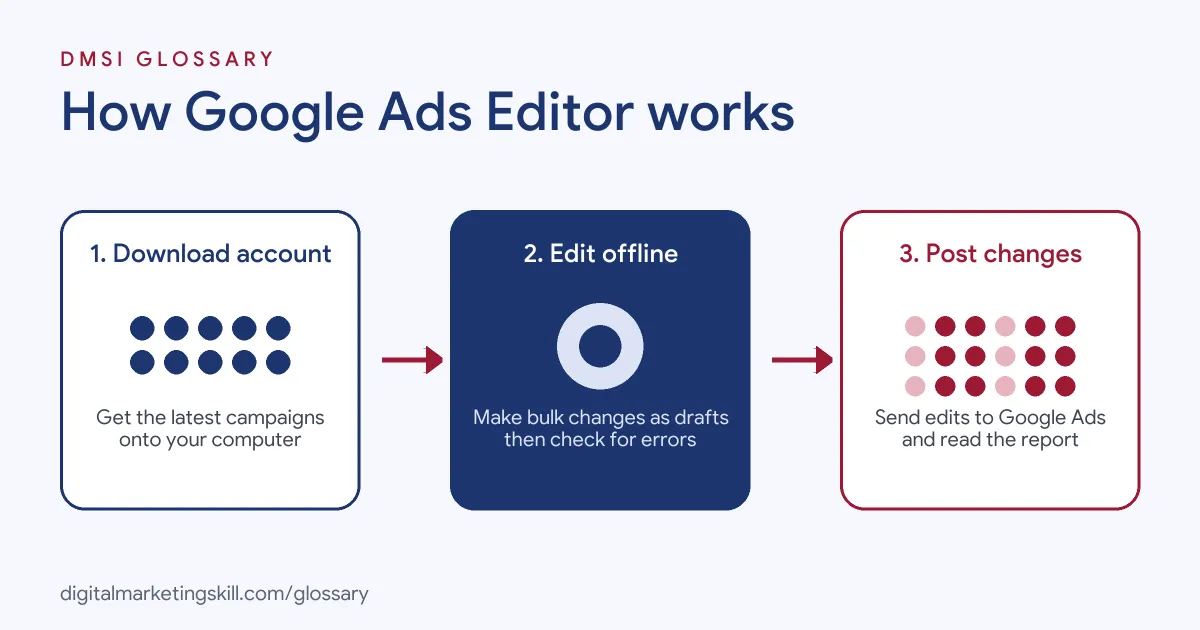
Google Ads Editor works in a simple cycle. First you download your account, then you make changes offline, and finally you post those changes back to Google Ads. Each step has its own checks.
Download the Account
First, you sign in and add your account to Editor. Then it downloads your campaigns, ad groups, ads and keywords to your computer. Before each work session, you get the latest version. Google advises you to “download your recent changes to make sure Google Ads Editor has the most up-to-date version of the account.” This matters if colleagues also edit the account online.
Make Changes Offline
Next, you edit the account as drafts. You can add campaigns, change bids, pause keywords or write new ads. Also, you can import changes from a spreadsheet. Google notes that if you edit an exported CSV file, “you can then import it to apply your changes in Google Ads Editor.” Edited items are marked so you can see what changed.
Use the Bulk Tools
This is where Editor really saves time. For example, Google says you can “search and replace text” across many campaigns at once. Also, “Google Ads Editor provides several ways to copy or move items from one location to another.” So you can copy an ad group into a new campaign, or move keywords to a better home. In addition, you can paste rows straight from a spreadsheet. Then you only need to check the results, rather than type every change by hand. As a result, a job that touches thousands of items becomes a short, careful task.
Check for Errors
Before you post, Editor reviews your changes. If it finds a problem that could block posting, “error icons appear next to the items with issues.” So you can fix broken ads, missing fields or policy problems first. In addition, you can view your pending changes as a list and undo any you don’t want.
Post the Changes
Finally, you click Post in the toolbar. Then you choose to post all campaigns or only selected ones. Editor shows a report of what posted and what failed. As a result, you know straight away which items need another look.
Examples of Google Ads Editor
- A retailer running a weekend sale. The team needs a new message in hundreds of ads. So they use find and replace in Editor. Then they review the drafts and post them all on Friday morning.
- An agency launching in a new country. The account manager copies a full campaign from one market. After that, she changes the location, language and budget. As a result, the new campaign is ready in under an hour.
- A software firm cleaning up keywords. The marketer exports all keywords to a spreadsheet and marks weak ones. Then he imports the file back into Editor and pauses them in one step.
Google Ads Editor vs the Google Ads Web Interface
| Point | Google Ads Editor | Google Ads Web Interface |
|---|---|---|
| Where it runs | Desktop program on your computer | Web browser |
| Internet needed | Only to download and post | All the time |
| Best for | Bulk edits and big builds | Quick changes and reports |
| When changes go live | Only after you post them | Usually as soon as you save |
| Reporting | Basic stats only | Full reports and insights |
How to Use Google Ads Editor
- Download and install it. Get the program from Google’s official Google Ads Editor page.
- Add your account. Sign in with the Google account that has access to your Google Ads account.
- Get recent changes. Download the latest data before you start, so you don’t overwrite a colleague’s work.
- Make your edits. Change bids, ads, keywords or settings. Also, use bulk tools such as find and replace.
- Check changes. Run the check and fix any items with error icons.
- Review pending changes. Look through the list and undo anything you don’t want.
- Post your changes. Click Post, choose all or selected campaigns, and read the report.
- Confirm online. Finally, open the web interface to make sure the key changes look right.
Best Practices for Google Ads Editor
- Always start fresh. Download recent changes before every session to avoid clashes with online edits.
- Export a backup first. Save a copy of the account before a big change, so you can compare later.
- Post in small batches. Smaller posts are easier to check and easier to fix if something fails.
- Keep a change log. Note what you changed and why, so teammates understand your work.
- Double-check budgets. A wrong campaign budget in bulk can overspend fast, so review it before posting.
- Keep Editor updated. Install new versions, because Google adds support for new features over time.
Common Mistakes to Avoid
- Skipping the download step. Old data can overwrite newer changes made online.
- Posting without checking. Errors can stop items from posting, or let wrong items go live.
- Forgetting drafts. Unposted changes don’t run, so a campaign you built may never start.
- Bulk-replacing too widely. Find and replace can change words you didn’t mean to touch. So preview the results first.
- Ignoring match types. When you paste keywords, check the keyword match types are right.
- Using Editor for analysis. It shows basic stats only. Instead, use the web interface for deeper reports.
Where You’ll Use Google Ads Editor at Work
You’ll use Google Ads Editor in PPC specialist, paid search manager and performance marketing roles. For example, agency staff use it to build new search ads campaigns, roll out new responsive search ads and add negative keywords across many accounts. Also, in-house marketers at large shops use it for seasonal updates. Job ads for these roles often ask for strong Google Ads skills, and Editor is a core part of that daily work.
Learn It in the Google Ads and Analytics Track
You can learn Google Ads Editor and bulk campaign management in the AI-Powered Google Specialist track. Every track includes a U.S. Project Internship from day one, with unlimited 1-on-1 mentoring.
Frequently Asked Questions
Is Google Ads Editor free?
Yes. Google describes it as a free, downloadable application for managing your Google Ads campaigns.
Do changes go live straight away?
No. Your edits stay as drafts on your computer until you click Post and send them to Google Ads.
Can I use Google Ads Editor offline?
Yes. You need the internet to download and post. However, you can make changes offline in between.
Can I manage more than one account?
Yes. You can add several accounts and make changes across them, which suits agencies and large teams.
Should I still use the web interface?
Yes. Editor is best for bulk edits. Still, the web interface is better for reports, insights and quick changes.
Sources: Google Ads Editor Help: About Google Ads Editor; Google: Google Ads Editor; Google Ads Editor Help: Post changes to Google Ads; Google Ads Editor Help: Check changes before posting; Google Ads Editor Help: Export account data to a spreadsheet (CSV); Google Ads Editor Help: Copy, move, or paste items in an account.