
A robots.txt file is a plain text file at the root of a website that tells search engine crawlers which parts of the site they may or may not crawl. It lives at an address such as example.com/robots.txt and uses simple rules like “Disallow: /admin/”. It matters because it helps you manage crawler traffic, but one wrong line can stop search engines from crawling your whole site.
Key Takeaways
- The file controls crawling, not indexing. Google says it is “not a mechanism for keeping a web page out of Google.”
- A blocked page can still appear in search results, just without a description.
- To keep a page out of Google, use noindex or password protection instead.
- The file must sit at the root of the site, use UTF-8 and be named exactly robots.txt.
- Rules are case-sensitive, and by default everything is allowed unless you block it.
What Is a Robots.txt File?
Google explains that “A robots.txt file tells search engine crawlers which URLs the crawler can access on your site.” It follows a long-standing convention called the Robots Exclusion Standard.
Think of it as a sign on the door of each room in a building. The sign asks visitors to stay out of certain rooms. Polite visitors respect it. However, the sign doesn’t lock the door, and anyone can still read it. That’s why it’s a crawl tool, not a security tool.
The main purpose is practical. Google says the file “is used mainly to avoid overloading your site with requests.” For example, you might stop crawlers from spending time on endless filter pages, internal search results or a staging folder.
Here is a simple case. An online shop has thousands of URLs created by its filters, such as /shoes?colour=red&size=9. These pages add little value in search. So the shop adds a rule that stops crawlers from requesting them, leaving more crawl time for real product pages.
How Robots.txt Works
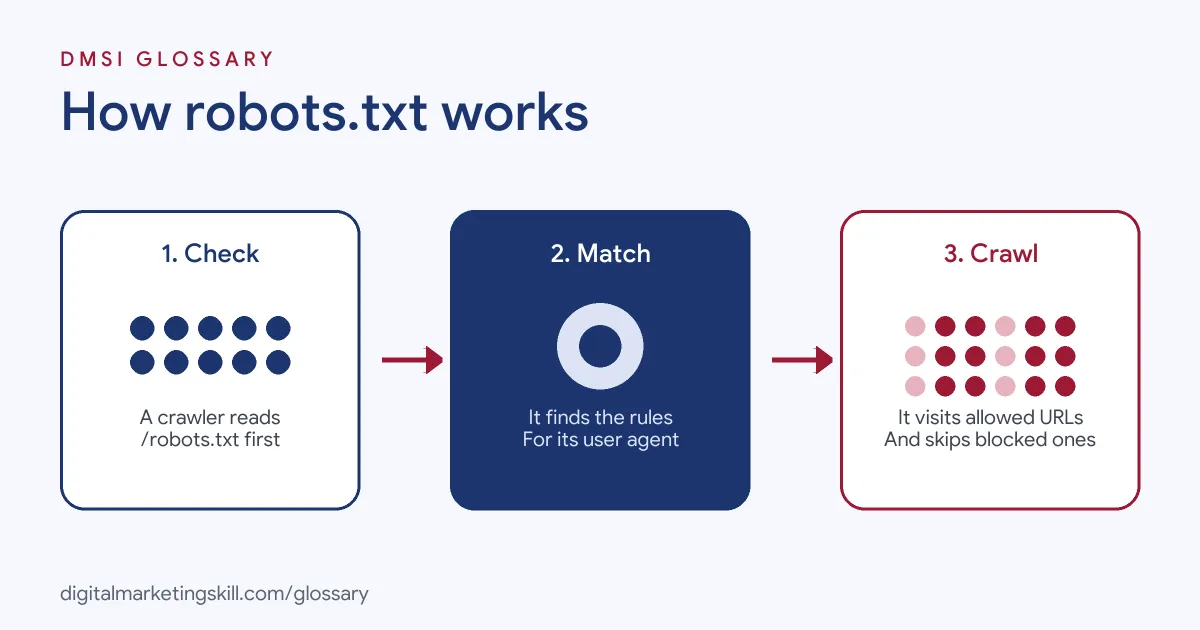
Before a well-behaved crawler visits your pages, it checks the file at the root of your site. It reads the rules that apply to it, then crawls only what is allowed.
The Main Robots.txt Rules
Each group of rules starts with a user agent, which names the crawler. Then come lines that allow or block paths. Here is Google’s own simple example:
User-agent: GooglebotDisallow: /nogooglebot/User-agent: *Allow: /Sitemap: https://www.example.com/sitemap.xml
This means Googlebot may not crawl any URL starting with /nogooglebot/. All other crawlers may crawl the whole site. The last line points to the sitemap.
Defaults, Case and Comments
A few details trip people up. First, Google says that unless you block something, “all files are implicitly allowed for crawling.” Second, rules are case-sensitive. A rule for /file.asp doesn’t cover /FILE.asp. Third, a # starts a comment, which crawlers ignore.
Where the File Must Live
Google sets clear format rules. The file must be named robots.txt, and your site can have only one. It must sit at the root of the host it applies to. So a file at https://example.com/robots.txt doesn’t cover a subdomain such as https://m.example.com/, or a different protocol such as http://example.com/. It must also be a UTF-8 encoded text file.
Robots.txt vs Noindex vs Password Protection
This is the most common area of confusion. Here is when to use each:
| Tool | What it does | Use it when |
|---|---|---|
| robots.txt Disallow | Stops crawlers requesting the URL | You want to manage crawl traffic or keep media files out of search |
| Noindex | Tells search engines not to show the page in results | You want a page out of search but still reachable by visitors |
| Password protection | Blocks everyone without a login | The content is private, such as a client area |
There is an important catch. If you block a page in robots.txt, Google can’t see a noindex tag on it. Google also warns that a blocked URL “can still appear in search results”, without a description, if other pages link to it.
Robots.txt Examples
Here are three made-up examples of sensible rules:
- Internal search: A blog blocks /search/ so crawlers don’t waste time on endless results pages.
- Media files: A photographer blocks a folder of private image proofs. Google notes robots.txt can stop image, video and audio files from appearing in its results.
- Staging site: A developer blocks crawlers on a test copy of the site, and also adds password protection, since robots.txt alone won’t keep it out of search.
How to Create a Robots.txt File
Google breaks the job into four steps: create the file, add rules, upload it to the root and test it. In more detail:
- Open a plain text editor, such as Notepad or TextEdit. Google warns against word processors, which can add curly quotes and other characters.
- Add a User-agent line for each crawler you want to address, or * for all.
- Under each one, list Disallow or Allow lines for the paths you want to control.
- Finish with a Sitemap line that gives the full URL of your XML sitemap.
- Save the file as robots.txt with UTF-8 encoding.
- Upload it to the root of your site, so it loads at /robots.txt.
- Test it, for example with the robots.txt report in Google Search Console.
Once it’s live, open yourdomain.com/robots.txt in a browser to confirm it loads. Then check a few important pages in Search Console to make sure none of them are blocked by mistake. Repeat this check after every redesign, migration or plugin change, since these are the moments when a stray rule often slips in.
Best Practices for Robots.txt
- Keep it short. Only block what you have a clear reason to block.
- Don’t block CSS or JavaScript you need. Search engines may need them to understand your pages.
- Don’t use it to hide private content. Anyone can read your robots.txt file.
- Don’t use it for duplicates. Google advises against using robots.txt for canonicalisation.
- Re-check after launches. A rule left over from staging can block a live site.
Common Robots.txt Mistakes
The most damaging mistake is “Disallow: /” left in place after a site goes live, which blocks crawlers from everything. Another is trying to remove a page from Google by blocking it, which can leave the URL in results with no description. Some people get the case wrong, so a rule never matches. Others put the file in a subfolder, where crawlers won’t look. Finally, many forget that the file is public, so listing secret folders in it actually draws attention to them.
Where You’ll Use Robots.txt at Work
Technical SEO roles list this file again and again. For example, recent remote job listings ask candidates to:
- “Have strong technical SEO expertise, including indexing, crawling, canonicals, redirects, duplicates, sitemaps, robots.txt, and internal linking” (TL SEO).
- “Maintain and optimize XML sitemaps, robots.txt configurations, and crawlability settings” (Technical SEO Specialist).
- “Own the fundamentals with precision: title tags, meta descriptions, heading hierarchy, canonicals, redirects, XML sitemaps and robots.txt” (SEO Strategist).
So if you want to work as an SEO Specialist, WordPress Developer or Website Manager, expect to read, write and test these rules, and to spot when one is hurting a site.
Learn It in the WordPress and SEO Track
You can learn to manage crawling on a live site in the AI-Powered WordPress and SEO Specialist track. It covers WordPress website and eCommerce development, search engine optimisation and content marketing. Your portfolio project is a WordPress site or store that you build and rank with an SEO content plan. You also get unlimited 1-on-1 mentoring and a U.S. Project Internship from day one.
Next, work through our on-page SEO checklist and our guide to mobile-first indexing. You may also like our glossary entries on XML sitemaps and technical SEO.
Frequently Asked Questions
What is robots.txt used for?
It tells search engine crawlers which parts of your site they may crawl. Its main use is to manage crawl traffic and avoid overloading your server.
Does blocking a page in robots.txt remove it from Google?
No. The URL can still appear in results without a description. Use noindex or password protection to keep it out.
Where should the file go?
At the root of your site, so it loads at yourdomain.com/robots.txt. Each subdomain needs its own file.
Do all crawlers obey the rules?
Not all. Reputable search engines follow them, but the file can’t force any crawler to comply, and not every search engine supports every rule.
Should I add my sitemap to it?
Yes, it’s a good idea. Add a line such as “Sitemap: https://example.com/sitemap.xml” so crawlers can find it easily.
Sources: Google Search Central: Introduction to robots.txt; Google Search Central: Create a robots.txt file; Google Search Central: Canonical URLs; remote job listings on Himalayas.