
Ad extensions are extra pieces of information, such as links to other pages, a phone number, a location or short selling points, that make a Google search ad bigger and more useful. Google now calls them “assets”, but many marketers still use the older name. They matter because they give people more reasons and more ways to click, often at no extra cost to add.
Key Takeaways
- The two names mean the same thing. Google renamed extensions to assets in the Google Ads interface, and existing extensions moved across automatically.
- Common types include sitelinks, callouts, structured snippets, calls, locations, prices, promotions, images and lead forms.
- Assets are free to add. You pay only for clicks, as usual, and Google charges no more than two clicks per impression for an ad and its assets.
- Google decides which assets show for each search. They appear only when your ad ranks high enough and Google predicts they will help.
- Google suggests adding four or more asset types, such as sitelinks, callouts and images.
What Are Ad Extensions?
A basic search ad has a headline, a link and a description. Extensions add more to it. For example, a sitelink can send people straight to your prices page, and a call button lets mobile users phone you in one tap.
Google defines assets as “content pieces that make up your ad with useful business information – giving people more reasons to choose your business.” In its definition, assets include the headlines and descriptions too. However, when marketers say “ad extensions”, they usually mean the extra items beyond the main text.
The name change is mostly about the interface. Search Engine Land reported that Google rebranded ad extensions as assets in Google Ads, and existing extensions “will automatically transition to assets”. So a guide that mentions “sitelink extensions” and one that mentions “sitelink assets” are talking about the same feature.
How Ad Extensions Work
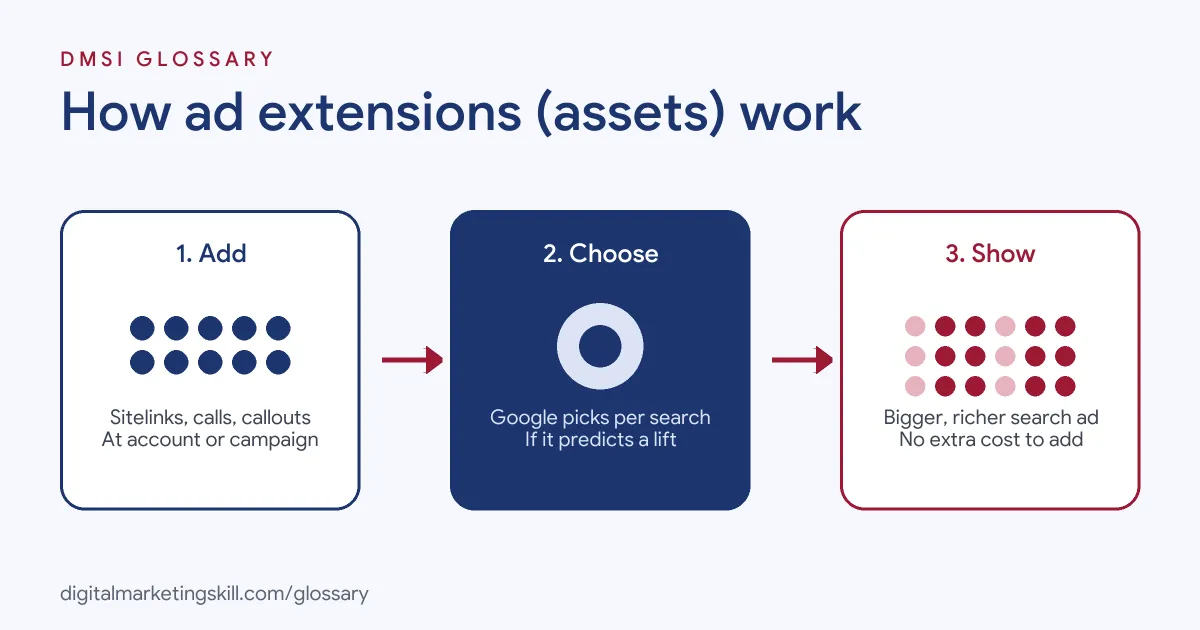
The process has three parts. First, you add assets to your account, campaign or ad group. Next, Google checks each auction to decide which assets will help. Finally, it builds the ad with the best mix and shows it to the searcher.
When Assets Show
Adding an asset doesn’t guarantee it will appear. Google says assets show only if they are “predicted to improve your ad’s performance”. In addition, your ad’s position and Ad Rank must be high enough for assets to show. That’s why stronger ads tend to show more extras.
Automated Assets
Many asset types need a bit of manual setup. Even so, Google adds some assets automatically when it predicts they will improve performance. These automated assets need no setup from you. For instance, Google can use unused headlines from a responsive search ad as link-based assets that point to your own domain. Description lines from the same ad can also fill the description space, so well-written ad text does double duty.
What They Cost
There is no charge to add assets. Instead, you pay for clicks as normal, including clicks on a call button, a download button or a directions icon. Google says clicks on seller ratings and reviews are an exception, so you aren’t charged for those.
The usual auction rules still apply. Google says the most you’ll pay is what’s needed to clear the Ad Rank thresholds and beat the Ad Rank of the competitor just below you. In other words, assets give you more space on the page without changing how the auction prices a click.
Ad Extensions Examples
These made-up examples show how businesses use them:
- Restaurant: A location asset shows the address and a directions link. Meanwhile, a call asset lets diners book a table by phone.
- Online shop: Callouts such as “free delivery” and “easy returns” sit under the ad. Sitelinks link to Sale, Bestsellers and Size Guide pages.
- Training provider: A structured snippet with the header “Courses” lists the main subjects. A lead form asset lets mobile users request a brochure without leaving Google.
In each case, the extra details answer a question before the person even clicks.
Types of Ad Extensions Compared
Google groups assets by the goal they support. Here are the main ones:
| Asset type | What it adds | Best for |
|---|---|---|
| Sitelink | Links to specific pages, such as opening hours or “order now” | Sending people to the right page |
| Callout | Short extra text, such as “free delivery” or “24/7 customer support” | Highlighting selling points |
| Structured snippet | A preset header, such as service category, with a list of items | Showing range at a glance |
| Call | A phone number or call button | Getting phone enquiries |
| Location | Address, map link and business details | Driving visits to a shop or branch |
| Price | Services or product categories with prices | Letting people compare before they click |
| Promotion | A special or limited-time offer | Sales and seasonal deals |
| Lead form | A form people fill in from the ad | Collecting leads on mobile and tablet |
Google also offers image, app and text disclaimer assets, depending on your campaign and goal.
How to Add Ad Extensions in Google Ads
Menu names can shift a little over time, but the steps below follow the usual flow:
- In Google Ads, open Campaigns and go to Assets.
- Choose the asset type you want, such as sitelinks or callouts.
- Pick the level: account, campaign or ad group. Google suggests higher levels, such as account or campaign, where that makes sense.
- Write the content. For sitelinks, add a short description to each one.
- Save, then repeat for other asset types until you have at least four.
- After a few weeks, check the asset report to see which ones get impressions and clicks.
If you want to remove an asset, go back to Assets in the Campaigns menu and edit its associations.
Best Practices for Ad Extensions
- Use plenty of sitelinks. Google says you need at least two sitelinks for them to appear. It also recommends at least six sitelinks with descriptions for high-volume campaigns, which also improves ad strength.
- Know the limits. On desktop, an ad can show up to six sitelinks. On mobile, it can show up to eight in a carousel.
- Match assets to goals. For example, use call and location assets for local services, and price or promotion assets for shops.
- Keep details current. Old offers or wrong opening hours damage trust quickly.
- Improve the ad first. Assets need enough Ad Rank to show, so a weak ad will rarely display them.
Common Mistakes to Avoid
Beginners often make the same errors. First, they add only one or two asset types, so Google has little to choose from. Second, they write sitelinks that all point to the home page. Third, they repeat the headline in their callouts instead of adding new information. Finally, they set them up once and never review the asset report. Each of these is quick to fix, and the gain in ad space is often worth it.
Where You’ll Use Ad Extensions at Work
We didn’t find remote job listings that name this task directly. Still, setting them up is a routine part of Google Ads work. In the DMSI Google track, the target roles are Google Ads Specialist, PPC Specialist and Web Analytics Specialist.
In those roles, you will add assets to new campaigns, test different sitelinks and callouts, and report on which ones lift clicks and conversions. Employers will want proof, such as a live campaign where you can explain your choices.
Learn It in the Google Ads Track
You can learn to set up and test ad extensions in the AI-Powered Google Specialist track. There, you launch and measure a Google Ads campaign with conversion tracking, so you can show results to an employer. You also work on a U.S. Project Internship from day one, with unlimited 1-on-1 mentoring.
For more help, read our guide to Google Ads for small business, and check these common Google Ads mistakes. You can also learn how Ad Rank decides whether your assets show.
Frequently Asked Questions
What are ad extensions in simple terms?
They are extra details, such as links, phone numbers or selling points, that appear with your Google search ad. Google now calls them assets.
Are ad extensions and assets the same?
Yes. Google renamed extensions to assets in Google Ads, and existing extensions moved across automatically.
Do ad extensions cost extra?
No. They are free to add. You pay for clicks as usual, and Google charges no more than two clicks per impression for an ad and its assets.
Why are my ad extensions not showing?
Google shows assets only when it predicts they will help and when your ad ranks high enough. Improving your ad quality and bids can help them appear.
How many sitelinks should I add?
You need at least two for them to show. Google recommends at least six with descriptions for busy campaigns.
Sources: Google Ads Help: About assets; Google Ads Help: About sitelink assets; Search Engine Land: Google ad extensions rebranded as assets.