
Consent mode is a Google feature that tells Google tags, such as Google Ads and Google Analytics, whether a visitor has agreed to cookies and data use, so the tags can adjust what they collect. It works alongside your cookie banner and passes each visitor’s choices to Google in a standard format. It matters because it helps you respect privacy choices while still measuring conversions, partly through modelling when people say no.
Key Takeaways
- The feature passes your visitors’ choices to Google tags. However, it does not provide a banner itself.
- Four main consent types are ad_storage, ad_user_data, ad_personalization and analytics_storage.
- There are two set-ups: basic, which blocks tags until a choice, and advanced, which loads tags and adjusts what they do.
- When people decline, Google may use modelling to fill measurement gaps.
- If a visitor denies ad_personalization, Google turns off remarketing for them.
What Is Consent Mode?
Many websites show a cookie banner that asks visitors to accept or reject tracking. On its own, that banner doesn’t tell Google’s tags what the visitor chose. This feature fills that gap. Think of it as a messenger between the two.
Google’s help centre puts it simply: “Consent mode lets you communicate your users’ cookie or app identifier consent status to Google.” It is just as important to know what it isn’t. According to Google, “consent mode doesn’t provide a consent banner or widget.” So you still need a banner or consent tool, and the feature connects it to your Google tags.
For the wider picture, see our glossary entry on cookie consent.
How Consent Mode Works
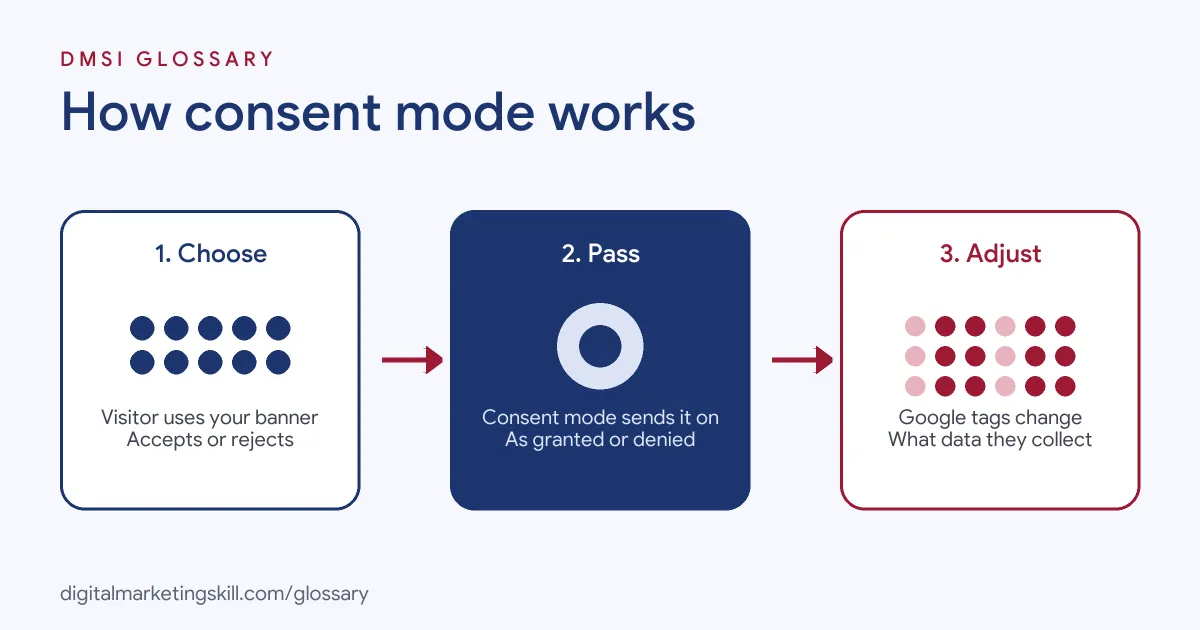
The process has three steps. First, a visitor makes a choice in your cookie banner. Next, the banner updates a set of consent states for your Google tags. Finally, each tag changes what it does. It collects full data when the visitor agrees, and limited data or none when they refuse.
Consent Types
Google’s developer documentation lists several consent types. The four that matter most for marketing are these:
- ad_storage: “Enables storage, such as cookies (web) or device identifiers (apps), related to advertising.”
- User data, ad_user_data: this “sets consent for sending user data to Google for online advertising purposes.”
- Personalised ads, ad_personalization: this “sets consent for personalized advertising.”
- analytics_storage: this “enables storage, such as cookies (web) or device identifiers (apps), related to analytics, for example, visit duration.”
Each type has a state of granted or denied. In addition, there are types for functionality, personalisation and security storage.
What Happens When People Say No
The documentation spells out the effects. If a visitor denies ad_storage, Google’s tags write no new advertising cookies or device identifiers and read no existing ones. If they deny ad_personalization, Google turns off personalised advertising for them, including remarketing in Google Ads. Meanwhile, if they deny ad_user_data, Google stops personal data collection for advertising, including enhanced conversions that use hashed first-party data.
Basic and Advanced Set-Ups
You can set it up in two ways. With the basic version, you “prevent Google tags from loading until a user interacts with a consent banner.” That set-up “transmits no data to Google prior to user interaction.”
The advanced version, by contrast, “loads tags with default settings and adjusts behavior based on consent, allowing for more detailed conversion modeling.” If a visitor refuses, the tags send pings that share the consent status and key events, rather than full data. According to Google, “Google products use these pings to model your metrics.”
Consent Mode Examples
Here are three made-up examples of what happens on a site:
- Visitor accepts all: the banner grants all four consent types. As a result, Google Ads and Analytics tags work as normal, and the visitor can join remarketing lists.
- Visitor accepts analytics only: the banner grants analytics_storage but denies the ad types. So Analytics can set cookies, while ads tags store no advertising cookies and show no personalised ads.
- Visitor rejects all, on an advanced set-up: tags load but send only limited pings. Google can then use modelling to estimate conversions it can’t see directly.
In each case, the visitor’s choice decides what the tags may do.
Basic vs Advanced Consent Mode
Here is how the two set-ups compare:
| Feature | Basic | Advanced |
|---|---|---|
| When tags load | Only after the visitor uses the banner | Straight away, with default settings |
| Data before a choice | None sent to Google | Limited data, based on the default state |
| If the visitor says no | Tags stay blocked | Tags send limited pings |
| Modelling | Based on a general model | Improved, more detailed modelling |
Google’s help centre says the advanced set-up “enables improved modelling compared to the basic one.” Which one suits you depends on your legal advice and your approach to privacy.
How to Set Up Consent Mode
- Choose a cookie banner or consent tool that works with Google’s tags.
- Pick the basic or advanced set-up, based on legal advice for your markets.
- Set a default state for each consent type before any tags fire.
- Connect the banner, so it updates the states when a visitor makes a choice.
- In Google Tag Manager, check that your Google tags have built-in consent checks.
- For other tags, add checks under Advanced, then Consent Settings.
- Test the set-up, then check that conversions still show in your reports.
To manage all your tags in one place, see our glossary entry on Google Tag Manager.
How to Test Your Set-Up
A set-up that looks right can still fail. So test it from a visitor’s point of view:
- Accept all: check that your tags fire and that a test conversion shows up.
- Reject all: check that no advertising cookies appear in your browser.
- Mixed choice: accept analytics only, then check that ad cookies still don’t appear.
- Change of mind: accept, then withdraw consent, and make sure the tags follow the new choice.
For example, imagine your reject test still shows an ad cookie. In that case, a tag is firing before the default state loads, and you need to fix the order.
Best Practices
- Get legal advice. Rules vary by country, and Google notes there may be regional differences for the EEA, Switzerland and the UK.
- Set defaults first. Default states should load before any Google tags fire.
- Use all the ad types. Pass ad_user_data and ad_personalization as well as ad_storage.
- Test every choice. Check accept, reject and partial choices, not just the happy path.
- Watch your reports. After launch, compare conversion numbers and look out for sudden drops.
Common Mistakes to Avoid
A frequent error is to treat the feature as a banner, when it only passes choices from one. Another is to let tags fire before the default states load, which defeats the purpose. Some teams pass only ad_storage and forget the other ad types. Finally, many never test the reject path, so they miss it when tracking breaks or ignores the visitor’s choice. The good news is that each of these is easy to fix. Test often, and keep notes.
Where You’ll Use Consent Mode at Work
Consent set-ups are now a standard part of tracking and analytics roles. For example, recent remote job listings ask for:
- “Set up, audit and troubleshoot conversion tracking across Google Ads, GA4, Google Tag Manager and Cloudflare Zaraz, including Enhanced Conversions, Consent Mode v2, call tracking and offline conversion imports.” (Google Ads Specialist, Advanced Tracking).
- “Familiarity with Google Tag Manager (GTM), GA4, Google Consent Mode, and digital analytics implementation.” (Manager, Web & Marketing Platforms).
So as a Google Ads Specialist, PPC Specialist or Web Analytics Specialist, you will set up and check consent choices as part of conversion tracking.
Learn It in the Google Specialist Track
You can learn tracking set-ups like this in the AI-Powered Google Specialist track. It covers Google Ads (Search, Display, Discovery, Gmail and YouTube) and Google Analytics. Your portfolio project is to launch and measure a Google Ads campaign with conversion tracking. You also get unlimited 1-on-1 mentoring and a U.S. Project Internship from day one.
Frequently Asked Questions
What is consent mode in simple terms?
It is a way to tell Google’s tags what each visitor agreed to in your cookie banner. The tags then collect only what the visitor allows.
Does consent mode replace a cookie banner?
No. Google says the feature doesn’t provide a consent banner or widget. You still need one.
What are the main consent types?
The main ones are ad_storage, ad_user_data, ad_personalization and analytics_storage. Each has a state of granted or denied.
What is the difference between basic and advanced?
Basic blocks Google tags until the visitor chooses. Advanced loads tags with default settings, sends limited pings when the visitor refuses and allows more detailed modelling.
Does consent mode affect remarketing?
Yes. If a visitor denies ad_personalization, Google turns off remarketing in Google Ads for that visitor.
Sources: Google for Developers: Consent mode overview; Google Ads Help: About consent mode; remote job listings on Himalayas and Himalayas.