
Google Tag Manager (GTM) is a free tool that lets you add and manage tracking tags on your website, such as Google Analytics, Google Ads and other ad pixels, without editing your site’s code. You install it once, and from then on you manage every tag in one place. It matters because it lets marketers set up and fix tracking quickly, without waiting for a developer.
Key Takeaways
- GTM is a tag management system. You add two snippets of code to each page once, then manage tags online.
- It works with three building blocks: tags, triggers and variables.
- All of these live in a container, one for each website or app.
- Preview mode lets you test changes before they go live, and published versions let you roll back.
- Unlike the Google tag on its own, GTM supports third-party and custom tags too.
What Is Google Tag Manager?
Every marketing tool wants its own code on your site. Analytics needs a tag. Each ad platform needs a tag. Chat widgets and heatmaps need tags too. Without a system, that code piles up and becomes hard to manage.
Google describes Tag Manager as a tag management system that lets you set up and manage tags on your site without changing your website’s code. After you add its snippets, you don’t need to change your code much. Instead, you manage tags through the Tag Manager website.
For example, a shop wants to add a new ad platform’s pixel before a sale. Rather than asking a developer to edit the site, the marketer adds the tag in GTM, tests it and publishes it in an afternoon.
How Google Tag Manager Works
GTM sits between your site and your marketing tools. When a visitor does something, GTM checks your rules and fires the right tags.
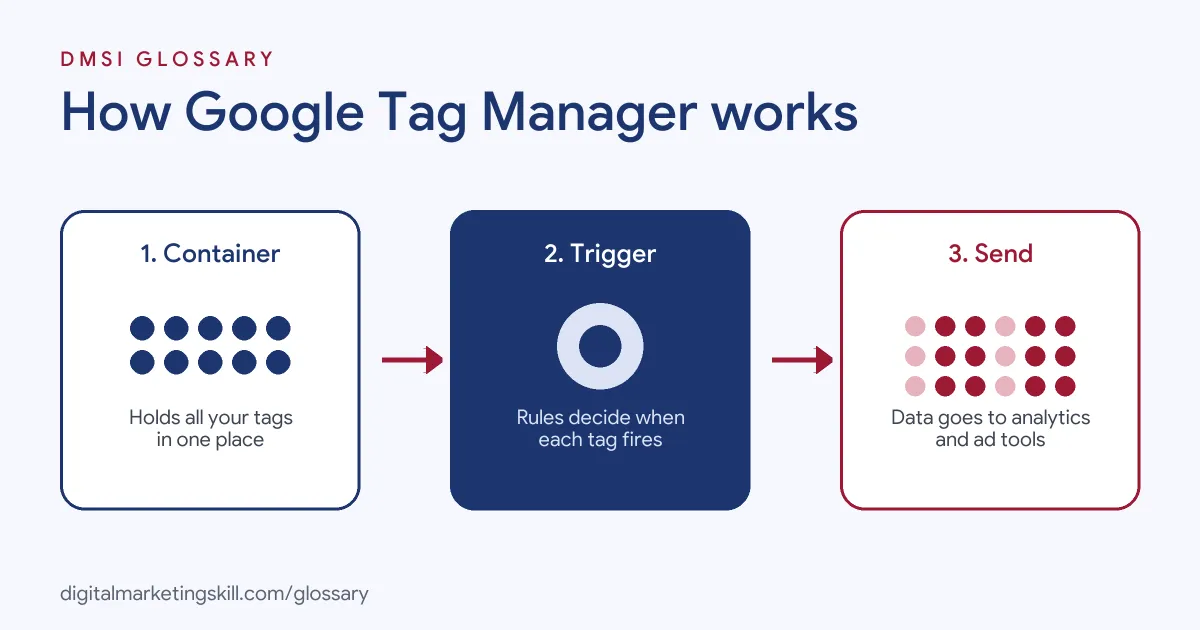
Tags, Triggers and Variables
Google’s help centre explains the three parts you set up in the web interface:
- Tags: snippets of code that send data to a tool, such as Google Analytics or an ad platform.
- Triggers: rules that cause a tag to fire when certain events occur, such as a page view or a button click.
- Variables: values that simplify and automate your tag settings, such as a page URL or an order total.
Containers
Google calls the collection of tags, triggers, variables and related settings on a site or app a container. It recommends one account per company and one container for each of its websites and apps. A container can replace all other hand-coded tags on a site, including tags from Google Ads, Google Analytics, Floodlight and third parties.
Preview, Publish and Versions
You make changes in a workspace. Then, preview and debug mode lets you browse your site as if the draft were live, connected to Tag Assistant so you can see which tags fired and in what order. When you are happy, you publish. Google says publishing makes your changes active and can save a version, so you have a record of each change.
Google Tag Manager Examples
Here are three made-up examples of GTM at work:
- Form tracking (example): A consultancy wants to count contact form submissions. It creates a trigger for the thank-you page and a GA4 event tag that fires on it.
- Ad pixels (example): A shop runs ads on several platforms. It adds each platform’s tag in GTM, set to fire on all pages and on purchases, without touching the site code.
- Button clicks (example): A software firm wants to know how many people click “Book a demo”. It sets up a click trigger and sends an event to GA4 each time.
In each case, the marketer controls tracking directly and can test it before it goes live.
A Simple Worked Example
Here is a made-up set-up for tracking newsletter sign-ups. After someone signs up, the site sends them to a page at /thank-you. So the marketer builds three things in the container:
- A trigger called “Page view – thank you”, set to fire when the page path contains /thank-you.
- A GA4 event tag called “GA4 – Event – Newsletter sign-up”, linked to that trigger.
- An ad platform conversion tag, linked to the same trigger.
Next, they open preview mode, sign up with a test email and check that both tags fire on the thank-you page, and nowhere else. Then they publish with the note “Added newsletter sign-up tracking”. Later, if the numbers look odd, they can open that version, see exactly what changed and roll it back if needed. In short, one trigger can feed several tools at once.
Google Tag Manager vs the Google Tag
Google compares the two options like this:
| Feature | Google tag (gtag.js) | Tag Manager |
|---|---|---|
| Code on each page | One snippet | Two snippets |
| Tags supported | Google services only | Google, third-party and custom tags |
| Changes after set-up | Often needs code edits for custom tracking | Managed in the web interface |
| Best for | Default tracking of page views, clicks and scrolls | Marketers and agencies managing many tags |
Google notes that gtag.js can only send data to Google services. In addition, you can always move your tags to Tag Manager later if your needs grow.
How to Set Up Google Tag Manager
Google’s set-up guide covers these steps:
- Create an account. Go to the Tag Manager site and create an account for your company.
- Create a container. Name it after your website and choose the platform, such as web.
- Install the code. Add the two snippets to every page, or use your CMS integration.
- Add your first tag. For example, add the Google tag with your GA4 ID, set to fire on all pages.
- Preview it. Click Preview to open Tag Assistant, enter your URL and check that the tag fires.
- Publish. Click Submit, add a version name and description, and publish.
Best Practices
A few habits keep a container clean and safe:
- Always preview first. Test every change before you publish.
- Name things clearly. Use a naming pattern such as “GA4 – Event – Form submit”.
- Write version notes. A short description makes it easy to find and undo a change.
- Limit who can publish. Give edit and publish rights only to people who need them.
- Remove old tags. Unused tags slow pages and clutter reports.
Common Mistakes to Avoid
First, many people install GTM and also keep the same tags hard-coded on the site, which doubles the data. Second, they publish without previewing. Third, they set triggers too broadly, so a tag fires on every page instead of just the thank-you page. Finally, they leave old agency staff with publish access. Each of these leads to messy data or risk.
Where You’ll Use Google Tag Manager at Work
GTM is one of the most requested tools in tracking and paid media roles. For example, current remote job listings ask candidates to:
- “Manage GA4, Google Tag Manager, pixels, conversion tracking, and UTMs” (Growth Marketing Manager, Paid and Organic Acquisition).
- Show “Familiarity with Google Analytics 4, Google Tag Manager, Looker Studio, and third-party reporting platforms” (Media Supervisor).
- Have “Practical experience building and troubleshooting Google Tag Manager and GA4 tracking setups, including diagnosing why conversions aren’t firing correctly” (Google Ads Specialist, Advanced Tracking and AI Automation).
So as a Google Ads Specialist, PPC Specialist or Web Analytics Specialist, you will often be the person who owns the container. It builds on the Google tag, which you can deploy through it.
Learn It in the Google Specialist Track
You can learn to set up tracking in the AI-Powered Google Specialist track. There, you launch and measure a Google Ads campaign with conversion tracking, and you work with Google Analytics too. You also get unlimited 1-on-1 mentoring and a U.S. Project Internship from day one.
For more on tracking your campaigns, read our guide to Google Analytics campaign tracking.
Frequently Asked Questions
What is Google Tag Manager in simple terms?
It is a free tool that lets you add and control tracking codes on your website from one dashboard, without editing the site each time.
Is Google Tag Manager free?
Yes, Tag Manager is free to use. You only need a Google Account to create an account and a container.
What is the difference between a tag and a trigger?
A tag is code that sends data to a tool. A trigger is the rule that decides when that tag fires.
Do I need Google Tag Manager if I use the Google tag?
Not always. The Google tag on its own covers default tracking. However, GTM helps when you manage many tags or need custom tracking.
How do I test changes in Google Tag Manager?
Use preview and debug mode. It opens Tag Assistant and shows which tags fired, in what order, before you publish.
Sources: Tag Manager Help: Introduction to Tag Manager; Tag Manager Help: Tag Manager vs gtag.js; Tag Manager Help: Preview and debug; Tag Manager Help: Publishing and versions; Tag Manager Help: Create an account and container; remote job listings on Himalayas.