
Looker Studio is Google’s free tool for turning data from sources such as Google Analytics, Google Ads and spreadsheets into interactive dashboards and reports you can share. You connect your data, drag charts onto a page and share a live link, so the report updates without you rebuilding it. It matters because marketers spend a lot of time reporting, and a clear, automatic dashboard saves that time and helps clients and managers see results quickly.
Key Takeaways
- Google describes the tool as “a no-cost tool that turns your data into informative, easy to read, easy to share” dashboards and reports.
- Google’s documentation now says, “Looker Studio is now called Data Studio.” Many marketers and job listings still use the Looker Studio name.
- Data sources use connectors to fetch data. Google provides free connectors, and partners build community connectors.
- You can blend up to five data sources in one chart, joined on fields they share.
- A paid Pro version adds “enterprise-grade collaboration and administration features.”
What Is Looker Studio?
Think of it as a digital noticeboard for your marketing numbers. Instead of copying figures from five tools into a spreadsheet every week, you connect the tools once. After that, the report pulls in fresh data by itself.
Google’s own documentation explains that you build reports with “the drag and drop report editor to tell your data story with charts.” You can add filters, so viewers can change the date range or pick a campaign. Then you can share the report “with your team or with the world.”
The name can be confusing. The tool was long known as Looker Studio, and Google’s documentation now states that it “is now called Data Studio.” In this guide, we use Looker Studio, because many marketers and job ads still use that name.
How Looker Studio Works
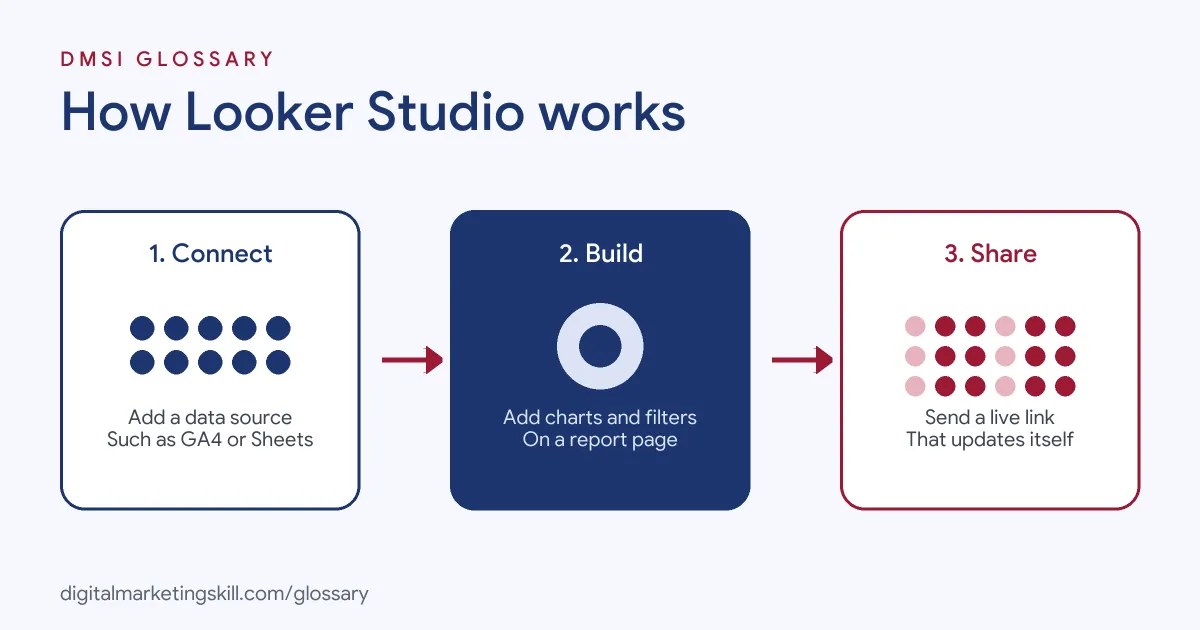
It works in three steps. First, you connect a data source, such as Google Analytics or a Google Sheet. Next, you build a report by adding charts, tables and filters. Finally, you share it, and the report updates as new data arrives.
Data Sources and Connectors
Google explains, “You can use data sources in Data Studio to connect external databases and spreadsheets directly to your reports.” Each data source uses a connector, and “Data sources use connectors to fetch your data from a specific platform, system, or product.” Google provides free connectors, while partners can build community connectors for other platforms.
Credentials and Data Freshness
Each data source has a credentials setting. With owner’s credentials, viewers can see the data without having their own access to it. With viewer’s credentials, each viewer needs their own access. Meanwhile, the data freshness setting decides “how often a particular data source will request fresh data.”
Blending Data
Sometimes you need two sources in one chart, such as ad spend from Google Ads and sales from a spreadsheet. Google says, “Blending data lets you create charts, tables, and controls that are based on multiple data sources.” You can blend up to five data sources, joined on fields with matching values. Join options include inner, left outer, right outer, full outer and cross joins.
Sharing and Access
Sharing works much like other Google files. You can invite people by email or share a link, and you can let people view or edit. For client reports, view-only access is usually safest, because it stops anyone from changing charts by mistake. Before you share, also check which data source credentials the report uses. Otherwise, you might show data to people who should not see it.
Looker Studio Examples
Here are three made-up examples of dashboards:
- Agency client report (example): One page shows Google Ads spend, clicks and conversions next to GA4 sessions, with a date filter the client can change.
- SEO dashboard (example): A site manager tracks organic clicks, top pages and top queries, so the team can see what content performs.
- Sales and ads blend (example): A shop blends ad spend from Google Ads with orders from a Google Sheet, so it can see cost per sale by week.
In each case, the dashboard answers a few clear questions instead of showing every possible number. As a result, readers spend their time deciding what to do, not hunting for figures.
Looker Studio vs GA4 Reports vs Spreadsheets
Here is how the tool compares with other common ways of reporting:
| Option | Strength | Limitation |
|---|---|---|
| Looker Studio | Combines many sources in shareable, live dashboards | Takes time to set up well |
| GA4 reports | Detailed website data, built in | Shows only Google Analytics data |
| Spreadsheets | Flexible and familiar | Often needs manual copying and updates |
In short, many teams use GA4 for deep analysis and a dashboard tool for regular reporting to others.
How to Build a Looker Studio Report
- Decide the questions. Write down the three to five things the reader needs to know.
- Pick your metrics. Choose one or two numbers per question, such as conversions and cost per conversion.
- Create a blank report. Sign in with your Google account and start a new report.
- Add a data source. Choose a connector, such as Google Analytics, Google Ads or Google Sheets, and authorise access.
- Add charts. Use scorecards for headline numbers, line charts for trends and tables for detail.
- Add controls. Include a date range control and, if useful, a campaign or channel filter.
- Check the credentials. Decide whether viewers should see data through your access or their own.
- Share the report. Send a view-only link to clients or colleagues.
A Simple Layout That Works
Here is a made-up layout for a monthly marketing report. At the top, four scorecards show sessions, conversions, cost and cost per conversion. Below that, a line chart shows conversions by week. Next, a table lists each campaign with its spend and results. Finally, a short text box explains what changed and what you will do next. This keeps the report to one page that a busy manager can read in a minute.
Best Practices for Looker Studio
- Start with questions, not charts. Every chart should answer something the reader cares about.
- Keep it to one or two pages. Shorter reports are far more likely to get read.
- Label everything. Use plain chart titles and explain any short forms.
- Tag your campaigns. Clean UTM parameters make source and campaign data easier to report.
- Check sharing settings. Make sure viewers can only see what they should.
Common Mistakes to Avoid
A common mistake is cramming dozens of charts onto one page, so nobody can find the key number. Another is mixing data with different date ranges or definitions without saying so. Some people also share reports using their own credentials without thinking about who can see the data. Others forget to check that the connectors still work after a password or account change. Finally, many build a dashboard once and never review whether it still answers the right questions.
Where You’ll Use Looker Studio at Work
Dashboards are a common task in paid search, SEO and analytics roles. For example, real remote job listings ask for:
- “Experience with Google Looker Studio, reporting dashboards, and performance analysis.” (Senior Google Ads Specialist).
- Someone to “Build reporting dashboards using Looker Studio, Power BI, or similar platforms.” (SEO Specialist).
- “Hands-on experience developing dashboards, reports, and visualizations using Tableau, Power BI, Looker Studio or similar business intelligence platforms.” (Senior Analyst, Destination Insights).
So if you want to work as a Google Ads Specialist, PPC Specialist or Web Analytics Specialist, employers will expect you to build clear dashboards that track the right KPIs.
Learn It in the Google Specialist Track
You can learn to measure and report campaigns in the AI-Powered Google Specialist track. It covers Google Ads across Search, Display, Discovery, Gmail and YouTube, plus Google Analytics. Your portfolio project is a Google Ads campaign that you launch and measure with conversion tracking. You also get unlimited 1-on-1 mentoring and a U.S. Project Internship from day one.
Next, read our guide to Google Analytics reports to see where much of your dashboard data comes from.
Frequently Asked Questions
Is Looker Studio free?
Yes. Google describes it as a no-cost tool. A paid Pro version adds enterprise collaboration and admin features.
Is Looker Studio the same as Data Studio?
Yes. Google’s documentation says Looker Studio is now called Data Studio. It is the same reporting tool.
What data can I connect?
You can connect Google products, such as Google Analytics and Google Ads, as well as spreadsheets and databases. Partner connectors cover many other platforms.
Can I combine data from two sources?
Yes. Blending lets you combine up to five data sources in one chart, joined on fields they share.
Do viewers need access to my Google Analytics?
Not if the data source uses owner’s credentials. With viewer’s credentials, each viewer needs their own access.
Sources: Google Cloud documentation: Data Studio overview; Google Cloud documentation: About data sources; Google Cloud documentation: How blends work; remote job listings on Himalayas.