
A WordPress theme is a set of files that controls how a WordPress site looks, including its layout, colours, fonts and page templates. You can switch themes without losing your content, because the theme only changes how that content is displayed. It matters because the theme shapes your site’s design, speed and ease of editing, so the choice affects both visitors and the people who run the site.
Key Takeaways
- A theme controls design. Plugins, by contrast, add features.
- Block themes are the modern type. They are built from blocks and edited in the Site Editor.
- Classic themes use PHP templates and are still supported and widely used.
- Thousands of free themes are available in the official directory, and many more are sold elsewhere.
- Choose a theme for speed, support and flexibility, not just for how the demo looks.
What Is a WordPress Theme?
The WordPress Theme Handbook puts it clearly: “A WordPress theme represents the design of your website. It can control everything from colors, to fonts, to the entire layout.” In essence, what visitors see on the front of your site is shaped by the theme.
Your posts and pages live in the database, not in the theme. As the handbook explains, “themes take the content stored by WordPress and display it in the browser.” That’s why you can change themes and keep all your content. However, some settings, menus and widgets may need setting up again after a switch.
New to the platform? Start with our glossary entry on WordPress, which explains how themes and plugins fit together.
How a WordPress Theme Works
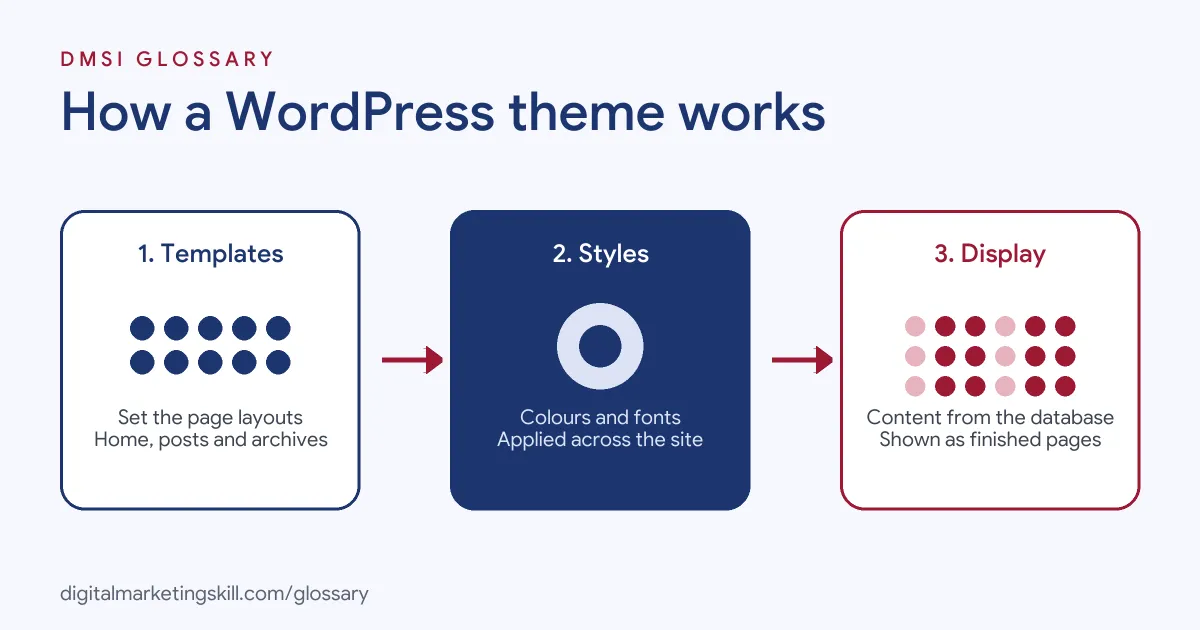
Every theme does three jobs. First, it supplies templates that decide the layout of each page type, such as the home page, blog posts and archives. Next, it sets global styles, like colours and fonts. Finally, it pulls your content from the database and displays it inside those templates.
Block Themes
The handbook calls block themes “the modern method of building WordPress themes.” They are “built entirely out of blocks” and “rely on HTML-based block templates that contain block markup.” Both creators and users “can edit the templates in the Site Editor.”
Styling is easier too. Users “can also customize global settings and styles defined by the theme’s theme.json file through the Styles interface.” You can even “export a theme directly from the Site Editor without touching any code.”
Classic Themes
Classic themes “use a PHP-based templating system, which is still supported in WordPress today.” According to the handbook, “they are still in wide use” because they were built on WordPress’s original theming system. So you will meet many classic themes in client work, especially on older sites.
Hybrid and Custom Themes
The handbook also lists hybrid themes, which mix classic and block features. In addition, “many people and businesses also have bespoke (custom-made) themes for their sites.” A child theme is another common option. It inherits a parent theme’s design, so you can make changes without editing the parent’s files.
WordPress Theme Examples
Here are three made-up examples of how businesses might choose a theme:
- Blogger: A food writer picks a light block theme with a clean recipe layout. She then changes the colours and fonts in the Styles panel to match her brand.
- Agency: A small agency builds client sites on one well-supported theme. As a result, the team knows its settings well and can launch new sites faster.
- Online shop: A homeware store chooses a theme designed for eCommerce, with product grids and a tidy checkout layout.
In each case, the theme matches the type of site, which saves time on custom design later.
Block Themes vs Classic Themes
This is the main choice you will face. Here is how the two types compare:
| Feature | Block theme | Classic theme |
|---|---|---|
| How templates are built | HTML-based block templates | PHP template files |
| How you edit layouts | Visually, in the Site Editor | Through the Customizer, widgets or code |
| Global styles | Set in theme.json and changed in the Styles interface | Usually set in the theme’s CSS and options |
| Where you meet it | New sites and modern builds | Many existing sites and long-running themes |
The handbook says block themes are “the future of the WordPress project.” Even so, classic themes remain common, so it pays to understand both.
How to Choose and Install a WordPress Theme
- List what your site needs, such as a blog, a shop or a portfolio.
- Browse the official theme directory, or a trusted seller for premium themes.
- Check each option’s ratings, update history and support forum.
- Test the demo on a phone and run a speed test on it.
- In your dashboard, go to Appearance, then Themes, then Add New.
- Install the theme and preview it before you activate it.
- Activate it, then set your logo, colours, fonts and menus.
Looking for options? See our guide to choosing a free WordPress theme.
How to Judge a WordPress Theme
Two themes can look alike in a demo but behave very differently on a real site. So score each option against a short checklist before you commit:
- Speed: run the demo through a page speed test. A slow demo rarely gets faster once you add content.
- Mobile layout: open the demo on a phone. Check menus, buttons and text size.
- Editing: see how you change headers, footers and colours. With a block theme, this happens in the Site Editor.
- Updates and support: look for regular updates and active answers in the support forum.
- Accessibility: the official directory lets you filter for themes tagged as accessibility ready.
- Fit: make sure it supports what you need, such as a shop, a blog or a portfolio.
For example, imagine two themes score the same on design. In that case, pick the faster one with better support, because those problems are much harder to fix later.
Best Practices
- Prioritise speed. A light theme helps your pages load fast, which matters for visitors and SEO.
- Use a child theme for code changes. That way, updates to the parent theme won’t wipe your edits.
- Keep it updated. Theme updates fix bugs and security issues.
- Stick to one design system. Set colours and fonts globally instead of styling each page by hand.
- Test before you switch. Try a new theme on a staging copy of the site first.
Common Mistakes to Avoid
Many beginners choose a theme because the demo looks impressive, then find it slow and hard to edit. Others edit the theme’s files directly, so the next update erases their changes. Some download “free” copies of premium themes from unofficial sites, which can contain malware. Finally, many switch themes on a live site without testing, which can break layouts. A careful choice at the start saves hours of fixes later. So treat the theme as a long-term decision, and give it the same care you give your hosting and your domain name.
Where You’ll Use a WordPress Theme at Work
Theme skills come up in most WordPress job listings. For example, recent remote listings ask for:
- “Experience with WordPress theme customization, plugin integration, and CMS setup.” (Website Designer and Developer).
- “Strong knowledge of WordPress themes, page builders, plugins, forms, and standard site settings.” (Web Implementation Specialist).
- “Experience with WordPress, including custom themes and plugins.” (WordPress Developer Intern).
So as a WordPress Developer or Website Manager, you will choose, customise and maintain themes for clients or your employer.
Learn It in the WordPress and SEO Track
You can practise choosing and customising themes in the AI-Powered WordPress and SEO Specialist track. It covers WordPress website and eCommerce development, search engine optimisation and content marketing. Your portfolio project is to build a WordPress site or store and rank it with an SEO content plan. You also get unlimited 1-on-1 mentoring and a U.S. Project Internship from day one.
Next, learn how themes and features work together in our entry on the WordPress plugin.
Frequently Asked Questions
What does a WordPress theme do?
It controls how your site looks, from the layout to the colours and fonts. Your content stays in the database, so the theme only changes how it is shown.
Will I lose content if I change themes?
No, your posts and pages stay. However, some menus, widgets and theme-specific settings may need setting up again.
What is a block theme?
It is a modern theme built entirely from blocks. You can edit its templates and global styles visually in the Site Editor.
Are free themes good enough?
Often, yes. Many free themes in the official directory are fast and well supported. Premium themes may add features and dedicated support.
What is a child theme?
It is a theme that inherits the design of a parent theme. You make your changes in the child, so parent updates don’t overwrite them.
Sources: Theme Handbook: What is a theme?; Theme Handbook: Global settings and styles (theme.json); Theme Directory; remote job listings on Himalayas.