
Interaction to Next Paint (INP) is a Google metric that measures how quickly a web page responds when someone clicks, taps or presses a key. It tracks the delay from the moment of the action until the page shows a visible change. It matters because it is one of the three Core Web Vitals, and a slow, laggy page makes people think it is broken.
Key Takeaways
- INP measures responsiveness across the whole visit, not just the first click.
- A good score is 200 milliseconds or less. Anything over 500 milliseconds is poor.
- It counts clicks, taps and key presses. Scrolling and hovering don’t count.
- Each interaction has three parts: input delay, processing time and presentation delay.
- Heavy JavaScript and long tasks on the main thread are the usual causes of a poor score.
What Is Interaction to Next Paint?
Imagine you tap “Add to basket” and nothing seems to happen for a second. You tap again, and now two items appear. That frustrating gap is what INP measures.
Google’s web.dev guide defines it as a metric that assesses a page’s overall responsiveness to user interactions. It does this by observing the delay of every click, tap and keyboard interaction during a visit. The final value is the longest interaction seen, ignoring outliers.
INP took over from an older metric called First Input Delay (FID). Google developed it to capture responsiveness more fully than FID could, by looking at the interactions across a whole visit.
How Interaction to Next Paint Works
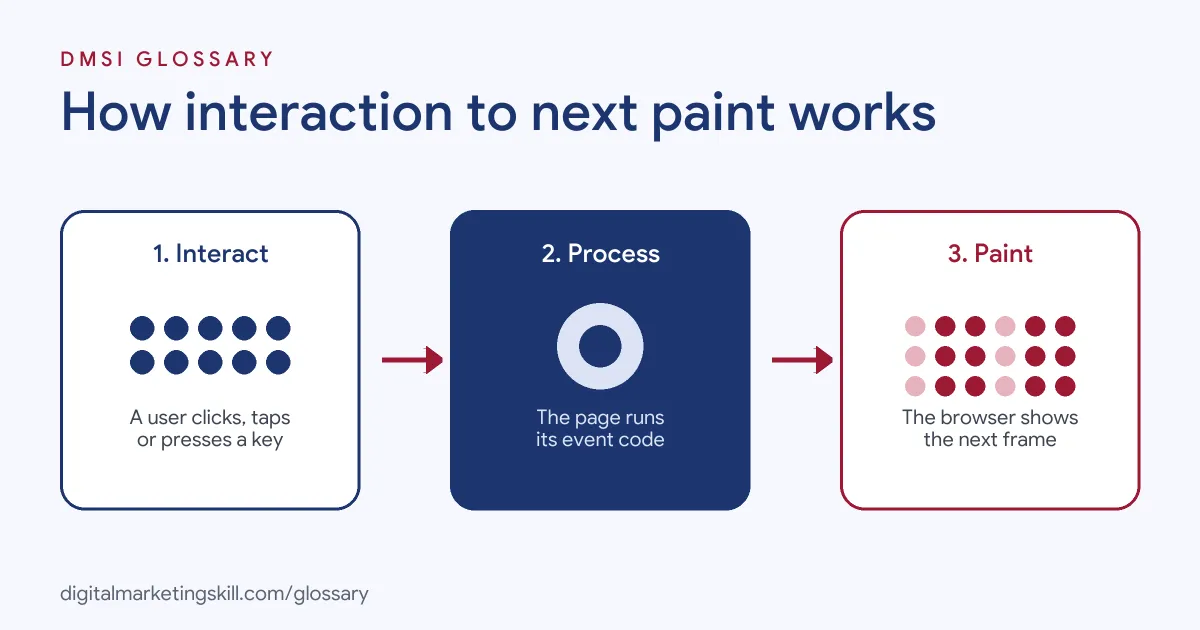
Every time you interact with a page, the browser has to do some work and then draw, or “paint”, the result. INP times that whole journey and keeps the worst result.
The Three Parts of an Interaction
Google splits each interaction into three parts that add up to the total delay:
- Input delay: the wait before the page’s code starts to respond. Other work on the main thread, such as scripts loading, can cause this.
- Processing duration: the time the page’s event code takes to run.
- Presentation delay: the time the browser needs to show the next frame with the visual result.
What Counts as an Interaction
Only three kinds of action are measured: clicking with a mouse, tapping on a touchscreen and pressing a key. Hovering, zooming and scrolling are not counted. However, INP also includes interactions inside iframes, such as pressing play on an embedded video.
How the Score Is Chosen
For most pages, the slowest interaction becomes the INP. But on pages with many interactions, one random hiccup could unfairly drag the score down. So Google ignores the single highest interaction for every 50 interactions. Then, as with the other Core Web Vitals, it reports the 75th percentile of all page views.
Interaction to Next Paint Thresholds
Google rates INP in three bands, measured at the 75th percentile of real visits on mobile and desktop:
| Rating | INP value |
|---|---|
| Good | 200 milliseconds or less |
| Needs improvement | Over 200 and up to 500 milliseconds |
| Poor | Over 500 milliseconds |
For context, 200 milliseconds is one fifth of a second. So even a short lag after a tap can push a page out of the good range.
A Simple Worked Example
Here is a made-up visit to show how the score comes together. A shopper opens a product page and makes eight interactions. The delays are 80, 120, 95, 340, 150, 60, 110 and 90 milliseconds. The slowest one, 340 milliseconds, becomes the INP for that visit. That sits in the “needs improvement” band.
Now imagine a long visit to a web app with 120 interactions. Because Google ignores one of the highest for every 50, it would drop the two slowest and report the third slowest instead. Finally, Google takes all visits to the page and reports the 75th percentile. So a few bad visits won’t sink you, but a common lag will.
Where to Find Your INP Score
You can see real-user INP in two free tools. PageSpeed Insights shows field data from the Chrome User Experience Report, covering the previous 28 days. Meanwhile, the Core Web Vitals report in Search Console groups similar pages and flags the ones that are poor or need improvement. Because both use a rolling window, fixes show up over a few weeks rather than overnight.
Interaction to Next Paint Examples
Here are three made-up examples of common INP problems:
- Menu button (example): On a news site, the mobile menu takes 600 milliseconds to open because a large ad script is still running. Delaying that script until after the page loads cuts the input delay.
- Product filter (example): An online shop runs one big task every time a shopper ticks a size filter. Breaking the work into smaller tasks lets the tick appear at once, while results load just after.
- Form field (example): A booking form checks every key press against a long list. Each key feels sticky, so INP is poor. Checking only after the user stops typing fixes most of the lag.
In each case, the fix is to free up the main thread so the page can respond first and finish the rest later.
How to Measure and Improve Interaction to Next Paint
Follow these steps to find and fix slow interactions:
- Check field data. Open PageSpeed Insights or the Core Web Vitals report in Search Console. INP comes from real users, so lab tests alone won’t show it fully.
- Find the slow interactions. Use the Chrome DevTools Performance panel to record yourself using the page and spot long tasks.
- Cut the input delay. Reduce or delay scripts that run while people are trying to use the page.
- Keep event code light. Google’s advice is to do as little work as possible in event callbacks.
- Break up long tasks. Split big jobs into smaller tasks, for example with setTimeout, so other interactions can run sooner.
- Update the screen first. Show the visual change straight away, and push other work to a later task.
- Keep the page lean. Google notes that very large DOMs make rendering slower, so trim unneeded elements.
Best Practices
A few habits keep pages feeling quick:
- Audit third-party scripts. Chat widgets, trackers and ad tags all compete for the main thread.
- Test on a mid-range phone. Slow devices show problems that a fast laptop hides.
- Give instant feedback. Show a pressed state or spinner as soon as someone taps.
- Re-test after every plugin or theme change. New features often add new scripts.
Common Mistakes to Avoid
First, many teams judge INP from a single lab test, even though it depends on real visits. Second, they focus on page load speed and ignore what happens after the page appears. Third, they keep adding tracking tags without checking their cost. Finally, they forget iframes, such as embedded videos and widgets, which INP still counts. Each of these hides the real cause of a sluggish page.
Where You’ll Use Interaction to Next Paint at Work
INP sits within page performance work, which appears in SEO, web and developer roles. For example, current remote job listings include these lines:
- “Proven experience improving Core Web Vitals, including Largest Contentful Paint, Interaction to Next Paint, and Cumulative Layout Shift using real-user data” (Senior Frontend Engineer, Performance).
- “Experience with Core Web Vitals optimization” (Frontend Engineer).
As an SEO Specialist or WordPress Developer, you won’t always write the code. Even so, you will spot poor INP in reports, find the plugin or script behind it, and explain the fix. For the full picture, see our page on Core Web Vitals.
Learn It in the WordPress and SEO Track
You can learn to test and improve page performance in the AI-Powered WordPress and SEO Specialist track. There, you build a WordPress site or store and rank it with an SEO content plan. You also get unlimited 1-on-1 mentoring and a U.S. Project Internship from day one.
For simple ways to speed up your site, read our guide to website page speed.
Frequently Asked Questions
What is Interaction to Next Paint in simple terms?
It measures how long a page takes to react visibly after you click, tap or press a key. Lower is better.
What is a good INP score?
Google says 200 milliseconds or less is good, at the 75th percentile of real visits. Over 500 milliseconds is poor.
What replaced First Input Delay?
INP replaced FID as a Core Web Vital. Google designed it to measure responsiveness more fully, across all the clicks, taps and key presses in a visit.
Does scrolling affect INP?
No. Scrolling, hovering and zooming are not measured. Only clicks, taps and key presses count.
What usually causes a poor INP?
Long tasks on the main thread, often from heavy JavaScript or third-party scripts, are the most common cause.
Sources: web.dev: Interaction to Next Paint; web.dev: Optimise INP; web.dev: Web Vitals; About PageSpeed Insights; remote job listings on Himalayas.