
Image compression is the process of making image files smaller so they load faster, while keeping them looking good enough for their purpose. It works by removing data the eye barely notices, or by storing the same data more efficiently. For websites, it is one of the quickest ways to speed up pages, save bandwidth and improve the experience on phones.
Key Takeaways
- There are two main types: lossy, which removes some detail, and lossless, which keeps every pixel.
- Google’s Lighthouse tool tests JPEGs at a compression level of 85 and flags images that could save 4KiB or more.
- WordPress compresses JPEG images it creates at a default quality of 82, and WebP images at 86.
- Choosing the right format matters. Google says lossy WebP images are 25–34% smaller than comparable JPEGs.
- Resizing images to the size they are shown is just as important as compressing them.
What Is Image Compression?
Think of packing a suitcase. You can roll your clothes tightly so they take less space, and nothing is lost. Or you can leave out a few items you will not miss. Both make the case lighter. Compression works the same way for images.
Photos straight from a camera or phone are often several megabytes. On a web page, they may be shown at a fraction of that size. Without compression, visitors download far more data than they need, and the page loads slowly.
Compression shrinks those files. Done well, the difference is hard to see, but the page feels much faster to every visitor.
How Image Compression Works
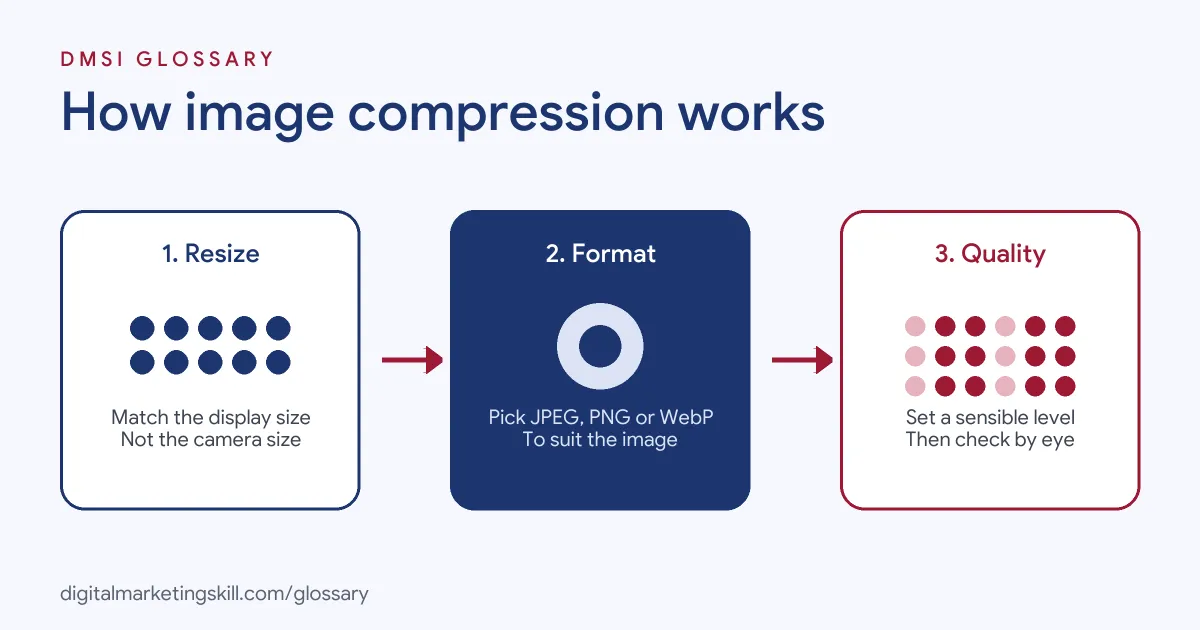
Every compressed image goes through a similar path. First, you resize the image to the largest size it will appear. Next, you choose a format and a compression type. Finally, you set a quality level that balances size and appearance.
Lossy vs Lossless Image Compression
Lossy compression removes some detail to make files much smaller. It suits photos, where small changes are hard to notice. JPEG is the classic lossy format. MDN describes JPEG as a “good choice for lossy compression of still images.”
Lossless compression keeps every pixel exactly. Files shrink less, but nothing is lost. It suits logos, screenshots and graphics with sharp edges or text. PNG is the classic lossless format.
Quality Settings
Most tools let you choose a quality level, often from 1 to 100. Lower numbers mean smaller files and more visible loss. WordPress has its own defaults. Its code sets a default quality of 82 for JPEG images it generates, and 86 for WebP. Developers can change this with a filter that WordPress documents as one that “filters the default image compression quality setting.”
Modern Formats
Newer formats compress better than older ones. Google says “WebP lossless images are 26% smaller in size compared to PNGs” and that lossy WebP images are “25-34% smaller than comparable JPEG images at equivalent SSIM quality index.” MDN also describes AVIF as offering “much better compression” than older formats such as JPEG and PNG.
Image Compression Examples
Here are three made-up examples:
- Online shop: A furniture store uploads product photos straight from a camera. After resizing and compressing them, its category pages load much faster on mobile.
- Blog: A travel blogger converts large PNG photos to WebP. The images look the same, but each post becomes much lighter.
- Landing page: An agency compresses a large hero image. As a result, the page’s main image appears sooner, which helps its speed scores.
In each case, smaller files meant faster pages without a visible drop in quality for visitors.
Image Formats Compared
| Format | Compression | Best for |
|---|---|---|
| JPEG | Lossy | Photos where small loss is fine |
| PNG | Lossless | Logos, screenshots, sharp graphics |
| WebP | Lossy or lossless | Most web images; smaller than JPEG or PNG |
| AVIF | Lossy or lossless | High compression where supported |
For most websites, WebP is a strong default. However, keep originals, so you can re-export later if needs change.
How to Compress Images for the Web
- Resize first. Export each image at the largest width it will display, not the camera’s full size.
- Pick the format. Use WebP or JPEG for photos, and PNG or lossless WebP for graphics with text.
- Compress. Use an editor, an online tool or a WordPress plugin to reduce file size.
- Check quality. Zoom in and compare with the original. Adjust if you see blur or blocky areas.
- Add dimensions and alt text. Set width and height, and write useful alt text.
- Test the page. Run Lighthouse or PageSpeed Insights and look for image warnings.
- Automate it. Set up a plugin or image CDN so new uploads are optimised automatically.
Best Practices for Image Compression
- Do not upload huge originals. Resize before upload, even if WordPress creates smaller copies.
- Serve the right size to each device. Responsive images let phones download smaller files.
- Use modern formats. Switch to WebP where your site and audience support it.
- Prioritise key images. Your hero image often affects Largest Contentful Paint, so compress it carefully.
- Pair with caching and a CDN. Smaller files plus caching and a content delivery network give the fastest results.
Common Mistakes to Avoid
First, teams upload full-size phone photos and let the browser shrink them. Second, they compress too hard, so product images look blurry. Third, they save photos as PNG, which makes files much larger than needed. Finally, they compress once and forget, while new uploads keep slowing the site. Each mistake is easy to fix with a simple routine or a good plugin.
Image Compression Tools
You can compress images in several ways, depending on your workflow. First, most photo editors let you choose a quality level when you export. Next, free online compressors handle quick one-off jobs. For WordPress, image optimisation plugins can compress new uploads automatically and convert them to WebP. Finally, image CDNs can resize and compress images on the fly for each device.
For a small site, an export setting plus a plugin is usually enough. Larger shops with thousands of product photos often benefit from an image CDN, because it handles sizes and formats without manual work.
How Lighthouse Checks Your Images
Google’s Lighthouse audit gives a useful benchmark. It “collects all the JPEG or BMP images on the page, sets each image’s compression level to 85, and then compares the original version with the compressed version.” If the potential saving is 4KiB or more, it flags the image as optimisable. So if Lighthouse lists your images, there is room to shrink them. It also suggests steps such as using image CDNs and compressing images.
Why It Matters for Marketing
Images often make up much of a page’s weight. Heavy images slow pages, especially on phones and slower connections. Slow pages lose visitors and waste ad spend. In addition, speed is part of Google’s page experience guidance. So compressing images is one of the simplest ways to improve both user experience and search performance, often in under an hour.
Where You’ll Use Image Compression at Work
Image optimisation appears in web and creative roles. For example, remote job listings ask for:
- “Experience with performance optimization (caching, image optimization, etc.)” (WordPress Developer).
- The ability to “Balance high-fidelity visual flair with strict technical performance, outputting clean web-ready files (such as JSON/Lottie, WebP, or layered image sheets) that load instantly on global networks.” (Animator).
So if you plan to work as a WordPress Developer, Website Manager or SEO Specialist, you will compress images for nearly every project. Content creators benefit too, because lighter images make their pages faster.
Learn It in the WordPress and SEO Track
You can learn to build fast WordPress sites in the AI-Powered WordPress and SEO Specialist track. Your portfolio project is a WordPress site or store that you rank with an SEO content plan. The track is about 90% hands-on, with unlimited 1-on-1 mentoring and a U.S. Project Internship from day one.
For more speed tips, read our guide to website page speed.
Frequently Asked Questions
What is image compression in simple terms?
It means making image files smaller so web pages load faster, while keeping the pictures looking good.
What is the difference between lossy and lossless compression?
Lossy removes some detail for much smaller files. Lossless keeps every pixel, so files shrink less.
What quality setting should I use?
There is no single right number. WordPress uses 82 for JPEGs by default, and Lighthouse tests at 85. Always check the result by eye.
Does WordPress compress images automatically?
It compresses the resized copies it creates, using default quality settings. Plugins can add more compression and format conversion.
Which image format is best for websites?
WebP is a strong all-round choice. Use PNG or lossless WebP for logos and screenshots, and keep JPEG as a fallback if needed.
Sources: Chrome for Developers: Efficiently encode images; WordPress Developer Resources: get_default_quality(); Google for Developers: WebP; MDN Web Docs: Image file type and format guide; remote job listings on Himalayas.