
Microsoft Copilot is Microsoft’s AI-powered assistant that helps you write, search, summarise and create content through chat and inside Microsoft apps such as Word, Excel, PowerPoint, Outlook and Teams. It runs on large language models and, in work versions, can draw on the files and emails you already have access to. As a result, many marketers use it to speed up drafting, reporting and meeting follow-ups. So it is worth knowing what it can do and where its limits are.
Key Takeaways
- Microsoft Copilot is an AI assistant built into Microsoft’s apps and available as its own chat app.
- It uses large language models to understand requests and generate text, summaries and more.
- In work accounts, it can be grounded in your organisation’s data, limited by your permissions.
- Copilot Studio lets teams build their own AI agents and workflows with little code.
- Its answers can be wrong, so you still need to check facts before you publish.
What Is Microsoft Copilot?
Microsoft Copilot is an AI assistant made by Microsoft. In its own FAQ, Microsoft says, “Microsoft Copilot is an AI-powered assistant designed to help you be more productive.” It adds that “It can help you create content, find information, summarize documents, emails, and meetings.”
In practice, you can use Copilot in a few ways. For example, you can chat with it in the Copilot app or in the Edge browser. Also, you can use it inside Word, Excel, PowerPoint and Outlook to work on the file in front of you. Similarly, in Teams, it can help you catch up on a meeting you missed.
Think of Copilot as a helpful colleague who sits inside your software. First, you ask for a draft of a blog post, and it writes one in Word. Then you ask it to turn that post into slides, and it starts a deck in PowerPoint. However, like any new colleague, its work needs a careful review.
Microsoft’s product names change from time to time. For instance, Microsoft Learn notes that “Microsoft 365 Copilot is now named Microsoft Copilot.” So check Microsoft’s own pages for the exact plan names in your account.
Why It Matters
To begin with, many businesses already run on Microsoft 365. So Copilot puts AI help inside the tools their teams use every day. In addition, it can work with your own documents, not just the open web. For example, it can summarise a long email thread before a client call. As a result, routine tasks take less time, and you can focus on strategy and ideas.
How Microsoft Copilot Works
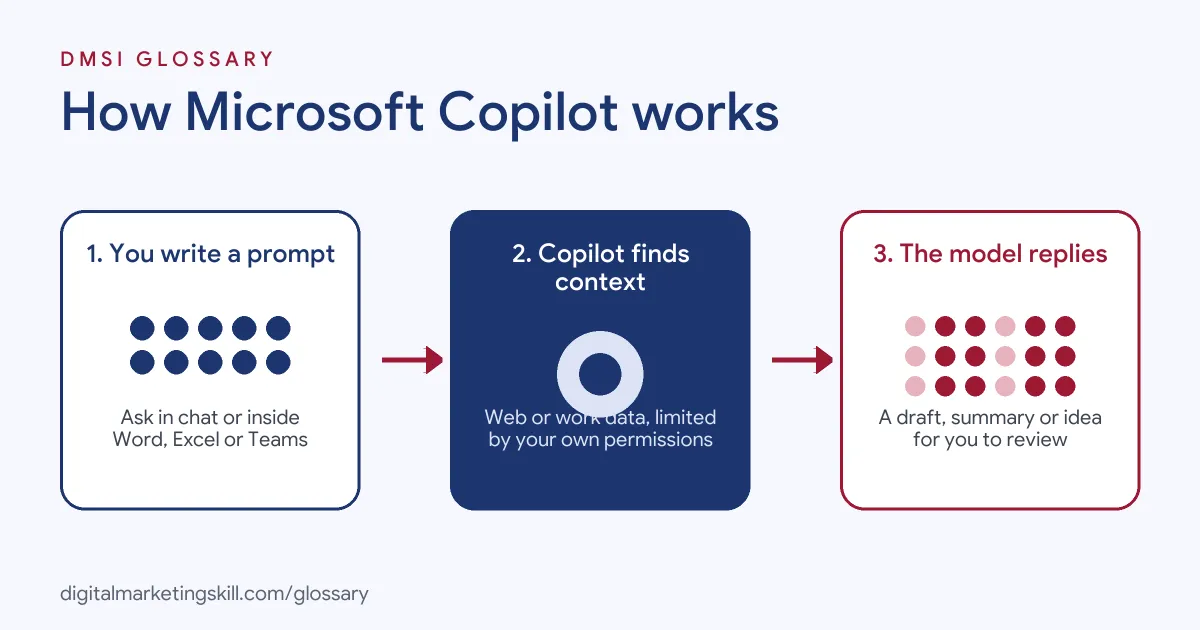
Copilot takes your request, finds useful context, and then uses a language model to write a response. Microsoft lists three things that power every Copilot experience: large language models, grounding in web or organisational data, and “Access scoped by user permissions.”
Step 1: You write a prompt
First, you type or say what you want. This request is called a prompt. For example, you might ask, “Summarise this report in five bullet points for a busy manager.” In general, clear prompts with a goal, an audience and a format get better results.
Step 2: Copilot finds context
Next, Copilot looks for information to ground its answer. In work versions, this can include your files, emails and chats through Microsoft Graph. However, Microsoft says Copilot “only surfaces organizational data to which individual users have at least view permissions.” So it can’t show you a file you couldn’t open yourself.
Step 3: The model writes a reply
Then a large language model uses your prompt and the context to write a response. For example, this might be a draft, a summary, a formula or a list of ideas. After that, Copilot shows the result in the app you are using.
Step 4: You review and refine
Finally, you check the output and ask for changes. For instance, you can ask for a shorter version or a friendlier tone. Because AI can make mistakes, you should always check facts, figures and names before you share the work.
Data and privacy
Of course, data protection matters for any AI tool at work. Microsoft states that “Prompts, responses, and data accessed through Microsoft Graph aren’t used to train foundation LLMs.” Also, work accounts signed in with Microsoft Entra get Enterprise Data Protection. Still, follow your own company’s AI policy on what you can share.
Building your own agents
In addition, some teams go further and build their own assistants. Microsoft describes Copilot Studio as “a graphical, low-code studio for building and managing AI-powered agents and workflows.” For example, a marketing team could build an AI agent that answers staff questions about brand guidelines.
Where it fits in marketing
For marketers, Copilot is most useful for everyday tasks. For example, it can turn rough notes into a first draft of a newsletter. It can also suggest subject lines, rewrite copy for a different audience or summarise customer feedback. In addition, it can help with AI summarisation of long reports before a strategy meeting. However, it does not replace your knowledge of the customer. So treat it as a fast first step, then add the insight only you can bring.
Examples of Microsoft Copilot
- A small agency writing proposals. The account manager asks Copilot in Word to draft a proposal from meeting notes. Then she edits the draft and adds real prices and timelines herself.
- An ecommerce team checking sales data. An analyst asks Copilot in Excel to spot trends in a sales sheet. After that, he checks the numbers by hand before sharing them.
- A B2B company after a webinar. The marketing lead uses Copilot in Teams to recap the planning meeting. So the whole team gets clear next steps without rewatching the recording.
Copilot Chat vs Copilot in Apps vs Copilot Studio
| Point | Chat app | Inside Microsoft 365 apps | Copilot Studio |
|---|---|---|---|
| What it is | A chat assistant | AI help inside Word, Excel, PowerPoint and more | A low-code tool to build agents |
| Main use | Questions, drafts, ideas | Working on the file in front of you | Custom assistants and workflows |
| Who uses it | Anyone | Office workers and marketers | Makers, admins and developers |
| Work data | Depends on plan | Can use organisational data | Uses the knowledge sources you add |
How to Use Microsoft Copilot
- Check your access. To start, ask your IT team which Copilot features your Microsoft account includes.
- Read your AI policy. Next, learn what data you may and may not share with AI tools at work.
- Start with one task. Pick a repeat job, such as meeting recaps or first drafts.
- Write a clear prompt. State the goal, the audience, the length and the format you want.
- Point it to the right files. In work versions, name the document or email it should use.
- Review every output. Then check facts, tone and brand style before you use the result.
- Save good prompts. Finally, keep a shared list of prompts that work well for your team.
Best Practices for Microsoft Copilot
- Give context. For example, tell Copilot who the content is for and what it should achieve.
- Ask for structure. Request headings, bullets or tables so the output is easier to edit.
- Keep a human in the loop. Use Copilot for first drafts, then add your own judgement and voice.
- Check for errors. AI can produce an AI hallucination, so verify any fact or figure.
- Protect sensitive data. Follow your company’s rules and Microsoft’s guidance for your plan.
- Iterate. So if the first answer misses, refine the prompt rather than starting over.
Common Mistakes to Avoid
- Publishing without review. Drafts can contain errors or claims you can’t back up.
- Vague prompts. For instance, a one-line request with no audience or goal often gets a bland answer.
- Assuming every plan is the same. Features differ between free, personal and work versions.
- Sharing data you shouldn’t. Always check your AI policy before you paste client details.
- Losing your brand voice. Instead, edit outputs so they still sound like your business.
Where You’ll Use Microsoft Copilot at Work
Copilot skills show up in Microsoft-focused AI and automation roles. They also help in any marketing job at a company that runs on Microsoft 365. For example, real remote job listings ask for:
- “Identify practical opportunities for Microsoft 365 Copilot and help teams use it effectively.” (Senior Microsoft AI Engineer – Copilot, Foundry & Power Automate).
- “Hands-on experience with Microsoft Copilot Studio and AI agent development.” (Microsoft Copilot & AI Consultant – DACH Region (m/f/d)).
- “Design, build and customise solutions using Microsoft Copilot and Copilot Studio.” (Copilot Developer).
Learn It in the Full Stack Track
You can learn to use AI assistants like Copilot across marketing work in the Full Stack programme, which covers all four tracks. Every track includes a U.S. Project Internship from day one, with unlimited 1-on-1 mentoring.
Frequently Asked Questions
Is Microsoft Copilot free?
Microsoft offers both free and paid versions. Features and usage limits differ by plan, so check Microsoft’s own pages for details.
Does Copilot use my work files?
In work versions, it can use organisational data. However, Microsoft says it only shows data you already have permission to view.
Is my data used to train the AI?
Microsoft states that prompts, responses and data accessed through Microsoft Graph aren’t used to train foundation LLMs.
What is Copilot Studio?
It is Microsoft’s low-code tool for building AI agents and workflows. Many teams use it to create custom assistants.
Can Copilot write marketing content?
Yes, it can draft emails, posts and outlines. Still, you should edit the drafts and check every fact before you publish.
Sources: Microsoft: Microsoft Copilot for individuals; Microsoft Learn: Microsoft Copilot overview; Microsoft Learn: Data, Privacy, and Security for Microsoft Copilot; Microsoft Learn: Copilot Studio overview; remote job listings on Himalayas, Himalayas and Himalayas.