
The Meta Pixel is a small piece of JavaScript code that you add to your website to track what visitors do there after they see or click your Facebook and Instagram ads. It sends those actions, such as a sign-up or a purchase, back to Meta as events. That matters because it lets you measure which ads work, build audiences from your visitors and help Meta show ads to people likely to act.
Key Takeaways
- The pixel is a JavaScript snippet that tracks visitor activity on your website.
- Its base code goes on every page and records a PageView each time a page loads.
- Meta lists 17 standard events, such as Lead, AddToCart and Purchase.
- Tracked conversions show up in Ads Manager and can define custom audiences.
- Meta recommends running the Conversions API alongside it, which needs deduplication.
What Is the Meta Pixel?
Meta’s developer documentation describes the pixel as “a snippet of JavaScript code that allows you to track visitor activity on your website.” It works quietly in the background. Visitors don’t see it, but it reports what they do.
For example, imagine a candle shop runs an Instagram ad. Someone taps the ad, lands on a product page and buys two candles. Without the pixel, Meta only knows about the tap. With it, Meta also learns about the product view and the purchase. As a result, the shop can see which ad led to the sale.
That is why the pixel sits at the heart of paid social. In short, it connects what happens on your site to what happens in your ads.
How the Meta Pixel Works
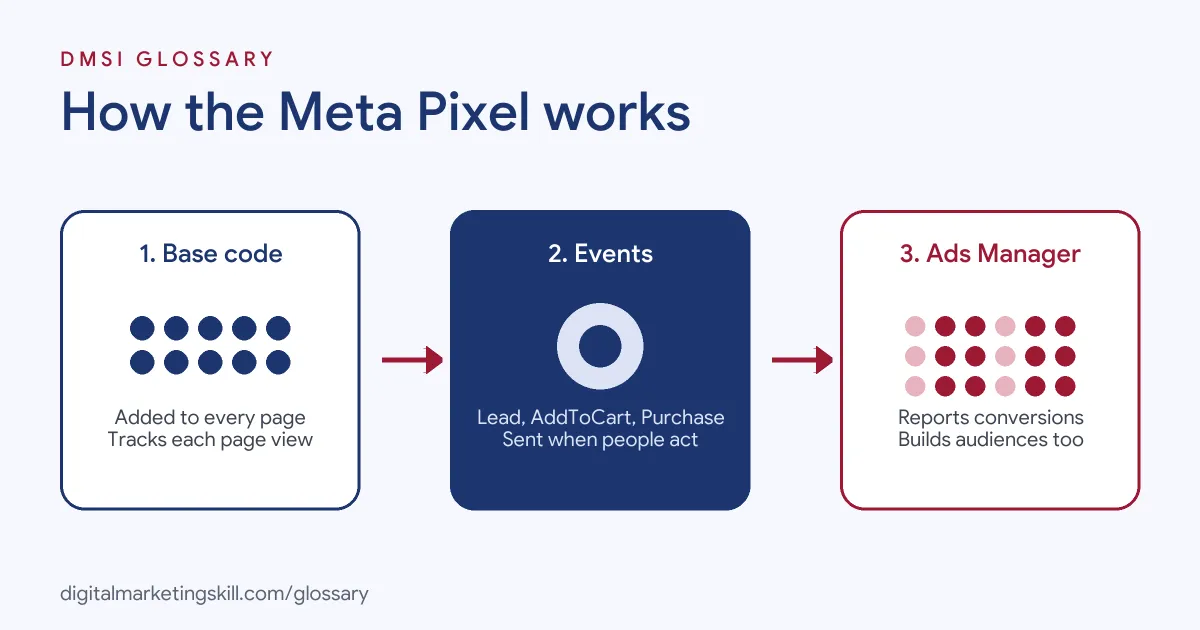
The pixel works in three layers. First, the base code loads on each page. Next, events fire when visitors take actions you care about. Finally, Meta uses that data for reports, audiences and ad delivery.
The Base Code
According to Meta, the base code downloads a library of functions for conversion tracking. It also tracks one PageView every time a page loads. By default, it records the URLs and domains people visit and the devices they use. Your Pixel ID appears in the base code twice, so Meta knows which account the data belongs to.
Standard and Custom Events
Events are the actions you want to count. Meta’s reference lists 17 standard events, including ViewContent, AddToCart, InitiateCheckout, Lead, CompleteRegistration and Purchase. You send them with a call such as fbq('track', 'Purchase'). Some events need extra details. For instance, Purchase requires a value and a currency.
You can also send optional data, such as a conversion value or page type, through custom data. Meanwhile, Meta notes that it doesn’t capture the values people type into form fields unless you include them through Advanced Matching.
What Data It Collects
Meta’s documentation lists the main types of data the pixel can send:
- HTTP headers: details such as IP address, browser, page location and the page that referred the visitor.
- Pixel data: your Pixel ID and the Facebook cookie.
- Button clicks: the labels of buttons people click and the pages those clicks lead to.
- Optional values: extra details you choose to send, such as conversion value.
- Form field names: for example, “email” or “phone”, but not what people type, unless you add it.
Because the pixel collects personal data, check your site’s privacy notice and cookie consent before you install it. Your legal or data team should sign this off.
What Meta Does With the Data
Meta uses pixel data in several ways. Conversions appear in Ads Manager, so you can measure each ad. You can also use them to define custom audiences, such as people who added to cart but didn’t buy. In addition, the data supports Advantage+ catalog ads and website funnel analysis.
Meta Pixel Examples
Here are three common ways businesses use the pixel:
- Online store: A clothing brand tracks ViewContent, AddToCart and Purchase with a value. As a result, it can see the sales value each campaign brings in.
- Lead generation: A training school fires the Lead event when someone submits a form. It then optimises its campaign for leads, not just clicks.
- Retargeting: A furniture shop builds a custom audience of people who started checkout but didn’t buy. Then it shows them a reminder ad.
In each case, the business decides which actions matter most. After that, the pixel does the counting.
Meta Pixel vs Conversions API vs UTM Tags
These three tracking tools often appear together in job listings, so it helps to know the difference:
| Tool | Where it runs | What it does |
|---|---|---|
| Meta Pixel | In the visitor’s browser | Sends page views and events from your website to Meta |
| Conversions API | On your server | Sends events from your server, app or CRM straight to Meta |
| UTM tags | In your ad links | Label traffic so your analytics tool knows where visits came from |
Meta recommends using the Conversions API together with the pixel. However, if both send the same event, you must deduplicate them. Meta matches the pixel’s eventID with the server’s event_id, and the event names must match too.
How to Install a Meta Pixel
The steps below follow Meta’s own setup guide. Menu names may shift slightly, but the order stays the same.
- Open Events Manager from Ads Manager and create your pixel if you don’t have one.
- Copy the base code. Check that your Pixel ID replaces both placeholders.
- Paste the code between the opening and closing
<head>tags on every page. Most developers add it to the site’s shared header. - If you have a separate mobile site, add the pixel there too.
- Add event code for the actions you care about, such as Lead or Purchase.
- Load a page, then check that a PageView appears in Events Manager. If it doesn’t, wait a few minutes and refresh.
- Still nothing? Use the Meta Pixel Helper extension for Chrome to find the problem.
You can also install it through most tag managers. Meta does not recommend the image tag method, so use the JavaScript code where you can. For a fuller walkthrough, see our Meta Pixel setup guide.
Best Practices for the Meta Pixel
- Track the actions that matter. Choose events that reflect real value, such as Lead or Purchase, rather than every click.
- Send purchase values. Without a value and currency, you can’t judge return on ad spend.
- Test before you spend. Check every event in Events Manager before you launch a campaign.
- Add the Conversions API. It sends the same events from your server, so you lose fewer of them.
- Use one Pixel ID. Meta advises using the same ID for browser and server events.
Common Mistakes to Avoid
Beginners often make the same few errors. First, they install the base code on some pages but not all, so data has gaps. Second, they fire the Purchase event on the cart page instead of the thank-you page. Third, they install the code twice, through a plugin and a tag manager, which counts each event twice. Finally, they run the server and browser events together without an event ID. Each of these is easy to spot with the Pixel Helper and Events Manager.
Where You’ll Use the Meta Pixel at Work
Tracking skills come up again and again in paid social roles. For example, remote job listings ask for:
- “Familiarity with tracking tools such as Meta Pixel, Google Analytics (GA4)” (Media Buyer).
- “Comfort troubleshooting tracking issues at the pixel, UTM, and attribution level” (Sr. Meta Media Buyer).
- Ability to “Configure and maintain UTMs, Meta Pixel, Conversions API (CAPI) and relevant conversion events” (Funnel and Performance Marketing Specialist).
So if you want to work as a Paid Social Specialist or Social Media Manager, expect to set up, test and fix tracking. It is often the first thing a new client asks you to check in Meta Ads Manager.
Learn It in the Social Media Track
You can learn to install and test a Meta Pixel in the AI-Powered Social Media Management and Advertising track. There, you plan, create and run a paid social campaign for a real brand, so tracking has to work from the start. You also join a U.S. Project Internship from day one, with unlimited 1-on-1 mentoring.
Want to put your pixel data to work? Our guide to Facebook retargeting shows how to build audiences and exclusion lists from it.
Frequently Asked Questions
What does the Meta Pixel do?
It tracks what visitors do on your website, such as viewing a product or buying, and sends those events to Meta. You then see the results in Ads Manager.
Is the Meta Pixel the same as the Facebook Pixel?
Yes. It is the same tool under Meta’s current name. It tracks website actions for ads on Facebook, Instagram and Meta’s other apps.
Where do I put the pixel code?
Meta recommends placing the base code between the opening and closing head tags on every page you want to track. Most sites add it to the shared header.
How do I know if my pixel is working?
Load a page and look for a PageView in Events Manager. If nothing appears, Meta suggests the Pixel Helper extension for Chrome.
Do I still need the pixel if I use the Conversions API?
Meta recommends using both together. The pixel tracks browser events, while the server sends a backup copy. Deduplication stops Meta counting the same event twice.
Sources: Meta for Developers: Meta Pixel; Meta for Developers: Get started; Meta for Developers: Standard events reference; Meta for Developers: Deduplication; remote job listings on Himalayas.