The Meta pixel is a snippet of code that tracks what people do on your website after clicking a Facebook or Instagram ad. It measures conversions, builds custom audiences and helps you retarget visitors. Set it up once in Events Manager, then pair it with Meta’s Conversions API so a blocked browser script does not cost you the data.
Key Takeaways
- The name changed, the tool did not. Meta rebranded the Facebook pixel to the Meta pixel. It is still the same tracking code, installed the same way through Events Manager.
- Seventeen standard events exist. Meta’s own developer documentation lists 17 standard events. Purchase, Lead, AddToCart and Search are among them.
- Browsers block part of the picture. Safari’s WebKit engine has blocked third-party cookies by default for years. A pixel running alone misses a share of the conversions it is meant to measure.
- Meta recommends pairing it with server data. Meta’s own documentation says Conversions API events are processed the same way as pixel events. It exists to recover what the browser alone misses.
- Manual event prioritisation is gone. The old step of ranking your top eight pixel events has been removed, according to Meta ads publication Jon Loomer Digital. Older guides describing that step are now out of date.
In this guide
- What Most Pixel Setup Guides Get Wrong
- What the Meta Pixel Actually Does
- Why the Pixel Alone Misses Events
- How to Set Up the Meta Pixel
- How to Judge Whether Your Pixel Data Is Healthy
- The One Rule: Never Rely on the Browser Alone for Revenue Events
- A Real Case: Why Meta Pushed Advertisers Toward Server-Side Data
- Advanced Matching: A Small Setting With a Big Effect
- Three Setup Mistakes That Quietly Break Pixel Data
- Frequently Asked Questions About the Meta Pixel
- Install It Once, Then Check It Monthly
What Most Pixel Setup Guides Get Wrong
Search for pixel setup advice and most guides still repeat steps from years ago. Install the code. Pick your top eight events. Wait for data. However, some of that advice is outdated now, and a few of those steps no longer exist in Events Manager at all.
Meanwhile, the bigger shift is not inside Events Manager at all. It is the move away from relying on the browser alone, toward pairing the pixel with a server-side connection that does not depend on a script loading successfully.
This guide checks the setup process against Meta’s current developer documentation, not against habit. The browser-blocking facts below are stable and well established, not a prediction. Treat the specific screens inside Events Manager as likely to shift, since Meta updates that interface often.
What the Meta Pixel Actually Does
The Meta pixel is a short piece of JavaScript you add to your website. It fires each time a visitor takes an action you care about. That action is called an event. The event gets reported back to Meta, where it feeds three things: ad measurement, campaign optimisation and audience building.
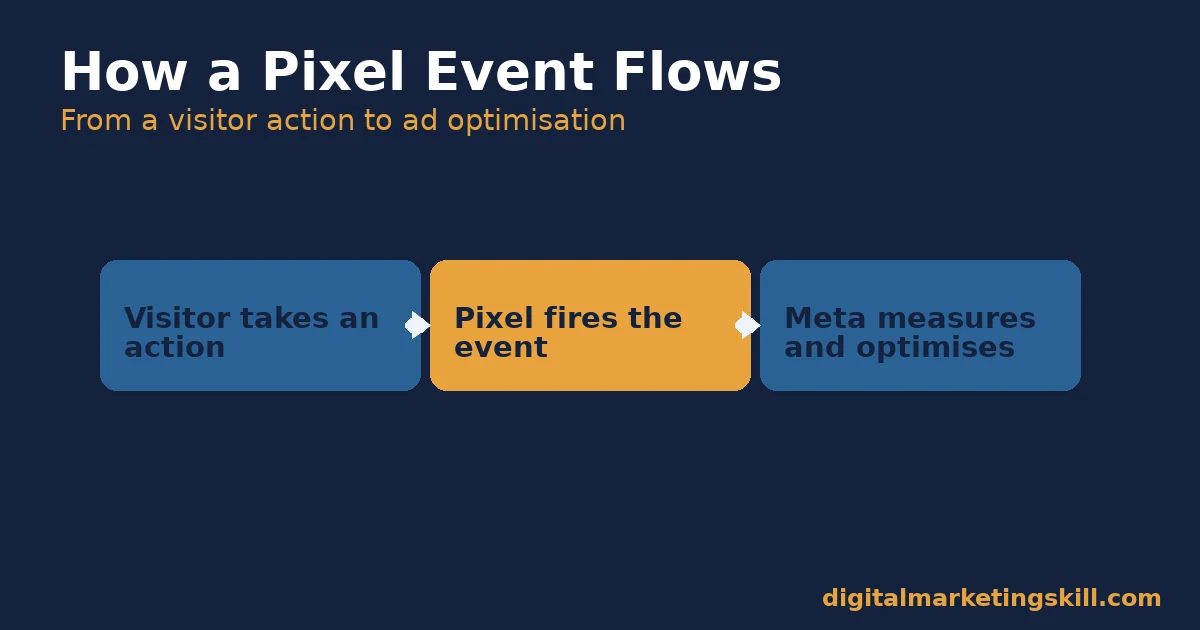
Picture an online store running a Facebook ad for a jacket. Someone clicks the ad and lands on the product page. They add the jacket to their cart. The pixel fires a ViewContent event on the product page, then an AddToCart event when they add it. Meta now knows this specific ad led to a near-purchase, not just a click.
If that same visitor leaves without buying, the pixel has still done useful work. Meta can now build a custom audience of people who viewed that jacket but did not purchase it, and show them a follow-up ad later. That single event turns a lost sale into a second chance, at no extra cost beyond the retargeting ad itself.
Why Click Data Alone Was Never Enough
This matters most for anyone spending real ad budget. Guessing which ad works from clicks alone is like judging a shop from foot traffic outside, without ever checking how many people actually bought something inside.
Before pixel tracking, advertisers could see how many people clicked an ad. They could not see what happened next. A high click rate on an ad that converts nobody looks identical to a high click rate on an ad that converts everybody.
Something has to track the visit afterward to tell the two apart. That is what the pixel closes. It connects the ad click to what the visitor actually did on the site.
Standard Events: The Shared Language Meta Reads
Events are the actions the pixel reports. Meta’s own developer documentation lists 17 standard events. These include Purchase, Lead, AddToCart, InitiateCheckout, Search, Contact and Subscribe. Using a standard event instead of a custom one matters, because Meta’s ad-delivery system is built to read these specific names for targeting and optimisation.
Why the Pixel Alone Misses Events
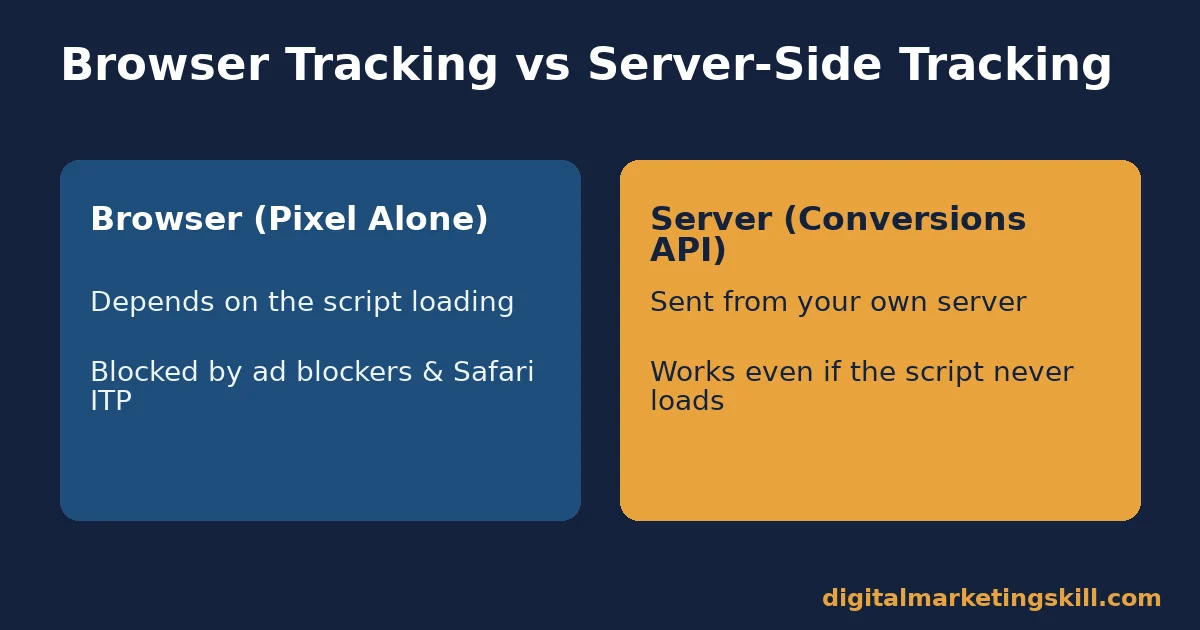
A browser-only pixel depends on that browser actually loading and running the script. Several common, everyday situations stop that from happening. None of them are rare edge cases anymore.
Browser-Based Tracking: Built to Miss What It Cannot See
Ad blockers, slow connections and script errors all stop a pixel firing before it reports anything. On top of that, Apple’s WebKit engine, which powers Safari, has blocked third-party cookies by default for years. A browser-only pixel setup works with a structurally incomplete view of your real visitors.
Server-Side Tracking: Built to Not Depend on the Browser
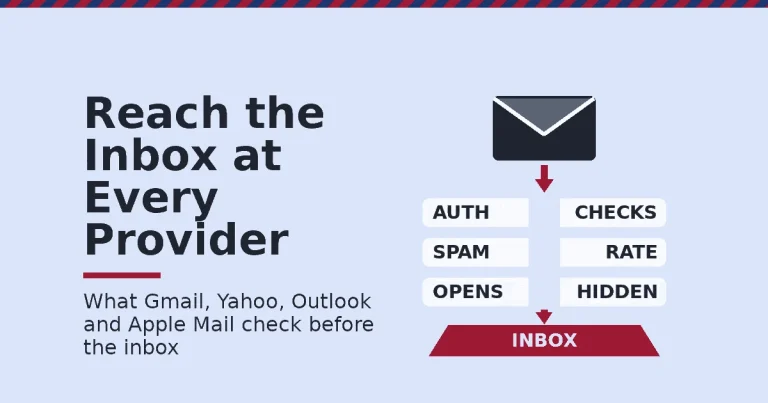
A server-side connection sends the same event from your website’s own server. It does not depend on the visitor’s browser cooperating at all. Meta’s own documentation confirms that events sent this way are “processed like events sent using the Meta Pixel.” The two methods report into the same system rather than competing with each other.
How to Set Up the Meta Pixel
The setup lives inside Meta Events Manager. It takes about ten minutes for a straightforward website. Follow the order below, since each step depends on the one before it.
Create the Pixel Inside Events Manager
Open Events Manager from your Meta Ads Manager account. Choose to connect a new data source, then select the website option. Name your pixel clearly if you plan to run more than one, and confirm the domain you want to track.
Most accounts only ever need one pixel. Create a second pixel only when you genuinely manage separate businesses or separate ad accounts, since splitting one business across two pixels just divides the data each one can learn from.
Install It on Your Website
Meta offers three install paths. You can use a direct partner integration for platforms like a hosted store builder, place the code manually in your site’s header, or hand a generated snippet to a developer. Pick the partner integration whenever your platform supports it. That path updates automatically whenever Meta changes its tracking code.
A fourth option works well for a site that already uses a tag management system: add the pixel as a tag inside Google Tag Manager rather than pasting code directly into your theme. That keeps every tracking script in one place and avoids a developer needing to touch your site’s core files for every future update.
Verify Events Are Firing
After installation, use the built-in test tool in Events Manager. Visit your own site and confirm each event appears live. Do not skip this step. A pixel that is installed but silently misfiring on your checkout page can run for months before anyone notices the gap.
Walk through every page type that should fire an event: the homepage, a product page, the cart, and the final confirmation page. Click through as a real customer would, rather than only checking the homepage and assuming the rest works the same way.
How to Judge Whether Your Pixel Data Is Healthy
Once the pixel is live, do not just assume it works. Track the signals below. Each is defined in one sentence, so a quiet failure does not go unnoticed for weeks.
Four Checks That Catch a Broken Pixel Early
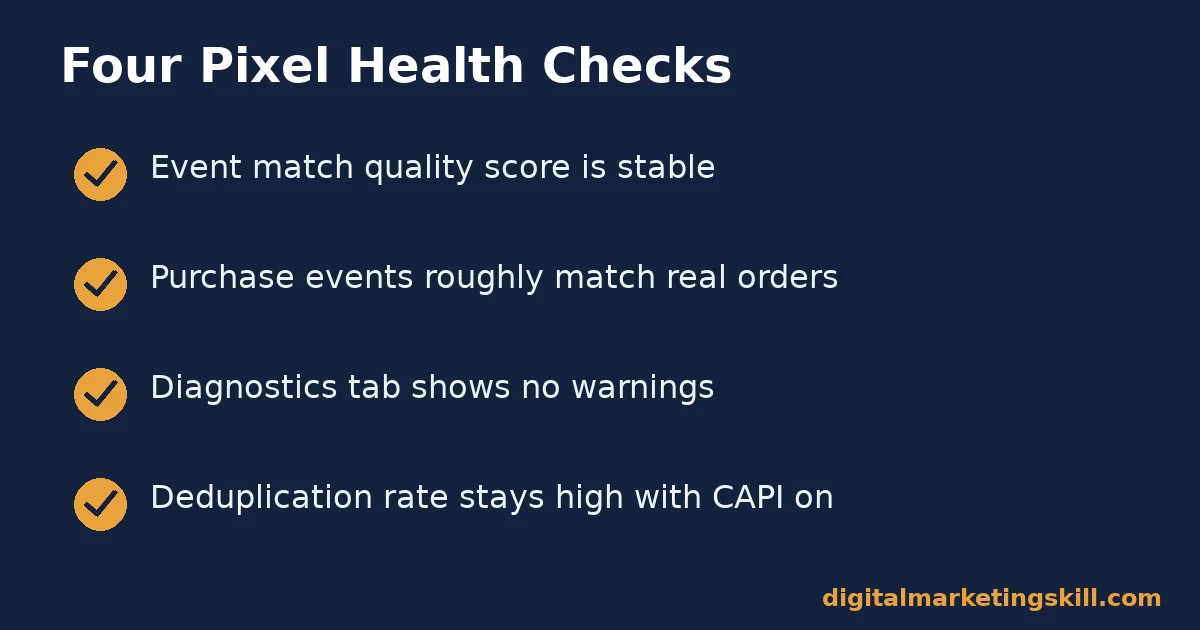
- Event match quality. Events Manager’s own score for how reliably an event matches to a real Meta user. A sudden drop usually means a tracking parameter broke.
- Events received vs. expected. Compare daily Purchase events against your actual order count from your store platform. A growing gap signals missed conversions, not fewer sales.
- Diagnostics warnings. Events Manager flags issues like duplicate events or a missing parameter directly in its diagnostics tab. Check it after any site redesign.
- Deduplication rate. If you run the pixel and Conversions API together, this shows how often Meta correctly recognised the same event from both sources, instead of double-counting it.
Reading These Signals Together
A falling match quality score with steady order counts usually points to a broken parameter, not fewer real customers. A growing gap between received and expected Purchase events often means the pixel is failing silently on part of your checkout flow. Check diagnostics first. It frequently names the exact problem for you.
Review these numbers after any website change, not only when something looks wrong. A theme update, a new checkout plugin or a cookie-consent tool can all quietly break a pixel that worked fine the day before.
The One Rule: Never Rely on the Browser Alone for Revenue Events
If you remember one decision rule from this guide, make it this one. For any event tied directly to revenue, such as Purchase or Lead, send it through both the pixel and the Conversions API. Do not rely on the pixel alone.
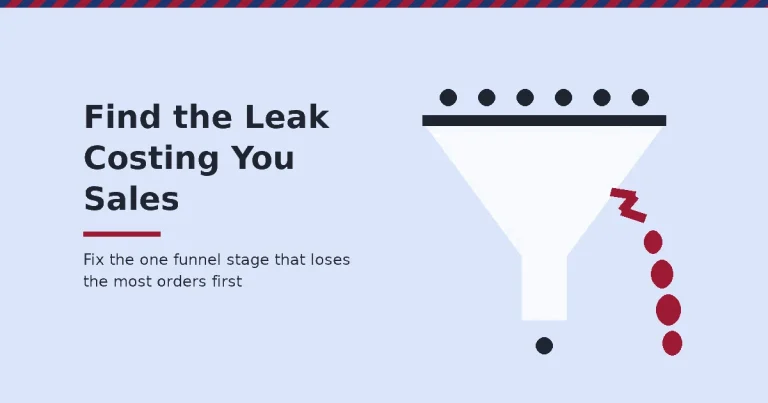
Here is an illustrative example, with invented numbers. A small store relies on the pixel alone. It records 400 Purchase events in a month against 500 real orders from its store platform, an 80% match rate.
The store then adds server-side events through the Conversions API, with deduplication turned on. That same month now shows 480 matched Purchase events, a 96% match rate, with no change in actual sales at all.
The lesson is about where the data was leaking. Those orders were always happening; the browser-only pixel just was not seeing a fifth of them. That gap is exactly what Meta built the Conversions API to close.
A Real Case: Why Meta Pushed Advertisers Toward Server-Side Data
Meta’s own documentation frames the Conversions API around one specific problem. Client-side, browser-based signals have become less reliable over time, as browsers restrict tracking by default. Meta built a parallel server path specifically so advertisers would not stay fully dependent on a method it knew was degrading.
The removal of the old eight-event prioritisation requirement, reported by Jon Loomer Digital, points the same direction. Meta simplified that manual event-ranking step as its measurement systems shifted toward aggregating signals automatically. Advertisers no longer have to guess which events matter most.
Keep the limits of this pattern in mind. These are platform and policy changes described by Meta and by a specialist Meta ads publication, not an independent controlled study. Meta’s own interface keeps changing. Treat this as the direction of travel, not a permanent, final state.
Advanced Matching: A Small Setting With a Big Effect
Advanced matching is a pixel setting most guides skip. It lets the pixel send hashed customer details, such as an email address typed into a form, alongside the event. Meta never sees the raw email. It only sees a one-way hash of it, which it can compare against its own hashed user data.
This single setting often lifts match quality more than any other change you can make. Turn it on inside your pixel’s settings in Events Manager, and confirm that your site’s forms pass through fields like email and phone number where visitors already provide them. There is nothing to build from scratch. The setting mostly works with data your site already collects.
Three Setup Mistakes That Quietly Break Pixel Data
Most broken pixels were not broken on day one. They broke later, usually without anyone noticing right away. These three mistakes cause most of the damage.
Running Two Pixels by Accident
This mistake is easy to miss because everything still looks like it is working. Events still appear in Events Manager, ads still optimise, and nobody notices the numbers are quietly doubled until someone compares them against real order counts.
A common cause is a leftover pixel from an old theme, plugin or agency, still firing alongside your current one. Every event then fires twice, inflating your numbers and confusing optimisation.
Check your page source for more than one pixel base code before you troubleshoot anything else. This single check alone resolves a surprising share of reported pixel problems, especially on sites that have changed agencies or page builders in the past.
Blocking the Pixel With Your Own Consent Tool
A cookie-consent banner that blocks all scripts by default, including your own analytics and pixel, can silently cut off tracking for every visitor who does not actively opt in. This is not optional in many regions; consent requirements for tracking tools are set out in rules like the EU’s General Data Protection Regulation, not left to each site’s preference.
Check your consent tool’s settings to confirm the pixel is allowed to fire for visitors who consent, rather than blocked for everyone by default. Many tag managers also support consent mode signals, which can preserve some modelled measurement even for visitors who decline tracking.
Missing the Purchase Event on a Custom Checkout
Standard page builders usually fire Purchase automatically on their thank-you page. A custom-built checkout often does not, unless a developer added the event manually. As a result, this is the single most common reason match rates look healthy everywhere except the one event that matters most for ad spend decisions.
Therefore, test the Purchase event specifically, with a real low-value order if your platform allows one, rather than assuming it fires just because other events on the same page do. A working AddToCart event proves nothing about whether the final Purchase event further down the same checkout flow is configured correctly.
Frequently Asked Questions About the Meta Pixel
Is the Meta pixel the same thing as the Facebook pixel?
Yes. Meta renamed the Facebook pixel to the Meta pixel as part of its wider company rebrand. The tracking code, the setup process in Events Manager and the standard events are unchanged under the new name.
How much does it cost to use the Meta pixel?
Installing and using the Meta pixel is free. You only pay for the ad spend on the campaigns the pixel helps you measure and optimise.
Can I use the Meta pixel without a website?
No. The pixel is tracking code installed on a website, so it needs one to run on. If you only advertise through an app, Meta’s app-based SDK tracking is the equivalent tool instead.
What is the difference between the Meta pixel and Meta Ads Manager?
Ads Manager is where you build, launch and manage ad campaigns. The Meta pixel is the tracking code on your website that reports what happens after someone clicks one of those ads. The two tools work together rather than replacing each other.
Do I still need to prioritise my top eight pixel events?
No, according to reporting from Jon Loomer Digital. Meta removed the manual eight-event prioritisation step introduced after Apple’s tracking changes. Its systems now aggregate eligible events automatically.
Should I install the pixel myself or hand it to a developer?
Use the partner integration option in Events Manager whenever your website platform supports one, since it installs and updates the code automatically. For a custom-built site, a developer installing the code manually is usually more reliable than a non-technical manual install.
Does the Meta pixel work the same way on mobile browsers?
Yes, the pixel code itself behaves the same on mobile and desktop browsers. However, mobile Safari applies the same third-party cookie blocking as desktop Safari, so the gap a server-side connection closes applies equally, and often more, to mobile traffic.
Why does my Purchase event count not match my real sales?
The most common causes are a missing event on a custom checkout page, an ad blocker stopping the browser script, or a consent tool blocking the pixel by default. Check Events Manager diagnostics first, since it usually names the exact event that is failing.
What is advanced matching, and should I turn it on?
Advanced matching lets the pixel send hashed customer details, such as a typed email address, alongside each event. Turning it on usually raises match quality with little extra setup work, since it reuses data your forms already collect rather than asking visitors for anything new.
Install It Once, Then Check It Monthly
The Meta pixel earns its value once it feeds real conversion data back into your campaigns. That only works if it keeps firing correctly. So set it up through Events Manager, verify every event, then add the Conversions API for anything tied to revenue. Check match quality and diagnostics monthly, especially after any site change.
See our guides on fixing a disabled Facebook ad account and paths that actually pay on Facebook for more on the advertising side of this.
If you want to build these skills properly, Digital Marketing Skill Institute teaches paid social, tracking and analytics hands-on. Its Master Diploma in Digital & AI Marketing is built around four AI-powered tracks covering ten execution-first courses, including AI-Powered Social Media Management and Advertising. A Full Stack option lets you complete all four tracks.
The diploma comes with unlimited 1-on-1 coaching and mentoring, plus a U.S. Project Internship with a verified U.S. Work Reference Letter. It is dual US and UK accredited and recognised in more than 100 countries.
The programme is fully online, so you can study from anywhere in your country. Browse more guides on the Digital Marketing Skill Institute blog, check real outcomes on our reviews page, and whenever you are ready, wherever you live, apply for the Master Diploma or start from the Digital Marketing Skill Institute homepage.
Every figure in this guide was checked against its original source before publication. Figures marked as illustrative are invented examples, not real results.
![9 Amazing Digital Marketing Skills to Make Money Online [With Proof]](https://digitalmarketingskill.com/wp-content/uploads/2019/07/9-Amazing-Digital-Marketing-Skills-to-Make-Money-Online-With-Proof-17.png)