
Meta Business Suite is a free tool from Meta that lets businesses manage their Facebook Page and Instagram account in one place. From a single dashboard, you can create and schedule posts, reply to messages and comments, and see how your content performs. It matters because it saves you switching between apps, so a small team can run organic social media with less effort.
Key Takeaways
- The suite is free and works on desktop and through a mobile app.
- It brings Facebook, Instagram and WhatsApp Business messages and content together.
- Its main areas are Home, Content, Planner, Inbox, Insights and Ads.
- To connect Instagram, your account must be a business or creator account.
- It suits everyday posting and replies. For detailed paid campaigns, most marketers use Meta Ads Manager.
What Is Meta Business Suite?
Think of the suite as the control room for your brand on Meta’s apps. Without it, you would post on Facebook in one place, post on Instagram in another, and check messages in a third. With it, those jobs sit side by side.
For example, a café owner can plan a week of posts on Sunday evening. She writes each post once, chooses Facebook, Instagram or both, and sets a time. During the week, she answers questions from both apps in one inbox. At the end of the week, she checks which posts reached the most people.
According to Buffer’s guide, “Meta Business Suite is free to use.” It covers Facebook Pages, Instagram accounts and WhatsApp Business accounts. You open it on the web at business.facebook.com, or through its mobile app when you are on the go.
How Meta Business Suite Works
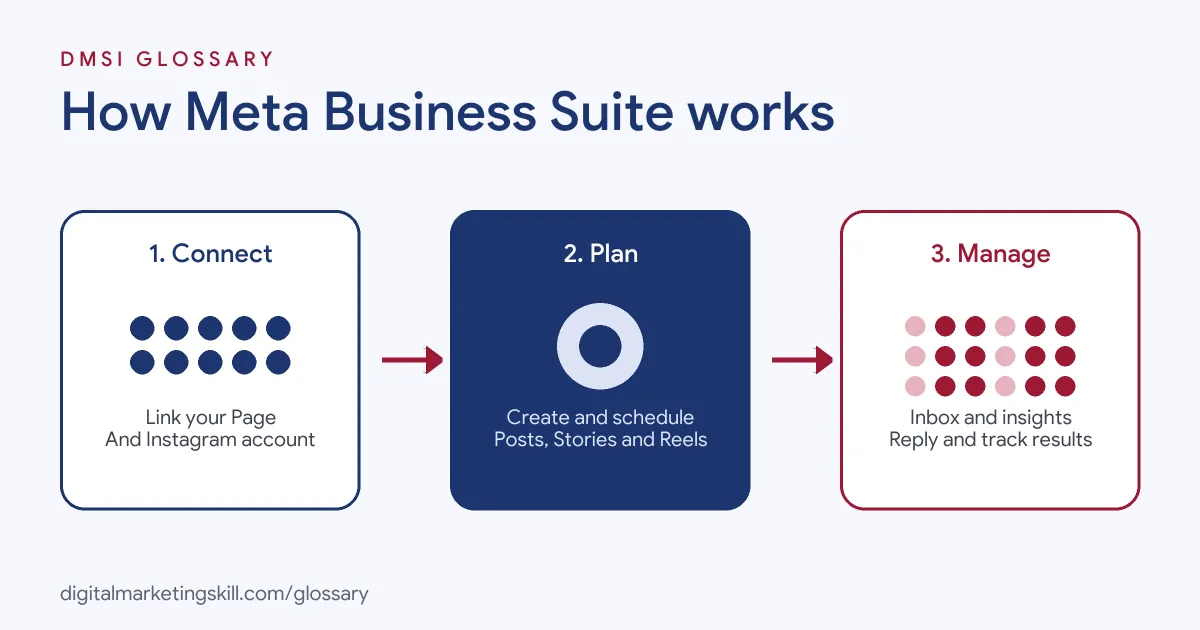
The tool works in three stages. First, you connect your accounts. Next, you plan and publish content. Finally, you manage replies and track results.
Connect Your Accounts
You start with your Facebook Page. Then you link your Instagram account. Adobe’s guide notes that “your account will need to be either a Business Account or a Creator account.” If you have a personal Instagram account, you can switch it in the app’s settings first.
Plan and Publish
Next, you create posts in the Content or Planner area. The Planner shows a calendar of scheduled posts, Stories and ads. As Shopify puts it, Meta Business Suite “allows you to schedule both Instagram and Facebook posts in one place.” Feed posts, carousels, videos and Stories can all be scheduled.
Reply and Review
Meanwhile, the Inbox gathers messages and comments from Facebook, Instagram and WhatsApp. You can also set up automated responses, for example to share your opening hours. Then the Insights area shows reach, engagement and follower growth. Adobe notes that its Insights view “is limited to the previous 90 days of data”, so export reports regularly if you need a longer history.
Ads and Other Tools
The suite also has an Ads area. Here, you can create simple campaigns, set a budget and choose an audience. Buffer’s guide adds that the “All tools” menu includes “A/B testing, audience management, and lead generation options.” In practice, these are handy for quick tests. For larger campaigns with many ad sets, however, the full Ads Manager gives you more control.
Finally, the Home screen pulls it all together. It shows an overview of recent posts, how they performed and a to-do list. So it is a good place to start each working day.
Meta Business Suite Examples
Here are three common ways businesses use it:
- Local restaurant: The owner schedules daily specials for both apps each Monday. Then the team uses automated replies to answer “Are you open?” messages after hours.
- Online boutique: A small clothing brand plans product launches in the Planner. Afterwards, it compares reach and engagement for Reels and photo posts in Insights.
- Freelance social media manager: A freelancer manages several clients’ Pages. She switches between them in one tool, schedules a month of content and sends each client a monthly report.
In each case, the tool saves time on routine work. As a result, there is more time for ideas and creative work.
Meta Business Suite vs Meta Ads Manager vs Native Apps
Meta gives you several places to manage your presence. Here is how they compare:
| Tool | Best for | Limits |
|---|---|---|
| Business Suite | Scheduling posts, replying to messages and checking basic insights for Facebook and Instagram | Simpler ad options; Insights limited to the last 90 days |
| Meta Ads Manager | Building and testing paid campaigns with full targeting, budgets and reporting | Focused on ads, not organic posting or messages |
| Facebook and Instagram apps | Posting on the spot and engaging with followers in real time | One app at a time; less planning overview |
So many teams use Business Suite for organic work and Meta Ads Manager for paid campaigns.
How to Use Meta Business Suite to Schedule a Post
The steps below follow the standard flow. Menu names can change slightly over time, but the logic stays the same.
- Go to business.facebook.com and log in with the account that manages your Page.
- Connect your Instagram business or creator account, if you have not already.
- Open Planner or Content, then select Create post.
- Choose where to publish: Facebook, Instagram or both.
- Add your text, images, video and links. Adjust the caption for each app if needed.
- Under scheduling options, turn on Set date and time, then pick when it should go live.
- Select Schedule. Your post now appears in the Planner calendar.
Before you schedule a batch, preview each post for both apps. Images and captions can display differently on each one.
Best Practices
- Batch your content. Plan a week or a month in one sitting, then use the Planner to spot gaps.
- Tailor posts for each app. A caption that works on Facebook may need fewer words and more hashtags on Instagram.
- Check the inbox daily. Quick replies build trust, and automated responses cover the hours you are away.
- Use Insights to guide your plan. Repeat the formats that reach and engage your audience most.
- Save your reports. Because Insights shows a limited history, download or record your key numbers each month.
Common Mistakes to Avoid
New users often trip up in a few places. First, they try to connect a personal Instagram account and cannot find it. Second, they post the same caption everywhere without checking how it looks. Third, they boost posts from the suite and treat that as a full ad strategy. Finally, they forget to check the inbox, so messages go unanswered for days.
Where You’ll Use Meta Business Suite at Work
The tool appears often in social media job listings. For example, recent remote listings ask candidates to:
- “Monitor campaign performance using Google Analytics, Meta Business Suite and other reporting tools.” (Social Media Manager)
- Have a “working knowledge of Meta Business Suite, TikTok, Pinterest, and social media analytics/reporting tools.” (Social Media Manager, Intermediate)
- Be “comfortable with analytics and reporting (Google Analytics, Meta Business Suite, etc.).” (Marketing Specialist)
So if you want to work as a Social Media Manager, Paid Social Specialist or Content Creator, employers will expect you to plan, publish and report from this tool.
In a typical week, that might mean three jobs. First, you build next week’s content calendar in the Planner. Then you check the inbox each morning and flag sales questions for the right person. Finally, you pull reach and engagement figures from Insights for a short report to your manager or client. Being quick and accurate at these routine tasks is often what makes a junior social media hire useful from the first week.
Learn It in the Social Media Track
You can learn to plan, publish and report on content in the AI-Powered Social Media Management and Advertising track. It covers content creation, social media marketing and analytics, and social media advertising. For your portfolio, you plan, create and run a paid social campaign for a real brand. You also join a U.S. Project Internship from day one, with unlimited 1-on-1 mentoring.
For more on using Facebook well, read our guide to Facebook marketing for business.
Frequently Asked Questions
Is Meta Business Suite free?
Yes. The tool itself is free to use. You only pay if you choose to run ads.
Can I use it with a personal Instagram account?
No. You need an Instagram business or creator account. You can switch your account type in the Instagram app’s settings.
What is the difference between Business Suite and Ads Manager?
Business Suite is mainly for organic posts, messages and basic insights. Ads Manager is built for creating and reporting on paid campaigns in detail.
Can I schedule Instagram Stories in Business Suite?
Yes. You can schedule feed posts, carousels, videos and Stories for Instagram, as well as posts for Facebook.
Is there a mobile app?
Yes. There is a mobile app for managing posts and messages on the go, as well as the desktop version.
Sources: Buffer: Meta Business Suite, what it is and how to use it; Adobe Express: Manage Instagram with Meta Business Suite; Shopify: How to schedule Instagram posts; remote job listings on Himalayas.