
Elementor is a drag-and-drop website builder plugin for WordPress that lets you design pages visually, using widgets and templates instead of code. You install the free version from the WordPress plugin directory, and a paid version adds tools such as a theme builder and popup builder. It matters because it is one of the most widely used WordPress builders, so many web and marketing jobs expect you to know it.
Key Takeaways
- It is a visual, no-code editor that runs inside WordPress.
- The plugin listing shows more than 10 million active installations.
- The free version includes over 40 widgets, such as headings, images, buttons and galleries.
- Paid features include the Theme Builder, Popup Builder, custom code and eCommerce tools.
- Like any builder, it works best when you keep pages light and use global styles.
What Is Elementor?
WordPress on its own gives you an editor for writing posts and pages. However, many people want more control over layout without learning code. That’s where this plugin comes in. Its website calls it “a user-friendly website builder that offers a visual drag-and-drop Editor, enabling you to create a website in just a few clicks, with no prior coding knowledge required.”
In practice, you open a page in the Elementor editor and see it as visitors will. You drag in widgets, change text and colours, and publish. Its plugin listing describes it as “more than just a page builder,” because it also covers popups, forms and, in the paid version, whole-site templates.
For the general idea, see our glossary entry on the page builder.
How Elementor Works
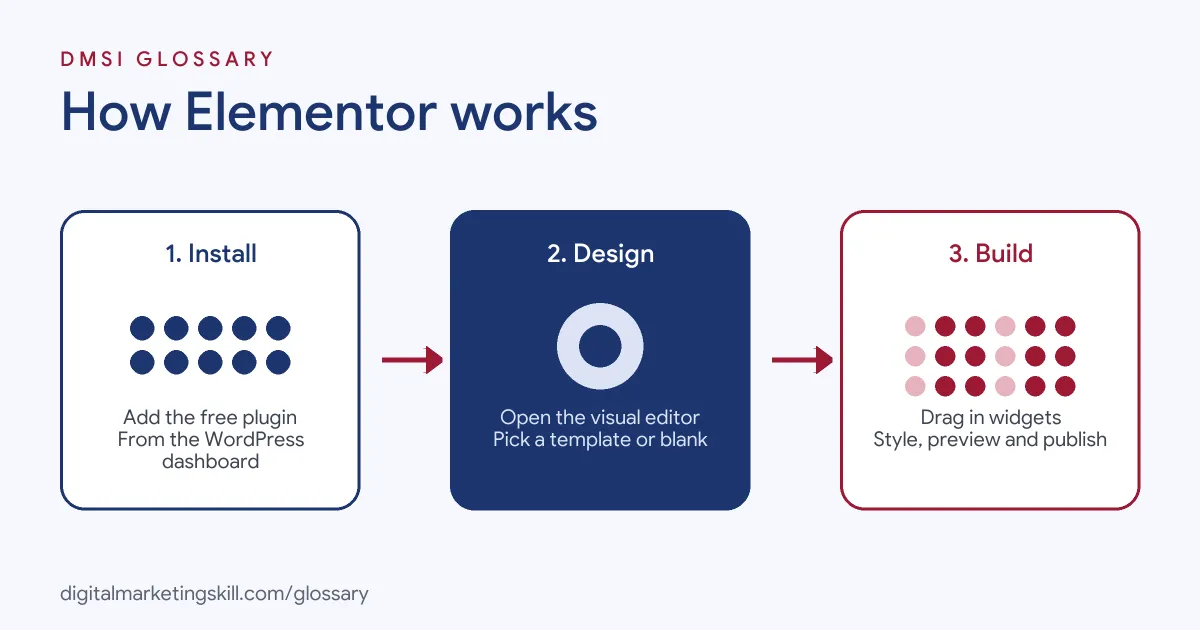
The plugin works in three steps. First, you install and activate it in WordPress. Next, you open a page in the visual editor and choose a template or a blank layout. Finally, you drag widgets onto the page, set their styles and publish.
Widgets
Widgets are the building blocks. The plugin listing mentions “over 40 FREE widgets, including heading, image, text editor, video, button, gallery, carousels, and more.” Each widget has its own settings, so you can fine-tune every part of a page.
Templates and Kits
You don’t have to start from scratch. According to the listing, you can “apply complete website kits for instant setups, or choose from a vast library of single pages, blocks, and pop-up templates.” As a result, a new landing page can start from a proven layout.
Global Styles and Components
Consistency matters on a business site. The listing explains that you can “define your global design systems and reusable components once, and they apply everywhere instantly.” In addition, revision history lets you “track and revert to previous versions of your designs.”
AI Features
The builder now includes AI tools too. Its website says it “offers built-in AI tools for site planning, copywriting, image creation, and code generation.” Meanwhile, the plugin listing says you can “describe what you want in natural language” and the AI “builds it: custom widgets, sections, full layouts, and WordPress snippets.” As with any AI output, review the result before you publish it.
Elementor Examples
Here are three made-up examples of how people might use the plugin:
- Freelancer: A web designer builds client sites from a saved kit. Then she swaps colours, fonts and images to match each brand.
- PPC specialist: A Google Ads specialist builds a new landing page for each campaign, so the headline matches the ad.
- Online shop: A small store uses the paid version’s popup builder to show a sign-up offer to new visitors.
In each case, the user makes design changes without asking a developer.
Elementor Free vs Paid
The plugin is free, with paid upgrades. Here is a simple comparison:
| Feature | Free version | Paid version |
|---|---|---|
| Visual drag-and-drop editor | Yes | Yes |
| Widgets | Over 40 free widgets | Free widgets plus Pro tools |
| Reusable components | Global design settings | Components marked as Pro |
| Theme Builder and Popup Builder | Not included | Included |
| Custom code, CSS and eCommerce tools | Not included | Included |
Elementor’s site says you can “start with the no-cost Editor tier and upgrade to Editor Pro when you need advanced capabilities.” So many people begin free and upgrade only when a project needs it.
How to Get Started With Elementor
- In your WordPress dashboard, go to Plugins, then Add New.
- Search for the plugin, then install and activate it.
- Set your global fonts and colours first, so every page stays on brand.
- Create a new page and choose Edit with Elementor.
- Pick a template, or start with a blank layout.
- Drag in widgets, edit the text and images, and check the mobile view.
- Publish, then test page speed and any forms before you send traffic.
New to WordPress? Our guide on how to build a WordPress website covers the steps before this.
A Simple Landing Page Build
Here is a made-up walkthrough for a webinar sign-up page:
- Create a new page and open it in the visual editor.
- Add a heading widget with the webinar title and a short line on the benefit.
- Next, drop in an image or short video that shows the speaker or topic.
- Add three short bullet points on what people will learn.
- Insert a form with name and email fields, and connect it to your email tool.
- Then place a button lower down that scrolls back to the form.
- Preview on mobile, fix spacing, then publish and test the form.
Once the page works, save it as a template. Then the next webinar page takes minutes, not hours.
Elementor vs the Block Editor
WordPress has its own block editor, so you may wonder why people add a plugin. In short, the block editor is built in and great for posts and simple pages. A plugin builder adds more visual design control, extra widgets and, in paid versions, tools like popups and theme templates. Many sites use both: blocks for blog posts and the plugin for key landing pages.
Best Practices
- Use global styles. Set fonts and colours once, rather than styling each widget by hand.
- Keep pages light. Avoid stacking animations, sliders and large images that slow loading.
- Save templates. Store your best sections, so you can reuse them across pages.
- Check mobile layouts. Preview every page on a phone before publishing.
- Pair it with an SEO plugin. For example, the Yoast SEO listing mentions an “Elementor integration for optimization inside your favorite builder.”
Speed and Performance
Builders can add weight to a page, so speed needs attention. Elementor’s site mentions converting images “to next-gen formats (WebP/AVIF)” and says “Element Caching and Lazy Loading speed up load times.” Even so, your own choices matter most. Use fewer heavy widgets, compress images and test each page with a speed tool.
Common Mistakes to Avoid
Beginners often style each element separately, which leads to inconsistent pages and slow edits later. Others add too many widgets and effects, which slows the site. Some install several add-on packs that do the same job, which can cause conflicts. Finally, many forget the mobile view, so layouts break on phones. A simple design system and a short plugin list avoid most of these problems.
Where You’ll Use Elementor at Work
The plugin appears in many WordPress, SEO and PPC job listings. For example, recent remote listings ask candidates to:
- “Build landing pages in WordPress using Astra Pro and Elementor when required.” (Google Ads Specialist, Advanced Tracking).
- “Work directly within WordPress and Elementor to optimize and publish SEO content” (SEO Specialist).
- Show “WPBakery, Divi, Total, or Elementor Theme experience” (Web Developer).
So as a WordPress Developer, SEO Specialist or Website Manager, you may build and edit pages in Elementor every week.
Learn It in the WordPress and SEO Track
You can practise building pages in the AI-Powered WordPress and SEO Specialist track. It covers WordPress website and eCommerce development, search engine optimisation and content marketing. Your portfolio project is to build a WordPress site or store and rank it with an SEO content plan. You also get unlimited 1-on-1 mentoring and a U.S. Project Internship from day one.
To understand how themes and builders fit together, read our entry on the WordPress theme.
Frequently Asked Questions
Is Elementor free?
Yes, there is a free version in the WordPress plugin directory. It offers paid upgrades for advanced features such as the Theme Builder and Popup Builder.
Do I need to code to use it?
No. It is designed for visual, drag-and-drop editing. Still, basic HTML and CSS help when you want fine control.
Is Elementor a theme or a plugin?
It is a plugin. It works alongside your WordPress theme, and the paid version adds a Theme Builder.
Does Elementor slow down websites?
That can happen if pages carry lots of heavy widgets and images. Keeping designs light and testing speed helps.
How many sites use Elementor?
Its WordPress plugin listing shows more than 10 million active installations.
Sources: WordPress.org: Elementor Website Builder plugin; Elementor: Website builder; WordPress.org: Yoast SEO plugin; remote job listings on Himalayas.