
The Disavow Tool is a Google Search Console feature that lets you ask Google to ignore specific links or whole domains pointing to your site when it assesses your site. It is meant for spammy or paid links you can’t get removed. However, Google calls it an advanced feature that should be used with care. So knowing when not to use it is just as important as knowing how.
Key Takeaways
- The Disavow Tool tells Google to ignore links you list in a plain text file.
- Google says most sites don’t need it, because its systems already ignore many untrusted links.
- It is mainly for sites with a manual action for unnatural links, or a clear risk of one.
- You should try to remove bad links first, and only disavow what you can’t remove.
- Using it on good links by mistake can hurt your site in Google Search.
What Is the Disavow Tool?
Over time, every site picks up links from other sites. Most are fine. However, some come from spam networks, paid link schemes or low-quality directories. Google’s spam policies list examples such as “Low-quality directory or bookmark site links” and “Buying or selling links for ranking purposes.”
The Disavow Tool is Google’s way to let you say, “Please don’t count these links.” You upload a simple text file with the URLs or domains you want ignored. After that, Google takes that list into account.
Think of a reference letter. If a stranger with a bad reputation writes a letter praising you, you might tell the employer to ignore it. In the same way, a disavow file tells Google that certain links are not ones you stand behind.
Google is clear that this is not an everyday tool. Its help page calls it “an advanced feature” that “should only be used with caution.” It also explains that misuse can harm how your site performs in search.
Why It Matters
Links are part of off-page SEO, so bad links can cause real problems. For example, if a past agency bought links, your site may get a manual action. In that case, Google’s Manual Actions report may say it “has detected a pattern of unnatural, artificial, deceptive, or manipulative links pointing to your site.” The Disavow Tool is part of the clean-up. On the other hand, if you disavow good links by mistake, you throw away value you earned. That is why careful judgement matters.
How the Disavow Tool Works
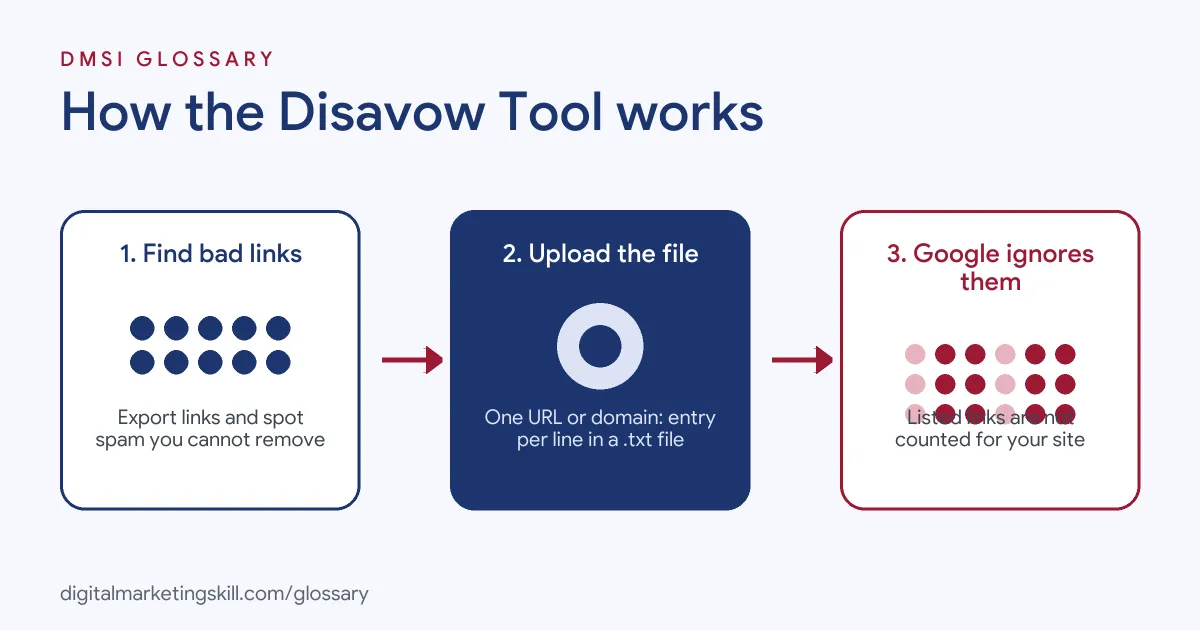
The Disavow Tool works in three steps. First, you find the harmful links you can’t remove. Then you list them in a text file and upload it in Search Console. Finally, Google processes the file and ignores those links.
Step 1: Find the Bad Links
Start in Google Search Console. Open the Links report and export the sites that link to you. Also, check the Manual Actions report for any warnings. Then review each linking domain. In particular, look for clear spam, such as link farms, hacked pages or paid links that pass ranking credit.
Step 2: Try to Remove Them
Next, contact the site owners and ask them to remove the links. Google says you should first try to get bad links taken down. Only after that should you disavow the ones you couldn’t remove. Also, keep a record of who you contacted and when. As a result, you have proof if you later need to request a review.
Step 3: Build and Upload the File
Then create a plain text file ending in .txt. Next, put one URL or domain on each line. To disavow a whole domain, start the line with domain:, as in domain:spam-example.com. Also, Google notes that “Any lines that begin with # will be ignored by Google,” so you can use them for notes. The file must be UTF-8 or 7-bit ASCII text.
Limits and Timing
Finally, keep within the limits. A file can have up to 100,000 lines and be up to 2MB in size. Uploading a new file replaces the old one, so always include your full list. Google also states that “The disavow links tool does not support Domain properties.” So you need a URL-prefix property. In addition, Google says it can take a few weeks to process your list.
After a Manual Action
If you had a manual action, there is one more step. Google’s help page says: “When you’ve removed or disavowed the artificial links, select Request Review on the Manual Actions report.” In it, explain what you found, what you removed and what you disavowed. Then wait for Google’s reply.
Examples of Using the Disavow Tool
- A shop with a past link scheme. An online shop gets a manual action for unnatural links. The new SEO team finds hundreds of paid links from a previous supplier. They ask for removals, then disavow the domains that don’t reply. After that, they request a review.
- A site hit by spam links. A local business sees thousands of new links from hacked pages with spammy anchor text. Because there is a clear pattern, the team disavows those domains as a precaution.
- A blog that doesn’t need it. A blogger sees a few odd links from scraper sites. However, there is no manual action and no sign of harm. So they leave it alone, because Google already ignores links like these.
Disavow Tool vs Link Removal and Nofollow
| Point | Disavow Tool | Asking for link removal | Nofollow on your own links |
|---|---|---|---|
| Who acts | You, inside Search Console | The other site’s owner | You, on your own pages |
| What it affects | Inbound links to your site | Inbound links to your site | Outbound links from your site |
| When to use it | Bad links you can’t get removed | Always the first step for bad links | Paid, untrusted or user-posted links |
| Risk | Can hurt if used on good links | Low | Low |
For more on outbound link labels, see nofollow links and dofollow links.
How to Use the Disavow Tool
- Check if you need it. Look for a manual action or a clear pattern of spammy links. If neither exists, you usually don’t need to disavow.
- Export your links. Download the linking sites from the Links report in Search Console.
- Review each domain. Mark only clear spam, paid links or link scheme sites.
- Request removals. Email site owners and ask them to take the links down.
- Write your file. List one URL or
domain:entry per line in a.txtfile. - Upload in Search Console. Open the disavow links tool, pick your URL-prefix property and upload the file.
- Request a review if needed. If you had a manual action, use Request Review and explain your work.
- Keep the file updated. Add new entries to the same file, because a new upload replaces the old one.
Best Practices for the Disavow Tool
- Use it rarely. Treat it as a fix for clear problems, not routine upkeep.
- Remove first. Always ask for link removal before you disavow.
- Disavow domains for clear spam. Use
domain:when a whole site is spammy, so you don’t miss new pages. - Keep notes. Use
#comment lines and a separate log to record why you added each entry. - Protect good links. Never disavow links you earned through real link building or PR.
- Stop the cause. End any paid link deals, so the problem doesn’t come back.
Common Mistakes to Avoid
- Disavowing by tool score alone. A third-party “toxic” score is a guide, not proof. Review links yourself.
- Uploading a partial file. A new upload replaces the old list, so missing entries are no longer disavowed.
- Using a Domain property. The tool doesn’t support it, so choose a URL-prefix property.
- Expecting fast results. Google can take weeks to process the file.
- Disavowing your best links. Removing value from strong links can lower your rankings.
Where You’ll Use the Disavow Tool at Work
Disavow work sits inside link building and technical SEO roles. It starts with reviewing backlink profiles. For example, real remote job listings ask you to:
- “Get them disavowed” (Link Building Specialist), about toxic or low-quality links pointing at clients.
- “Provides analyses as they relate to search intent, asset ranking potential, backlink profiles, advanced search features, and SERP anomalies.” (SEO Analyst).
Learn It in the WordPress and SEO Track
You can learn link audits, Search Console and wider SEO in the AI-Powered WordPress and SEO Specialist track. Every track includes a U.S. Project Internship from day one, with unlimited 1-on-1 mentoring.
Frequently Asked Questions
Do I need to use the Disavow Tool?
Most sites don’t. Google says its systems already ignore many untrusted links, so use the tool mainly for manual actions or clear link spam.
Where is the Disavow Tool?
It is part of Google Search Console, but it isn’t in the main menu. You open it from Google’s disavow links help page and choose your property.
What format does the disavow file use?
It is a .txt file with one URL or domain: entry per line. Lines starting with # are comments.
How long does disavowing take?
Google says it can take a few weeks to process the list after you upload it.
Can I undo a disavow?
Yes. You can upload a new file without those entries, or cancel your disavowals in the tool. Changes can take a few weeks.
Sources: Google Search Console Help: Disavow links to your site; Google Search Console Help: Manual Actions report; Google Search Central: Spam policies for Google web search; remote job listings on Himalayas and Himalayas.