
A WordPress plugin is a package of code that adds a feature to a WordPress site, such as a contact form, an SEO tool or an online shop, without changing the core software. You install it from the dashboard, switch it on, and its features appear on your site. It matters because plugins are how most site owners and marketers extend WordPress without hiring a developer for every change.
Key Takeaways
- Plugins add functionality. Themes, by contrast, control how a site looks.
- The official directory lists more than 76,000 free plugins.
- Plugins connect to WordPress through hooks, which come in two types: actions and filters.
- The simplest plugin is a single PHP file with a plugin header and a few functions.
- Every plugin adds code, so choose well-maintained ones and keep them updated.
What Is a WordPress Plugin?
Out of the box, WordPress lets you publish pages and posts. Almost everything else comes from plugins. For example, you might add one plugin for SEO settings, one for forms, one for backups and one for a shop.
The official developer handbook explains the idea clearly. Plugins “allow you to greatly extend the functionality of WordPress without touching WordPress core itself.” In other words, you never edit the main software. Instead, you add separate code that sits on top of it.
That separation is important. The handbook’s “cardinal rule” is “Don’t touch WordPress core,” because “WordPress overwrites core files with each update.” So any change you make to core files would vanish at the next update, while a plugin survives it. New to the platform? Start with our glossary entry on WordPress.
How a WordPress Plugin Works
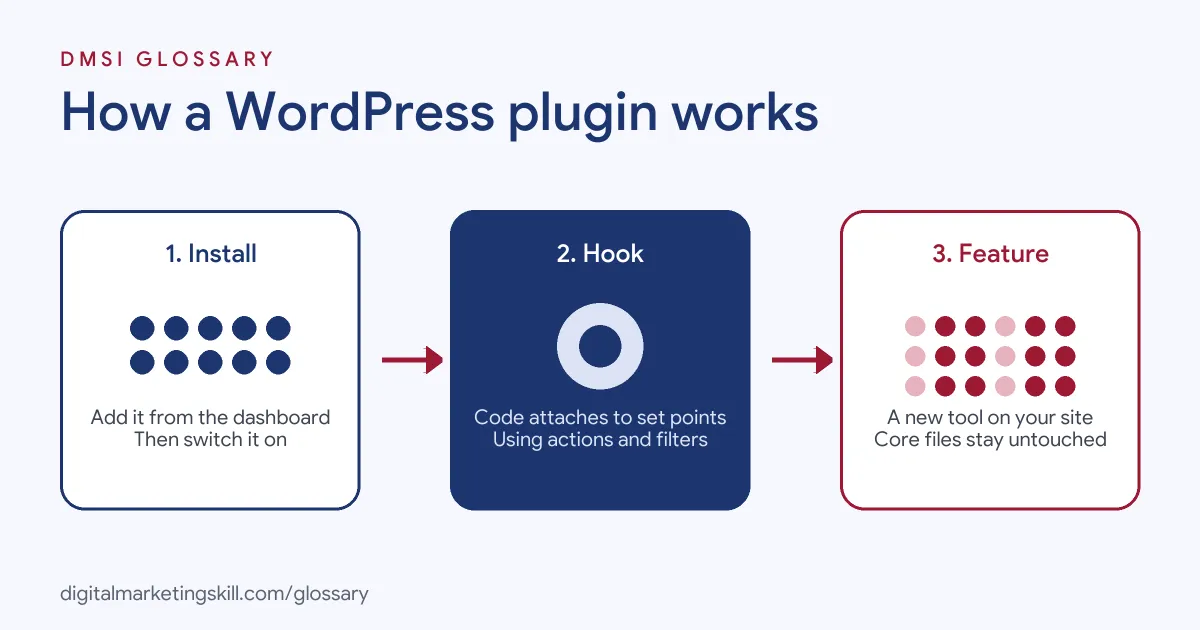
Every plugin follows the same pattern. First, it registers itself with a short header. Next, it attaches its functions to hooks inside WordPress. Finally, WordPress runs those functions at the right moment, such as when a page loads or a post is saved.
The Plugin File
According to the handbook, “the simplest plugin is a single PHP file.” It “just needs a Plugin Header, a couple of PHP functions, and some hooks to attach your functions to.” The well-known Hello Dolly plugin is an example of this kind of single-file plugin. Larger plugins, of course, have many files, settings screens and their own database tables.
Hooks: Actions and Filters
Hooks are the key idea. The handbook defines them as “a way for one piece of code to interact/modify another piece of code at specific, pre-defined spots.” It adds that “there are two types of hooks: Actions and Filters.”
Put simply, an action lets a plugin do something at a set moment, such as add a tracking script to every page. A filter, meanwhile, lets a plugin change data before WordPress uses it, such as rewriting a page title. Together, these two types let plugins change almost any part of a site.
WordPress Plugin Examples
Here are common types of plugin and what they do. The scenarios are made-up examples:
- SEO plugin: A blogger installs one to set meta titles and descriptions, create an XML sitemap and check each post for a focus keyword.
- Form plugin: A consultant adds a contact form that sends enquiries to email and to a CRM.
- eCommerce plugin: A small brand turns its site into a shop, with product pages, a cart and payments.
In each case, the owner adds a major feature in minutes, without writing code.
Free vs Premium vs Custom Plugins
Plugins come in three broad kinds. Here is how they compare:
| Type | Where you get it | Good to know |
|---|---|---|
| Free (directory) | The official WordPress.org plugin directory | Must follow the directory’s guidelines, including a GPL-compatible licence |
| Premium | The developer’s own website | Often adds extra features and support for a fee |
| Custom | Built by a developer for one site | Fits exact needs, but you must maintain it yourself |
The directory’s guidelines set clear rules. For instance, “trialware is not permitted,” “software as a service is permitted” and “plugins may not track users without their consent.”
The same guidelines set out what developers owe users. Plugins “must be compatible with the GNU General Public License,” and “developers are responsible for the contents and actions of their plugins.” In addition, “a stable version of a plugin must be available” from its directory page, and “code must be (mostly) human readable.” As a result, directory plugins follow a shared set of standards, while plugins sold elsewhere may not.
How to Install a WordPress Plugin
Most people install plugins from the dashboard. The steps are short:
- Log in to your dashboard and go to Plugins, then Add New.
- Search for the feature you need, such as “contact form.”
- Compare options. Check the rating, the number of active installs, when it was last updated and whether it supports your WordPress version.
- Select Install Now, then Activate.
- Open the plugin’s settings and set it up.
- Test your site on desktop and mobile to make sure nothing broke.
For a premium plugin, you usually download a zip file from the seller instead. Then you upload it under Plugins, Add New, Upload Plugin.
How to Choose a WordPress Plugin
Two plugins can promise the same feature but differ hugely in quality. So before you install, run through a quick checklist:
- Last updated: look for regular updates. A plugin that hasn’t changed in a long time may not work with the latest version.
- Active installs and reviews: a large user base and good ratings suggest the plugin is reliable.
- Support: check whether the developer answers questions in the support forum.
- Scope: pick a plugin that does the job you need, not ten jobs you don’t.
- Speed: after you install it, test your page speed again.
For example, if you need a simple contact form, a light form plugin is usually a better choice than a large page builder with a form block.
Best Practices
- Install only what you need. Each extra plugin adds code that can slow the site or clash with others.
- Choose active projects. A plugin with frequent updates and good reviews is usually safer than an abandoned one.
- Update regularly. Updates often fix security issues and bugs.
- Test on a staging site. Try big updates or new plugins on a copy of the site first.
- Remove what you don’t use. Deactivate and delete old plugins, rather than leaving them switched off.
Common Mistakes to Avoid
Beginners often install a new plugin for every small task, which leads to slow pages and conflicts. Others download “free” copies of premium plugins from unofficial sites, which can carry malware. Some never update, leaving known security holes open. Finally, many add two plugins that do the same job, such as two SEO tools, which can create duplicate tags. A short, well-chosen plugin list avoids most of these problems. So review your list every few months, and ask whether each WordPress plugin still earns its place on the site.
Where You’ll Use a WordPress Plugin at Work
Plugin skills come up in almost every WordPress job listing. For example, recent remote listings ask for:
- “Familiarity with integrating plugins and managing WordPress themes.” (WordPress Designer).
- “Proficiency in WordPress development, including theme and plugin customization.” (WordPress Developer).
- Work on “interactive elements, enhanced UI/UX, and plugin management.” (WordPress Developer Intern).
So as a WordPress Developer, SEO Specialist or Website Manager, you will choose, set up and maintain plugins. Developers may also build a custom WordPress plugin when nothing off the shelf fits.
Learn It in the WordPress and SEO Track
You can practise choosing and configuring plugins in the AI-Powered WordPress and SEO Specialist track. It covers WordPress website and eCommerce development, search engine optimisation and content marketing. Your portfolio project is to build a WordPress site or store and rank it with an SEO content plan. You also get unlimited 1-on-1 mentoring and a U.S. Project Internship from day one.
For help choosing SEO tools, see our guide to WordPress SEO plugins.
Frequently Asked Questions
What does a WordPress plugin do?
It adds a feature to your site, such as forms, SEO settings or a shop. It does this without changing the core WordPress files.
How many plugins are there?
The official directory lists more than 76,000 free plugins. There are also many premium plugins sold elsewhere.
What is the difference between a plugin and a theme?
A theme controls how your site looks. A plugin, on the other hand, adds features and functionality.
Can too many plugins slow down a site?
Yes, they can. Each plugin adds code, so badly built or unnecessary ones can slow pages and cause conflicts.
Can I build my own WordPress plugin?
Yes. A basic plugin needs only one PHP file with a plugin header, a few functions and hooks to attach them to.
Sources: Plugin Handbook: Introduction to Plugin Development; Plugin Handbook: Hooks; Detailed Plugin Guidelines; Plugin Directory; remote job listings on Himalayas.