
Gutenberg is the name of the WordPress project that created the block editor, the default way to write and design content in WordPress, where every paragraph, image or button is a separate block. You add blocks, arrange them and style them to build posts and pages without code. It matters because it is the editor every WordPress user meets first, and it now shapes how themes and whole sites are built.
Key Takeaways
- The block editor, also called the WordPress editor or Gutenberg editor, replaced the classic editor in WordPress.
- Content is built from blocks, such as paragraphs, images, headings, lists, videos and galleries.
- The project follows four phases: Editing, Customization, Collaboration and Multilingual.
- Each WordPress release includes stable features from the Gutenberg plugin, so most users don’t need the plugin.
- Block themes extend the same idea to the whole site through the Site Editor.
What Is Gutenberg?
WordPress’s official documentation explains that the block editor is “also called the block editor, WordPress editor or Gutenberg editor.” It is the standard way of publishing content in WordPress, and it “replaced the classic editor.” If you still want the older editor, you need to install the Classic Editor plugin.
Its name comes from Johannes Gutenberg, the inventor of the printing press. Its plugin page says it “aims to revolutionize the entire publishing experience as much as Johannes Gutenberg did the printed word.” In other words, the goal is to change how people create content on the web.
Meanwhile, the developer handbook adds that the block editor “is the result of the work done on the Gutenberg project.” So today, the two names are often used to mean the same thing.
How Gutenberg Works
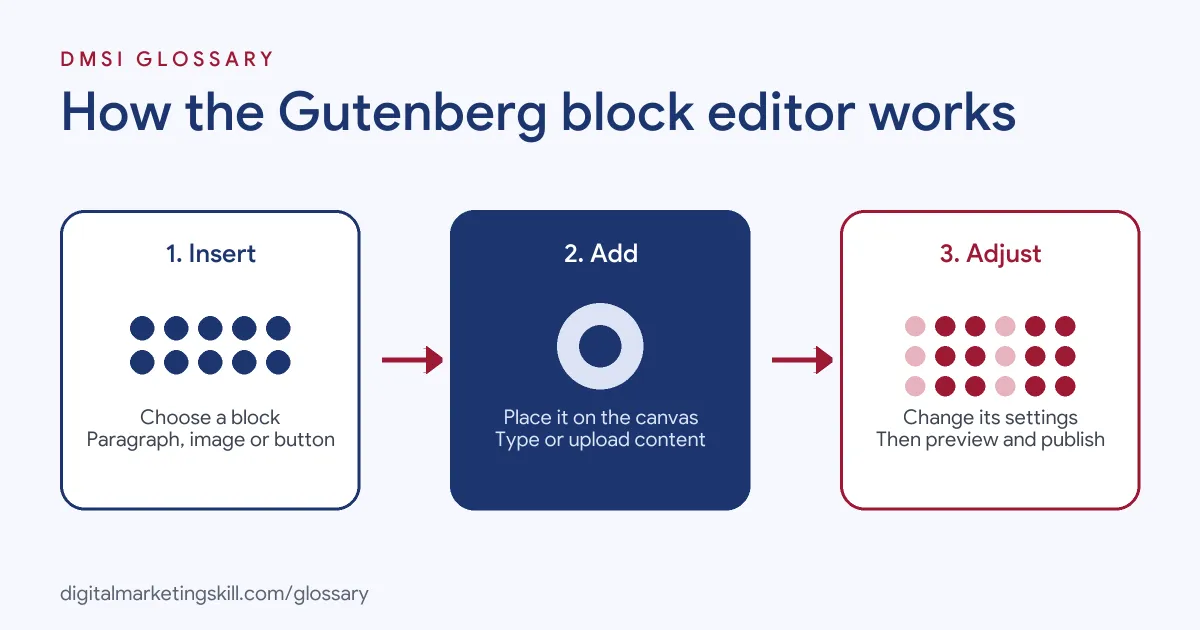
Everything in the editor is a block. First, you open the inserter and choose a block, such as a paragraph or image. Next, you place it on the content canvas and type or upload your content. Finally, you change its settings in a side panel, then save or publish.
Blocks
Blocks are the heart of the editor. The WordPress documentation describes them as “the content elements that you add to create content layouts.” You can add “blocks for paragraphs, images, headings, lists, videos, galleries, and more.” In addition, the developer handbook notes that “many blocks are available in WordPress by default, and you can also create your own.”
The Editor Screen
Its handbook names three main parts. The “Inserter” is “a panel for inserting blocks into the content canvas.” The “Content canvas” is “the content editor, which holds content created with blocks.” Meanwhile, the “Settings Panel” lets you configure a block’s settings when you select it.
From Pages to Whole Sites
At first, the project focused on posts and pages. Then it grew. Its plugin page lists four phases: “Editing, Customization, Collaboration, and Multilingual.” Full site editing brought blocks to headers, footers and templates. With block themes, you edit these in the Site Editor, using the same blocks you use in a post.
Gutenberg Examples
Here are three made-up examples of how people use the editor:
- Blog post: A writer adds a heading block, several paragraph blocks, an image block and a list block. Then she reorders them by dragging.
- Landing page: A marketer builds a simple page with a cover block, a columns block for benefits and a buttons block for the call to action.
- Reusable section: A team saves a sign-up section as a pattern, so they can drop it into any new post.
In each case, the content is built from small, movable parts rather than one long text box.
Gutenberg vs Classic Editor vs Page Builders
Here is how the main editing options in WordPress compare:
| Option | How it works | Good to know |
|---|---|---|
| Block editor | Builds content from separate blocks | Built into WordPress; replaced the classic editor |
| Classic editor | One text box with a formatting toolbar | Needs the Classic Editor plugin to use |
| Plugin page builders | Drag-and-drop editors with widgets and templates | Add more design control, but add code to the site |
For more on the plugin route, see our glossary entries on the page builder and Elementor.
How to Use the Block Editor
- In the dashboard, create a new post or page.
- Add a title at the top of the canvas.
- Select the plus icon to open the inserter, then choose a block.
- Type or upload your content in the block.
- Open the settings panel to change colours, sizes or alignment.
- Add more blocks, then drag them into the right order.
- Preview the page on desktop and mobile, then publish.
Useful Blocks for Marketers
You don’t need every block. A few do most of the work on marketing pages:
- Heading: gives the page a clear structure.
- Paragraph and list: keep text short and easy to scan.
- Image and cover: add visuals, or a big banner with text on top.
- Columns: place benefits or features side by side.
- Buttons: make your call to action stand out.
- Group: wrap several blocks together, so you can style or move them as one.
For example, a simple sign-up page might use a cover block, three columns, a short list and a button. That is often all you need. Add a form block from your form plugin, and the page is ready to collect leads.
Best Practices
- Use headings properly. Heading blocks create a clear structure for readers and search engines.
- Save patterns. Turn sections you reuse, such as sign-up boxes, into patterns.
- Keep styles global. With a block theme, set colours and fonts in the Styles panel instead of on each block.
- Add alt text to images. Fill it in on every image block.
- Don’t over-design. Simple layouts load faster and are easier to edit later.
The Gutenberg Plugin
There is also a separate plugin, and it is easy to confuse with the built-in editor. According to its plugin page, “each WordPress release includes stable features from the Gutenberg plugin, so you don’t need to install the plugin to benefit from the work being done here.” The plugin is for people who want to test “bleeding-edge and experimental features.” So most site owners should use the built-in editor and leave the plugin to testers and developers.
For Developers
Developers can build custom blocks. The handbook explains that a block is defined “using its block.json metadata,” and that blocks can generate their front-end output “either dynamically or statically.” It also notes that “Gutenberg is open-source software, and everyone is welcome to contribute to the project.”
Common Mistakes to Avoid
Many beginners paste content from a word processor, which can bring messy formatting into the blocks. Others style every block by hand, so the site looks inconsistent. Some install the beta plugin on a live site, even though it contains experimental features. Finally, many skip heading blocks and use bold text instead, which weakens the page structure. Each of these is easy to fix once you know the editor well. So spend an hour exploring the blocks before you build your first real page.
Where You’ll Use Gutenberg at Work
Block editor skills appear in many WordPress job listings. For example, recent remote listings ask for:
- “Strong understanding of WordPress APIs, theme hierarchy, and custom Gutenberg block development.” (Senior WordPress Engineer).
- “Fluent in WordPress core, theme/plugin development, and Gutenberg” (WordPress Developer).
- The ability to “build high-performance law firm websites using proprietary Gutenberg-based WordPress theme” (Senior Developer).
So as a WordPress Developer, SEO Specialist or Website Manager, you will use the block editor every day, and developers may build custom blocks for clients.
Learn It in the WordPress and SEO Track
You can practise building pages with blocks in the AI-Powered WordPress and SEO Specialist track. It covers WordPress website and eCommerce development, search engine optimisation and content marketing. Your portfolio project is to build a WordPress site or store and rank it with an SEO content plan. You also get unlimited 1-on-1 mentoring and a U.S. Project Internship from day one.
To see how blocks shape whole sites, read our entry on the WordPress theme.
Frequently Asked Questions
What is Gutenberg in WordPress?
It is the project behind the block editor, the default WordPress editor that builds content from separate blocks.
Is Gutenberg the same as the block editor?
Mostly, yes. The block editor is the result of the Gutenberg project, and WordPress documentation calls it the block editor, WordPress editor or Gutenberg editor.
Do I need to install the Gutenberg plugin?
Usually not. Each WordPress release includes the stable features, while the plugin adds experimental ones for testers.
Can I still use the classic editor?
Yes, but you need to install the Classic Editor plugin, since the block editor replaced it.
Is the block editor a page builder?
In a sense, yes. It builds layouts from blocks, although plugin builders often add more design options.
Sources: WordPress Documentation: WordPress Block Editor; Block Editor Handbook; WordPress.org: Gutenberg plugin; remote job listings on Himalayas.