
Preheader text is the short line of copy that appears after the subject line in most inboxes, giving people a preview of what the email contains before they open it. Many tools call it preview text, and you can usually set it in a field next to the subject line. It matters because it is free space beside your subject line, and if you leave it empty, the inbox fills it with whatever text it finds first, such as “View in browser”.
Key Takeaways
- Preheader text works with the subject line and sender name to win the open.
- If you don’t set it, Klaviyo says “inboxes automatically pull it from the beginning of your email.”
- Different inboxes show different amounts. Klaviyo’s examples range from 34 characters in Gmail on iOS to 236 in Outlook.com.
- Many guides suggest a short line: CM.com advises 40 to 70 characters, and Litmus suggests keeping it under 90.
- Strictly, Litmus separates “preview text” in the inbox from “preheader text” shown at the top of the email. In everyday use, people often mean the same thing.
What Is Preheader Text?
Think of preheader text as the second line of a newspaper headline. The subject line grabs attention, and the preheader adds the detail that makes someone want to read on.
For example, a subject line might say “Your weekend plans, sorted”. The preview line could then add “Three easy walks near you, plus a free picnic checklist.” Together, they tell the reader exactly what they will get.
The name can be confusing. Litmus explains that “Preview text is the bit of text below or next to an email’s subject line in the inbox.” It describes preheader text as text “that shows up in your email above your header area.” However, most email tools and marketers use both names for the inbox preview, so this page does too.
How Preheader Text Works
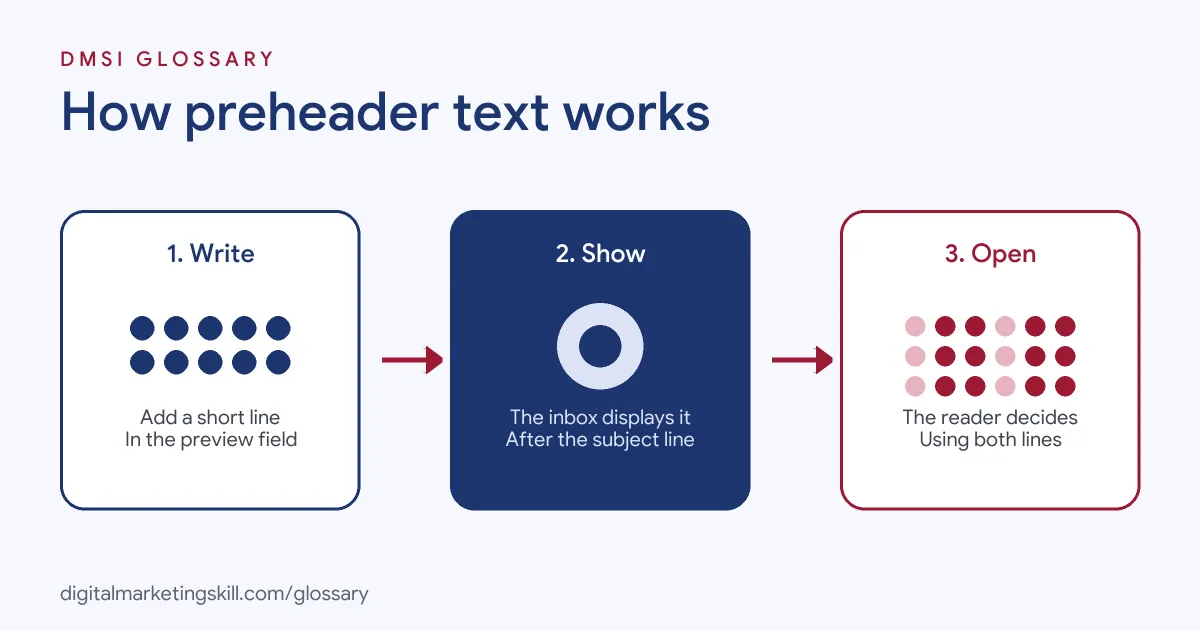
The process has three steps. First, you write a short line in your email tool’s preview text field, or at the very top of your email code. Next, the inbox reads it and shows it after the subject line. Finally, the reader sees both lines together and decides whether to open.
What Happens If You Leave It Blank
Inboxes don’t leave the space empty. Instead, CM.com says “email clients will pull the first text from your email body.” That often means “View in browser” or other dull text. Klaviyo adds that it can even pull in image alt text or your navigation bar. So setting the preview yourself is always better.
How Much Text Shows
There is no single limit. Klaviyo says “Different devices and email clients display different amounts of preview text,” and treats its character counts as examples, not fixed rules. CM.com notes that many clients show 35 to 140 characters. Litmus even says people may see anywhere from about 278 characters down to none at all. As a result, the safest approach is to put the most important words first.
Adding It in Code
Most email tools have a preview text field. If yours doesn’t, Litmus suggests adding a hidden block of text right after the opening body tag of the email. It also advises making the preview copy “the first thing in your email, even above images or links.” That way, the inbox picks up your chosen words instead of image descriptions.
Preheader Text Examples
Here are three made-up examples that pair a subject line with preheader text:
- Online shop (example): Subject “Your basket misses you”. Preheader “Free delivery on your order until midnight.”
- Newsletter (example): Subject “5 quick dinners this week”. Preheader “All under 30 minutes, with a shopping list.”
- Event (example): Subject “You’re in for Thursday”. Preheader “Here’s your link, the agenda and how to join.”
In each case, the second line adds new information. It doesn’t just repeat the subject line.
Preheader Text vs Subject Line
The two lines work together, but they do different jobs. Here is a quick comparison:
| Feature | Subject line | Preheader text |
|---|---|---|
| Main job | Grab attention | Add detail or a reason to open |
| Where it shows | Inbox, as the email’s headline | Inbox, after or below the subject line |
| If you skip it | The email looks unfinished | The inbox fills it with the first text in the email |
| Typical length | Short, often under 60 characters | Short, often 40 to 90 characters |
In short, the subject line opens the door, and the preheader gives people a reason to walk through it. For tips on the first line, see our entry on the subject line.
How to Write Preheader Text
- Write the subject line first. Then ask what the reader still needs to know.
- Add new information. CM.com advises adding context rather than repeating the subject line.
- Front-load the key words. Put the most important part first, in case the inbox cuts it short.
- Keep it short. Aim for roughly 40 to 90 characters.
- Personalise when it fits. A first name or local detail can help, if it feels natural.
- Enter it in the preview field. Or place it at the top of your email code if your tool has no field.
- Send a test. Check how both lines look together on a phone and a computer before you send.
How to Test Your Preview Line
Testing shows what your own readers respond to. Here is a made-up example. A shop sends the same subject line, “New autumn coats are here”, to two groups of 2,000 people. Group A sees “Shop the new range now.” Group B sees “Warm, waterproof and 20% off this weekend.” Group B gets 120 more opens and 30 more clicks, so the shop uses that style next time.
When you test, change only the preview line and keep everything else the same. Also, judge the result on clicks and sales, not just opens, because a line that tricks people into opening will hurt you later.
Best Practices for Preheader Text
- Never leave it blank. Otherwise, the inbox chooses for you.
- Pair it with the subject line. For example, if the subject asks a question, the preheader can hint at the answer.
- Stay honest. Like the subject line, it should match what the email delivers.
- Test it. Include the preview line in your A/B tests, not just subject lines.
- Keep a style guide. Agree tone and length, so every email in a sequence feels consistent.
Common Mistakes to Avoid
The most common mistake is forgetting to set it, so the inbox shows “View in browser” or “Having trouble seeing this email?”. Another is repeating the subject line word for word, which wastes the space. Some senders also write long preheaders that get cut off before the key point. Others put an image first in the email, so the alt text appears in the preview instead. Finally, many never check the result on a phone, where space is tightest.
Where You’ll Use Preheader Text at Work
Writing and testing preview text is part of everyday email work. For example, real remote job listings ask candidates to:
- “Upload provided copy, subject lines, preview text, images, and links.” (Email Marketing Operations Assistant).
- “Create and manage A/B tests for subject lines, CTAs, layouts, preview text, and send times.” (HubSpot Email Marketing Specialist).
So if you want to work as an Email Marketing Specialist or Marketing Automation Specialist, employers will expect you to write, set and test this line as part of every campaign.
Learn It in the Lead Generation and Email Track
You can practise this in the AI-Powered Lead Generation and Email Automation track. It covers AI fundamentals, lead generation, and email marketing and automation. Your portfolio project is a lead magnet and an automated email sequence that converts. You also get unlimited 1-on-1 mentoring and a U.S. Project Internship from day one.
Next, read our guide to email open rates, which a good preview line can help improve.
Frequently Asked Questions
Is preheader text the same as preview text?
Most people use the terms the same way. Strictly, Litmus says preview text shows in the inbox, while preheader text sits at the top of the email itself.
How long should preheader text be?
There is no fixed limit. Many guides suggest about 40 to 90 characters, with the key words first.
What happens if I don’t add preheader text?
The inbox pulls the first text it finds in your email. That might be “View in browser”, alt text or your menu.
Can I hide preheader text inside the email?
Yes. Litmus shows how to add it in a hidden block at the top of the email code, so it shows only in the inbox.
Should I A/B test preheader text?
Yes. It sits right beside the subject line, so testing both together shows what makes your audience open.
Sources: Klaviyo Help: Insert preview text; CM.com: Crafting effective preview text; Litmus: The ultimate guide to preview text; remote job listings on Himalayas.