
Website security is the set of habits, settings and tools that protect a website, its data and its visitors from hackers, malware and misuse. It covers everything from strong passwords and software updates to HTTPS, backups and monitoring. It matters because a hacked site can steal customer data, spread malware, lose search traffic and damage trust in a brand overnight.
Key Takeaways
- Most attacks exploit simple weaknesses, such as old software, weak passwords or unused plugins.
- WordPress warns that “older versions of WordPress are not maintained with security updates.”
- Google’s Security issues report can flag hacked content, malware and social engineering on your site.
- Affected pages can show a warning label in search results or a warning page in the browser.
- The OWASP Top 10 is the reference list of the most critical web application security risks.
What Is Website Security?
Think of your website as a shop on a busy high street. You lock the doors at night, install an alarm and keep a spare set of keys somewhere safe. You also check that staff do not leave the back door open. Online protection works the same way, just with passwords, updates and backups instead of locks.
The threats are real. For instance, Google’s spam policies describe hacked content as “any content placed on a site without permission, due to vulnerabilities in a site’s security.” For example, hackers might inject malicious code into existing pages or add spam pages that harm your rankings.
Protection is never a one-off task. New weaknesses appear all the time, so it needs ongoing care as part of normal site upkeep.
How Website Security Works
Good protection works in layers. First, you prevent attacks by closing common gaps. Next, you detect problems quickly through monitoring. Finally, you recover fast if something does go wrong.
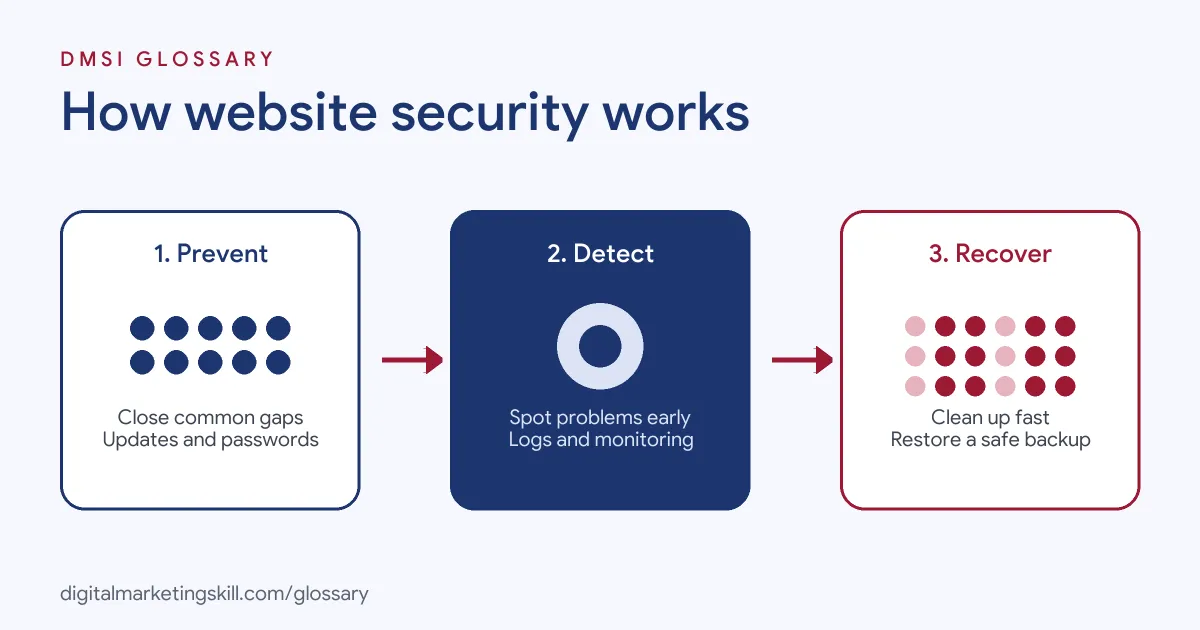
Prevent
Most attacks target simple weaknesses. The WordPress hardening guide stresses keeping software current. It also says, “make sure your plugins are always updated,” and if you are not using a plugin, “delete it from the system.” It advises getting plugins and themes only from the WordPress.org repository or well-known companies.
Passwords matter too. Indeed, WordPress notes that “many potential vulnerabilities can be avoided with good security habits,” and a strong password is a key part of that. In addition, it suggests avoiding easily guessed admin usernames such as “admin” or “webmaster”.
Detect
Prevention is not always enough. WordPress says, “Sometimes prevention is not enough and you may still be hacked. That’s why intrusion detection/monitoring is very important.” Logs help too. As the guide puts it, “Logs are your best friend when it comes to understanding what is happening with your website.”
Google also helps. In particular, its Security issues report in Search Console shows Google’s findings if it determines your site “was hacked, or that it exhibits behavior that could potentially harm a visitor.”
Recover
Finally, have a recovery plan. A recent, clean website backup lets you restore the site after a clean-up. WordPress notes that having a plan to back up and recover “can help you get back online faster in the case of a problem.”
Website Security Examples
Here are three made-up examples:
- Outdated plugin: A café’s site still runs a slider plugin it stopped using. A hacker uses a known flaw in it to add spam links. The owner deletes the plugin, cleans the site and restores a backup.
- Weak password: A shop’s admin account uses a simple password. After a break-in, the team switches to long unique passwords and two-step sign-in for every user.
- Search warning: A charity sees a warning on its search listing. Search Console shows malware on several pages, so its developer removes it and requests a review.
In each case, a basic gap caused the problem, and a basic fix solved it.
Common Threats Compared
| Threat | What happens | Main defence |
|---|---|---|
| Hacked content | Spam pages or links added without permission | Updates, strong passwords, monitoring |
| Malware | Software that harms visitors or their devices | Trusted plugins, scanning, clean backups |
| Social engineering | Pages that trick visitors into sharing details | Monitoring and quick removal |
| Brute-force logins | Bots guess passwords again and again | Strong passwords, two-step sign-in, login limits |
The first three categories match those in Google’s Security issues report. The defences overlap, which is why a few good habits cover most risks.
How to Secure a Website Step by Step
- Update everything. Keep the core software, themes and plugins current.
- Remove what you do not use. Delete old plugins, themes and user accounts.
- Use strong passwords and two-step sign-in. Apply them to the dashboard, host, domain and email.
- Turn on HTTPS. Install an SSL certificate so data travels encrypted.
- Limit admin rights. Give each person only the access they need.
- Disable file editing. WordPress notes the dashboard file editor “is often the first tool an attacker will use if able to login.”
- Back up regularly. Store copies away from the live server.
- Monitor. Use Search Console, a security plugin or host tools to spot problems early.
Best Practices for Website Security
- Choose a careful host. WordPress suggests a host that keeps server software current and “provides reliable methods for backup and recovery.”
- Stick to trusted sources. Avoid pirated themes and plugins from unknown sites.
- Protect your own computer. WordPress reminds owners to keep their devices free of spyware and malware.
- Avoid unsafe networks. Do not log in over unencrypted public Wi-Fi.
- Learn the big risks. Developers can use the OWASP Top 10 as a checklist of the most critical issues.
Common Mistakes to Avoid
First, owners leave updates for months because they fear breaking the site. Second, they share one admin login among the whole team. Third, they keep unused plugins “just in case”. Finally, they have no clean backup when a hack happens. Fixing these four habits closes most of the gaps attackers rely on.
A Simple Monthly Website Security Check
You do not need to be an expert to run a basic check. Set aside half an hour each month and work through this list. First, log in and apply any waiting updates. Next, look at the list of users and remove anyone who no longer needs access. Then open Search Console and check the Security issues report. After that, confirm your last backup ran and that a copy sits off the server. Finally, visit your key pages as a normal visitor and look for anything odd, such as strange links or pop-ups.
If you spot a problem, act fast. So change passwords, call your host and restore a clean copy if needed. Small checks like these catch most issues before visitors do.
Why It Matters for Marketing
A security problem quickly becomes a marketing problem. Google says affected pages “can appear with a warning label in search results or an interstitial warning page in the browser.” Few people click past a warning. As a result, ads, emails and search traffic all lose value. Customer data leaks can also damage trust for years. In short, protecting the site protects the brand.
Where You’ll Use Website Security at Work
Security tasks appear in many web roles. For example, remote job listings ask for:
- A “Strong grasp of website security, vulnerability management, and performance optimization” (WordPress Web Developer, Contract).
- The ability to “Implement website security best practices and perform regular updates.” (WordPress Developer, Remote).
- Someone to “Monitor website security, performance, and uptime” (Webmaster).
So if you plan to work as a WordPress Developer or Website Manager, you will be responsible for keeping client sites safe. It is also a common part of care plans that freelancers offer.
Learn It in the WordPress and SEO Track
You can learn to build and protect WordPress sites in the AI-Powered WordPress and SEO Specialist track. Your portfolio project is a WordPress site or store that you rank with an SEO content plan. The track is about 90% hands-on, with unlimited 1-on-1 mentoring and a U.S. Project Internship from day one.
Choosing a good host is part of the job, so read our guide to website hosting services.
Frequently Asked Questions
What is website security in simple terms?
It is everything you do to keep your website, its data and its visitors safe from hackers and malware.
How do I know if my website has been hacked?
Warning signs include strange pages, spam links, redirects and warnings in search results. Google’s Security issues report in Search Console can confirm problems.
Is WordPress secure?
It can be, if you keep it updated, use trusted plugins and follow good habits. Most problems come from outdated software or weak passwords.
Does HTTPS make my site secure?
It protects data as it travels between the site and visitors. However, you still need updates, strong passwords and backups.
What is the OWASP Top 10?
It is a widely used list of the most critical web application security risks. Developers use it as a guide for safer code.
Sources: WordPress Developer Resources: Hardening WordPress; Search Console Help: Security issues report; Google Search Central: Spam policies; OWASP Top 10; remote job listings on Himalayas.