
Lazy loading is a technique that delays loading images, videos and other content until a visitor is about to see them, instead of loading everything as soon as the page opens. Items further down the page load only as the visitor scrolls near them. It matters because it makes the first view of a page appear faster and saves data, especially on phones.
Key Takeaways
- MDN describes it as a way to “identify resources as non-blocking (non-critical) and load these only when needed.”
- Browsers support it natively with the loading=”lazy” attribute on images and iframes.
- WordPress adds the loading attribute to images and iframes by default.
- Web.dev warns: do not lazy-load images that are likely to be visible when the page loads, especially the main hero image.
- Adding width and height to images prevents layout shifts as lazy images appear.
What Is Lazy Loading?
Picture a restaurant that brings every course to your table at once. The table is crowded, the food goes cold and you wait ages for the first dish. A better restaurant brings each course when you are ready for it. Lazy loading does the same for web pages.
Without it, a browser tries to download every image on a long page as soon as it opens, including pictures far below the fold. That slows down the part the visitor actually sees first. With it, the browser loads what is on screen first, then fetches the rest as the visitor scrolls.
MDN explains that this approach shortens “the length of the critical rendering path, which translates into reduced page load times.” In other words, visitors see useful content sooner.
How Lazy Loading Works
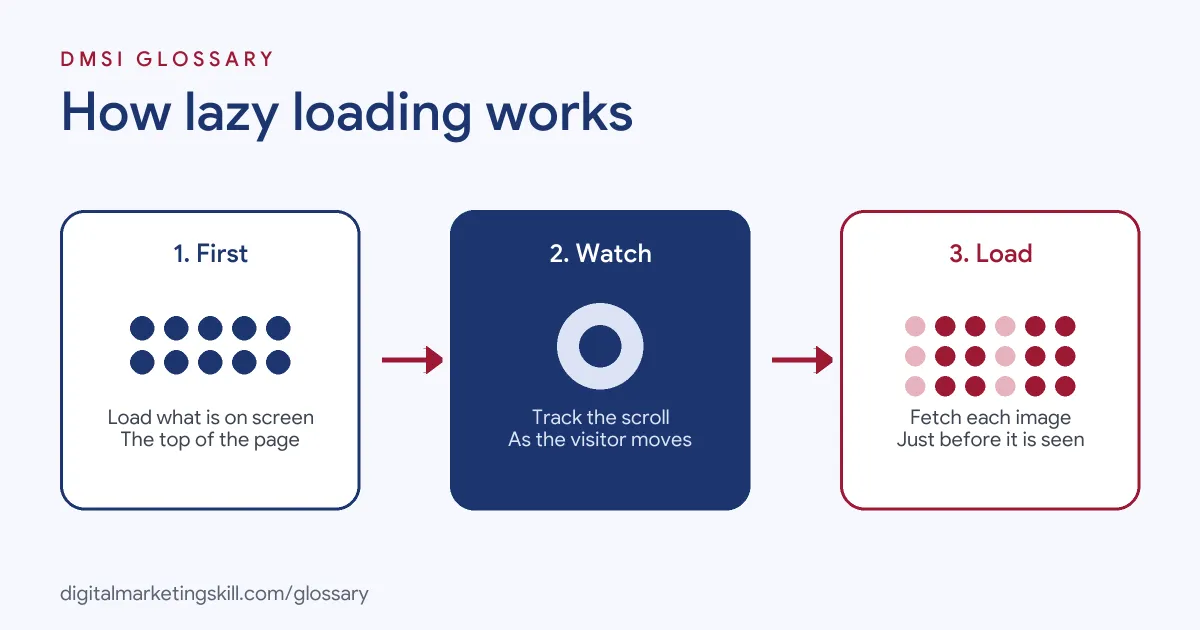
The process has three steps. First, the browser loads the content visible on screen. Next, it watches how close other images are to the viewport. Finally, it loads each one shortly before the visitor scrolls to it.
The Loading Attribute
The simplest method is built into browsers. You add loading=”lazy” to an image or iframe tag. Web.dev lists two values. The lazy value tells the browser to “defer loading of the resource until it reaches a calculated distance from the viewport.” The eager value is the default behaviour, the same as leaving the attribute out.
JavaScript Methods
Before browsers supported the attribute, developers used JavaScript. MDN notes that the Intersection Observer API lets code “know when an observed element enters or exits the browser’s viewport.” Some sites still use this for background images or custom effects. For most images, however, the native attribute is enough.
Lazy Loading in WordPress
WordPress handles much of this for you. Its developer reference shows that, by default, it adds the loading attribute to all “img” and “iframe” tags. Themes and plugins can adjust this behaviour with filters. So on many WordPress sites, the technique is already active without any extra plugin.
Lazy Loading Examples
Here are three made-up examples:
- Long blog post: A recipe page has 20 step-by-step photos. With the technique turned on, only the first few load at once, and the rest appear as readers scroll.
- Product listing: A shop shows 60 products on a category page. Images further down load as shoppers browse, so the top of the page appears quickly.
- Embedded videos: A course page embeds three videos near the bottom. Lazy iframes stop them loading until a visitor scrolls down.
In each case, visitors see the top of the page sooner, and data is saved for those who never scroll down.
What to Lazy-Load and What Not To
| Content | Lazy-load? | Why |
|---|---|---|
| Images far down the page | Yes | Many visitors never reach them |
| Embedded videos and maps | Yes | Iframes are heavy and often below the fold |
| Hero image at the top | No | It is visible at once and often the LCP element |
| Logo and main navigation | No | Needed straight away |
Web.dev’s advice is direct: “Don’t lazy-load images that are likely to be in-viewport when the page loads, especially LCP images.”
How to Set Up Lazy Loading
- Check what you have. On WordPress, view the page source and look for loading=”lazy” on images.
- Add the attribute where missing. For custom code, add loading=”lazy” to images and iframes below the fold.
- Exclude the hero image. Make sure the main image at the top loads normally.
- Add width and height. Set dimensions on every image so the browser can reserve space.
- Compress images too. Combine with image compression and WebP for the biggest gains.
- Test on a phone. Scroll quickly and check that images appear in time.
- Measure. Compare Largest Contentful Paint and page weight before and after.
Best Practices for Lazy Loading
- Load above-the-fold content normally. The first screen should never have to wait.
- Reserve space. Web.dev recommends “adding width and height attributes to all <img> tags” to avoid layout shifts.
- Use native support first. The loading attribute is simple, reliable and needs no extra script.
- Avoid stacking plugins. If WordPress already handles it, a second plugin may cause conflicts and slowdowns.
- Watch layout stability. Check Cumulative Layout Shift after changes.
Common Mistakes to Avoid
First, sites lazy-load the hero image, which delays the most important picture on the page. Second, they skip width and height, so content jumps as images load. Third, they add a heavy JavaScript plugin when native support would do. Finally, they lazy-load content that search engines need, such as text loaded only on scroll. Each mistake can undo the speed gains you hoped for, so test after every change to images or plugins.
Lazy Loading and SEO
Done well, the technique supports SEO because it speeds up the first view of the page. Faster pages help visitors and fit Google’s page experience guidance. However, be careful with key content. Images and text that matter for search should still be available in the page’s HTML. The native loading attribute keeps the image in the code, so search engines can still find it.
How to Check It Is Working
You can confirm the set-up in a few minutes. First, open the page in Chrome and right-click an image lower down, then choose Inspect. Look for loading=”lazy” in the image tag. Next, open the Network panel in developer tools, reload the page and watch which images load. Then scroll slowly. New images should appear in the list as you approach them. Finally, check the hero image at the top. It should load straight away, without the lazy attribute.
If everything loads at once, the setting may be off, or a plugin may be overriding it. Fix that, then run your speed test again.
Why It Matters for Marketing
Long landing pages, blog posts and product listings often carry dozens of images. Without lazy loading, visitors wait for all of them, even those they will never see. With it, the important part appears quickly, so fewer people leave. That protects the value of every ad, email and post that sends traffic to the page.
Where You’ll Use Lazy Loading at Work
The technique appears in many web and developer roles. For example, remote job listings ask for:
- The ability to “Improve site speed via caching, lazy loading, and optimised code” (WordPress Developer).
- “Familiarity with frontend performance optimisation techniques, including code splitting, lazy loading, and caching strategies.” (Frontend Engineer).
- Knowledge of “Resource loading, lazy loading, and modern JavaScript bundles” (Senior Software Engineer, Web Rendering).
So if you plan to work as a WordPress Developer or Website Manager, you will check and tune this setting on most projects. SEO Specialists also review it when they audit page speed.
Learn It in the WordPress and SEO Track
You can learn to build fast WordPress sites in the AI-Powered WordPress and SEO Specialist track. Your portfolio project is a WordPress site or store that you rank with an SEO content plan. The track is about 90% hands-on, with unlimited 1-on-1 mentoring and a U.S. Project Internship from day one.
For more ways to speed up a site, read our guide to website page speed.
Frequently Asked Questions
What is lazy loading in simple terms?
It means loading images and videos only when a visitor is about to see them, rather than all at once when the page opens.
Does WordPress lazy-load images automatically?
Yes. By default, WordPress adds the loading attribute to image and iframe tags.
Should I lazy-load my hero image?
No. Web.dev advises against lazy-loading images likely to be visible when the page loads, especially the main LCP image.
Is lazy loading bad for SEO?
Not when done properly. The native loading attribute keeps images in the HTML, and faster pages support a good experience.
What is the difference between lazy and eager loading?
Lazy loading waits until content is near the screen. Eager loading, the default, loads it straight away.
Sources: MDN Web Docs: Lazy loading; web.dev: Browser-level image lazy loading; WordPress Developer Resources: wp_lazy_loading_enabled(); remote job listings on Himalayas.