
WebP is an image format created by Google that makes web images smaller than older formats such as JPEG and PNG, while keeping them looking sharp. It supports both lossy and lossless compression, transparency and animation in a single format. For websites, switching to this format is one of the easiest ways to cut page weight and speed up loading.
Key Takeaways
- Google says WebP lossless images are 26% smaller than PNGs.
- Lossy WebP images are 25–34% smaller than comparable JPEGs at equivalent quality, according to Google.
- WebP supports transparency and animation, so it can replace PNG and GIF in many cases.
- Can I Use reports that around 97% of browser usage worldwide supports WebP.
- WordPress accepts these uploads and uses a default quality of 86 when it creates resized copies.
What Is WebP?
For years, websites mostly used three image formats. JPEG handled photos, PNG handled graphics with sharp edges or transparency, and GIF handled simple animations. Each did one job reasonably well, but none was very efficient by modern standards.
Google created the format to do all three jobs with smaller files. Its developer site describes it as “a modern image format that provides superior lossless and lossy compression for images on the web.” In other words, it lets you “create smaller, richer images that make the web faster.”
For marketers, the benefit is simple. Pages with lighter images load faster, especially on phones and slower mobile connections. That helps visitors, conversions and search performance, and it costs almost nothing to set up.
How WebP Works
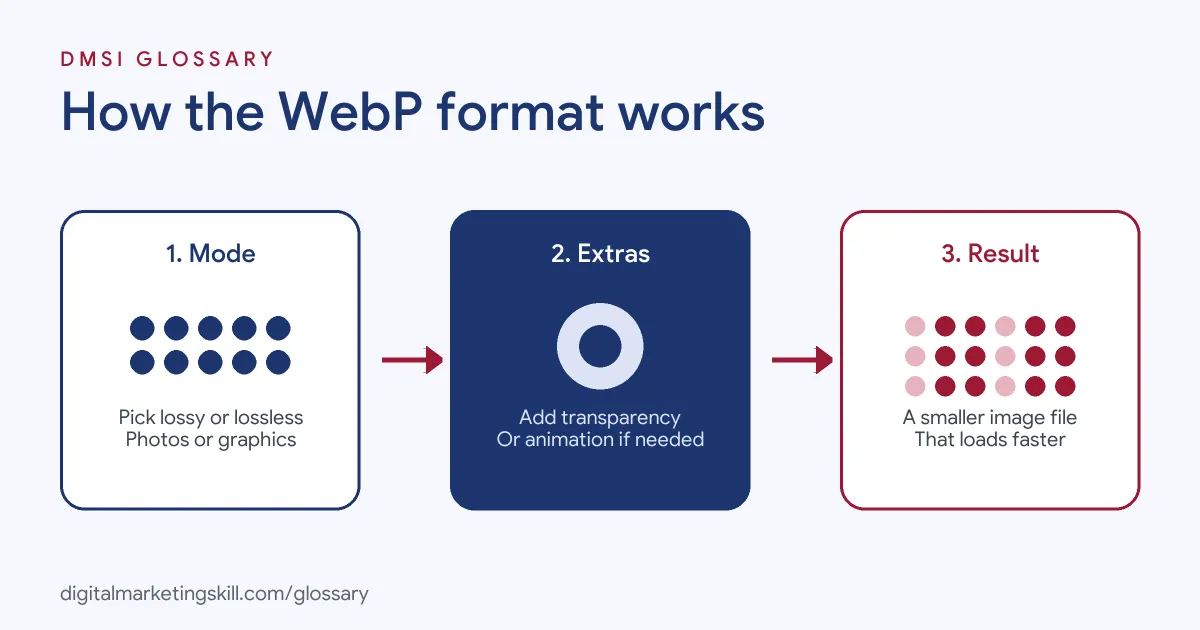
The format offers two compression modes. First, lossy mode removes detail the eye rarely notices, which suits photos. Next, lossless mode keeps every pixel, which suits logos and screenshots. On top of both, the format can store transparency and animation.
Lossy WebP
The lossy mode is the usual choice for photos. Google says lossy WebP images “are 25-34% smaller than comparable JPEG images at equivalent SSIM quality index.” SSIM is a standard way of measuring how similar an image looks to the original. So, at similar quality, the file is noticeably lighter.
Lossless WebP
The lossless mode keeps every pixel, like PNG, but in a smaller file. Google states that “WebP lossless images are 26% smaller in size compared to PNGs.” That makes it a good fit for logos, icons and screenshots with text.
Transparency and Animation
WebP also supports transparency, often called an alpha channel. Google notes that the lossless mode supports transparency “at a cost of just 22% additional bytes.” The lossy mode can also handle transparency, which helps for product images on clear backgrounds. Animated files, meanwhile, offer smaller sizes than GIFs.
WebP Examples
Here are three made-up examples:
- Online shop: A shoe brand converts its product photos from JPEG to WebP. Category pages with dozens of images load faster on mobile.
- Blog: A design blog swaps large PNG screenshots for lossless WebP. The images stay crisp, but each post becomes lighter.
- Landing page: A brand replaces an animated GIF banner with an animated WebP. The banner looks the same and loads more quickly.
In each case, the switch reduced page weight without hurting how the images looked. Visitors noticed faster pages, not a change in quality, which is exactly the goal.
WebP vs JPEG, PNG and AVIF
| Format | Compression | Transparency | Animation |
|---|---|---|---|
| JPEG | Lossy | No | No |
| PNG | Lossless | Yes | No (APNG adds it) |
| GIF | Lossless, limited colours | Basic | Yes |
| WebP | Lossy or lossless | Yes | Yes |
| AVIF | Lossy or lossless | Yes | Yes |
AVIF is a newer option. MDN says it “offers much better compression” than older formats. However, WebP has very wide support, so it remains a safe default for most sites.
Browser Support
Support used to be the main concern. Today, that worry has largely gone for most audiences. Can I Use, which tracks browser features, shows global support at around 97% of usage. MDN lists support in Chrome, Edge, Firefox, Opera and Safari. If you must support very old browsers, you can still offer a JPEG or PNG fallback with the HTML picture element.
How to Use WebP on Your Website
- Check your platform. WordPress and most modern site builders accept WebP uploads.
- Convert existing images. Use an image editor, an online converter or an optimisation plugin.
- Choose the mode. Use lossy for photos and lossless for logos, icons and screenshots.
- Resize before converting. Export at the largest size each image will display.
- Add dimensions and alt text. Set width and height, and write helpful alt text.
- Add fallbacks if needed. Use the picture element only if you support very old browsers.
- Test the result. Run a speed test and compare file sizes before and after.
Best Practices for WebP
- Keep your originals. Store high-quality source files, so you can re-export them later.
- Do not over-compress. Check product and hero images by eye, on a phone and a laptop, before publishing.
- Automate conversion. A plugin or image CDN can create converted copies of every new upload.
- Combine with other speed tactics. Use image compression, caching and a CDN together.
- Watch key metrics. Lighter hero images can help Largest Contentful Paint.
Common Mistakes to Avoid
First, teams convert huge images without resizing them, so files stay large. Second, they use lossy mode for logos with text, which can blur edges. Third, they delete their original files and cannot re-export later. Finally, they convert once and forget, while new uploads keep arriving as JPEG or PNG. A simple automated set-up prevents all four, and it keeps working as the site grows.
WebP in WordPress
WordPress accepts WebP uploads in the media library, just like JPEG and PNG. When it creates smaller copies of an uploaded image, it uses a default quality of 86 for this format, compared with 82 for JPEG. Developers can adjust these settings with a filter. In practice, many site owners add an optimisation plugin that converts new uploads to WebP automatically and serves them to visitors.
Converting an Existing Image Library
Many sites already hold hundreds of JPEG and PNG files. You do not need to replace them all by hand. Start with the pages that matter most, such as the home page, top landing pages and best-selling products. Next, use a plugin or image CDN to create new versions in bulk. Then spot-check a sample for quality, especially product photos and anything with text.
Keep the original files as a backup. Finally, run a speed test on your key pages before and after the change, so you can show the improvement to a client or manager. A clear before-and-after result also makes a strong portfolio example.
Why It Matters for Marketing
Images are often the heaviest part of a page. Lighter images mean faster pages, and faster pages keep more visitors. That matters for every campaign that sends people to your site. In addition, speed is part of Google’s page experience guidance. So switching formats is a quick win for both users and search, and it rarely needs any design change.
Where You’ll Use WebP at Work
Image format choices come up in web and creative roles. For example, one remote job listing asks a creative to:
- “Balance high-fidelity visual flair with strict technical performance, outputting clean web-ready files (such as JSON/Lottie, WebP, or layered image sheets) that load instantly on global networks.” (Animator).
Beyond this, WordPress Developers, Website Managers and SEO Specialists handle image formats on almost every project. Clients rarely ask for the format by name, but they do ask for faster pages, and this is one of the simplest ways to deliver them.
Learn It in the WordPress and SEO Track
You can learn to build fast WordPress sites in the AI-Powered WordPress and SEO Specialist track. Your portfolio project is a WordPress site or store that you rank with an SEO content plan. The track is about 90% hands-on, with unlimited 1-on-1 mentoring and a U.S. Project Internship from day one.
For more ways to speed up pages, read our guide to website page speed.
Frequently Asked Questions
What is WebP in simple terms?
It is an image format that makes pictures smaller than JPEG or PNG, so web pages load faster.
Is WebP better than JPEG?
For most web use, yes. Google says lossy WebP files are 25–34% smaller than comparable JPEGs at similar quality.
Do all browsers support WebP?
Almost all modern browsers do. Can I Use shows support at around 97% of global browser usage.
Can WordPress use WebP images?
Yes. WordPress accepts these uploads, and plugins can convert existing images automatically.
Should I use WebP or AVIF?
WebP is a safe, widely supported default. AVIF can compress further, so some sites use it with a WebP or JPEG fallback.
Sources: Google for Developers: WebP; Can I Use: WebP image format; MDN Web Docs: Image file type and format guide; WordPress Developer Resources: get_default_quality(); remote job listings on Himalayas.