
In Google Analytics, sessions are the separate visits people make to your website or app, each one covering a period of activity. Google defines a session as “a period of time during which a user interacts with your website or app.” Sessions matter because they are the basic unit behind traffic reports, engagement rate and bounce rate, so you need to know how they’re counted to read your data correctly.
Key Takeaways
- In GA4, a session starts with an automatic session_start event and ends after 30 minutes of inactivity by default.
- There is no limit to how long a session can last, as long as the person stays active.
- An engaged session lasts longer than 10 seconds, includes a key event, or has two or more page or screen views.
- Engagement rate is the share of engaged sessions. Bounce rate is the share of sessions that were not engaged.
- You can adjust the session timeout and the engaged session timer in your Google tag settings.
What Are Sessions?
Imagine a shopper who visits your site in the morning, browses three products, then leaves. That is one session. If she comes back in the evening and buys, that’s a second session. She is one user, but she created two sessions.
Sessions sit between users and events. A user is a person, or more precisely a device or signed-in ID. Each user can have many sessions. Within each session, GA4 records events, such as page views, clicks and purchases.
This structure helps you answer different questions. For example, users tell you how many people came. Sessions tell you how many visits they made. Events tell you what they did during those visits.
Google also notes that a session can run as long as the person stays active. In its words, “there is no limit to how long a session can last.”
How Sessions Work in GA4
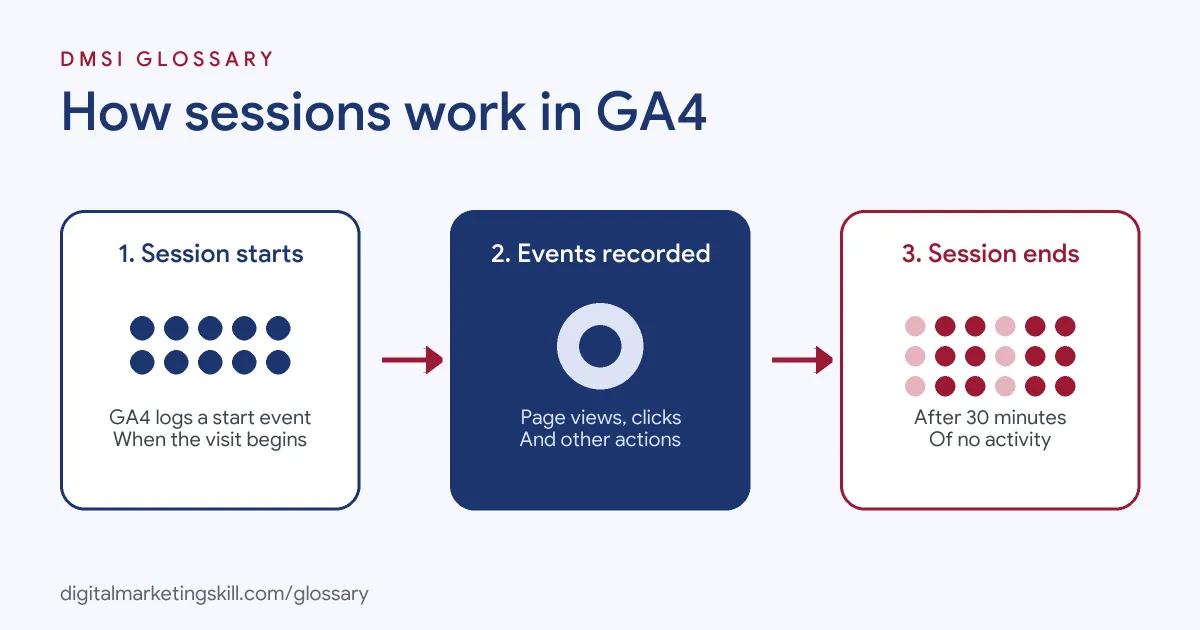
Every session follows the same pattern. First, a visit begins and GA4 logs a session_start event. Next, the person interacts with pages or screens, and each action is recorded as an event. Finally, after a period of no activity, the session times out.
How Sessions Start
According to Google, “when a session starts, Google automatically collects a session_start event.” This event also creates the session ID and session number. Google adds that the session ID “is automatically generated as the timestamp in seconds when a session starts.”
How Sessions End
By default, “a session ends or times out after 30 minutes of user inactivity.” So if someone leaves a tab open, goes for lunch and comes back an hour later, GA4 starts a new session. You can change the timeout in your tag settings by “selecting the hours and minutes.”
Engaged Sessions
Not every session is equally useful. GA4 calls a session engaged if it meets any of these criteria:
- It “lasts longer than 10 seconds.”
- Or it “has a key event.”
- Or it “has 2 or more screen or page views.”
The 10-second threshold is the default, and Google says you can adjust it in the same settings area. In practice, most teams leave it alone unless their pages are very short or very long.
Sessions Examples
Here are three made-up examples of how GA4 counts visits:
- Example 1, a quick bounce: A visitor lands on a blog post, reads for five seconds and leaves. That’s one session, and it is not engaged.
- Example 2, a long browse: A shopper views five product pages over 20 minutes without a break. That’s one engaged session, because it has two or more page views and lasts longer than 10 seconds.
- Example 3, a lunch break: Someone opens a page, leaves for 45 minutes, then clicks again. GA4 records two sessions, because the first one timed out after 30 minutes.
Sessions vs Users vs Events
These three measures answer different questions:
| Measure | What it counts | Example question |
|---|---|---|
| Users | Unique people or devices | How many people visited this month? |
| Sessions | Separate visits by those users | How many visits came from email? |
| Events | Individual actions within visits | How many people clicked “Add to basket”? |
In short, one user can create many sessions, and each session can contain many events.
How to Analyse Sessions in GA4
- Open the acquisition reports. Look at sessions by channel or by source and medium to see where visits come from.
- Add engagement metrics. Compare engaged sessions and engagement rate for each channel, not just total sessions.
- Check key events. See which channels bring sessions that include key events, such as leads or sales.
- Compare landing pages. Find pages with many sessions but low engagement, then improve them.
- Review your settings. Check the session timeout and engaged session timer. Then note any changes, because they affect your figures.
- Tag your campaigns. Finally, add UTM parameters to links, so sessions from emails and ads show up under the right source.
A Worked Example
Here is a made-up example with simple numbers. A site records 2,000 sessions in a week. Of those, 1,200 are engaged sessions. So the engagement rate is 1,200 divided by 2,000, which is 60%. The other 800 sessions were not engaged, so the bounce rate is 40%. Notice that the two figures always add up to 100%, because GA4 defines bounce rate as the opposite of engagement rate.
Why Your Numbers May Differ From Other Tools
Different tools rarely agree on visit counts, and that’s normal. Each one uses its own rules for when a visit starts and stops. Ad platforms, for instance, count clicks, while GA4 counts what happens after people arrive. Privacy choices matter too. Under basic consent mode, Google gets no data from people who decline, so some real visits never appear. That’s why your cookie consent set-up affects your reports. When figures look odd, compare trends over time rather than chasing an exact match between tools.
Best Practices for Sessions Data
- Look at quality, not just volume. More sessions mean little if few are engaged.
- Segment by channel. Paid, organic, email and social traffic often behave very differently.
- Use UTM tags consistently. Messy tags split one campaign’s sessions across several sources.
- Keep settings stable. Changing the timeout midway makes comparisons over time harder.
- Pair sessions with outcomes. Always check what share of visits led to a key event.
Common Mistakes to Avoid
A common mistake is treating sessions as people, when one person can create many visits. Another is chasing session growth from low-quality traffic. Some teams also forget that a long pause starts a new session, which can inflate counts. Others compare GA4 figures with an old tool without checking how each one defines a visit. Many also never add UTM tags, so lots of visits land in the wrong channel. Finally, some change the timeout setting without telling the team, which makes later reports hard to compare.
Where You’ll Use Sessions at Work
Job listings rarely mention sessions by name. Instead, they ask for the analytics skills that rely on them. For example, remote listings ask candidates to:
- “interpret web traffic, user behavior, search performance, and other digital insights, and use findings to recommend website optimization” (Web Manager, Web Strategy and Operations).
- Use “event tracking, segmentation, and audiences to create detailed customer journey analysis” (GA4 Specialist).
- Show an “Understanding of event tracking (GA4, etc.)” (Data Engineer).
So if you want to work as a Web Analytics Specialist, Google Ads Specialist or PPC Specialist, you’ll read and explain session data every week.
Learn It in the Google Specialist Track
You can learn Google Analytics reporting in the AI-Powered Google Specialist track. It covers Google Ads and Google Analytics, and you launch and measure a Google Ads campaign with conversion tracking. You also get unlimited 1-on-1 mentoring and a U.S. Project Internship from day one.
For more, read our Google Analytics for beginners guide and our tips on website traffic analysis.
Frequently Asked Questions
What are sessions in Google Analytics?
They are separate visits to your site or app. Each one covers a period of activity and ends after 30 minutes of inactivity by default.
How long can a session last?
Google says there is no limit, as long as the person keeps interacting. A break longer than the timeout starts a new session.
What is an engaged session?
A session that lasts longer than 10 seconds, includes a key event, or has two or more page or screen views.
Can I change the session timeout?
Yes. In your Google tag settings, you can adjust the session timeout by hours and minutes, and the engaged session timer by seconds.
What is the difference between sessions and users?
Users are the people or devices that visit. Sessions are the visits they make, so one user can create many sessions.
Sources: Analytics Help: About Analytics sessions; Analytics Help: Engagement rate and bounce rate; Analytics Help: Adjust session timeout; remote job listings on Himalayas.