
Google Search Console is a free service from Google that shows how your website performs in Google Search and helps you find and fix problems that stop pages from appearing. It reports the searches that bring people to your site, the pages Google has indexed, and any crawling or security issues it finds. It matters because it is the most direct view you can get of how Google sees your site, so it guides almost every SEO decision.
Key Takeaways
- Google describes Search Console as “a free service offered by Google” for monitoring and troubleshooting how your site appears in Google Search.
- You don’t need it to appear in Google. Google says, “You don’t have to sign up for Search Console to be included in Google Search results.”
- The Performance report shows clicks, impressions, click-through rate and average position, split by query, page, country, device and more.
- The URL Inspection tool shows a page’s index status and lets you request indexing, but Google says a request “does not guarantee” the page will be indexed.
- A Domain property covers all subdomains and both http and https, and it needs DNS verification.
What Is Google Search Console?
Think of Search Console as a health check and a scoreboard for your site in Google. The health check shows whether Google can crawl and index your pages. The scoreboard shows which searches bring people in and how often they click.
Google lists its main jobs simply. It helps you “Confirm that Google can find and crawl your site,” “Fix indexing problems and request re-indexing of new or updated content,” and “View Google Search traffic data for your site.” It can also send alerts when Google finds indexing, spam or other issues, and it shows which sites link to yours.
For example, a bakery’s website might suddenly lose traffic. In Search Console, the owner sees that a key page is no longer indexed. After fixing a setting on the page and requesting indexing, the page returns to search results.
How Google Search Console Works
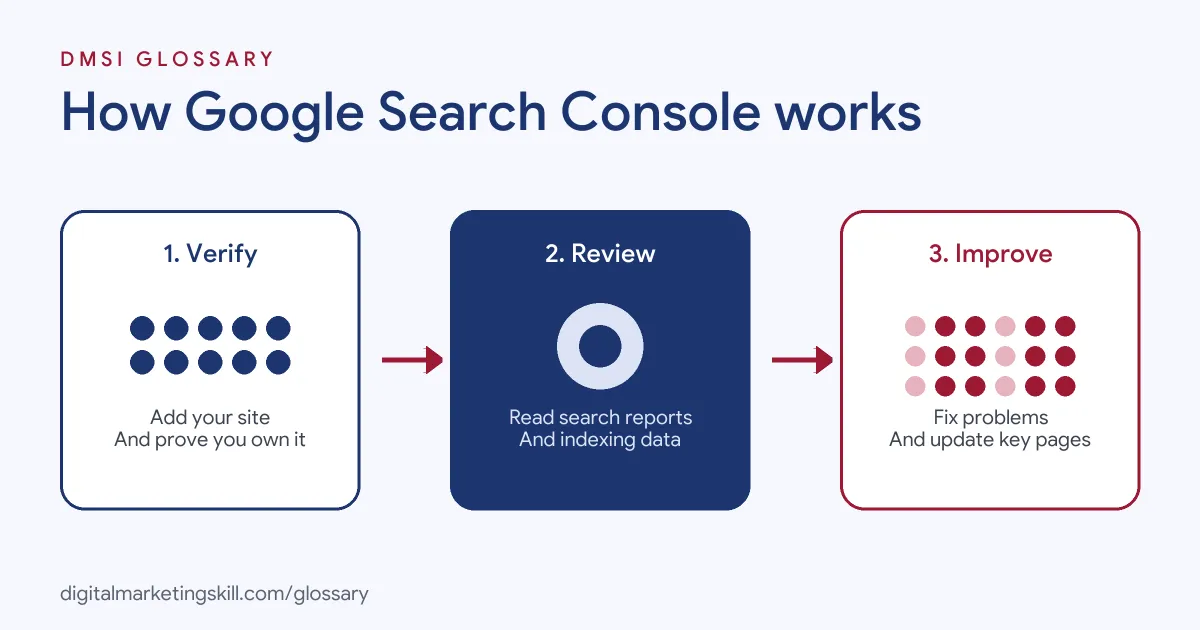
The tool works in three steps. First, you add your website as a property and prove you own it. Next, Google starts showing data about how your site appears in search. Finally, you use the reports to spot problems and opportunities, then fix or improve your pages.
Properties and Verification
First, you add a site as a property. Google offers two types. A Domain property captures “data from that domain and all subdomains and protocols (http/https),” and it requires DNS record verification. A URL-prefix property covers only addresses that start with the exact prefix you enter, including http:// or https://, and it offers several ways to verify.
The Performance Report
In particular, this report shows how people find you in Google. It covers four main metrics. Clicks are “The number of times a user clicked your site from Google Search results.” Impressions show “How many times your site appeared in Search results.” CTR is “The click count divided by the impression count.” Average position is “The average position of the topmost result from your site.” You can group the data by queries, pages, countries, devices, search appearance and dates.
Google also says that sites appearing in AI Overviews and AI Mode are included in this report under the Web search type.
The URL Inspection Tool
By contrast, this tool checks one page at a time. It shows Google’s indexed version of the page, and Google notes this is “not a live test.” You can also run a live test and request indexing. However, Google warns, “Submitting a request does not guarantee that the page will appear in the Google Index.” There are daily limits on inspections and indexing requests, and for many new pages Google suggests submitting a sitemap instead.
Google Search Console Examples
Here are three made-up examples of how people use it:
- Content writer (example): She finds a page with many impressions but a low CTR, rewrites its title and description, and sees clicks rise over the next month.
- Shop owner (example): He checks why a new product page isn’t in Google, uses URL Inspection, fixes a noindex tag and requests indexing.
- SEO specialist (example): She spots queries where a page ranks on the second page, then improves the content to target them better.
In each case, the data points to a specific page and a specific fix.
Google Search Console vs Google Analytics
These two free Google tools answer different questions:
| Feature | Search Console | Google Analytics |
|---|---|---|
| Main question | How does my site appear in Google Search? | What do visitors do on my site? |
| Key data | Queries, impressions, clicks, positions, indexing | Sessions, engagement, conversions |
| Traffic covered | Google Search only | All channels, such as email, social and ads |
| Fixes problems with | Crawling, indexing and search appearance | Tracking, journeys and conversions |
In short, Search Console shows what happens before the click, and Analytics shows what happens after it.
How to Set Up Google Search Console
- Sign in. Open Search Console with your Google account.
- Add a property. Select “Add property” and choose Domain or URL-prefix.
- Verify ownership. For a Domain property, add the DNS record Google gives you at your domain provider.
- Submit a sitemap. Add your XML sitemap, so Google can find your pages more easily.
- Check indexing. Review which pages are indexed and fix any errors listed.
- Open the Performance report. Look at your top queries and pages.
- Set a routine. Check key reports every week or two, and act on alerts quickly.
A Worked CTR Example
Here is a made-up example. A page gets 8,000 impressions and 160 clicks in a month, so its CTR is 160 divided by 8,000, which is 2%. Its average position is 4. The owner rewrites the title to match the main query more closely. The following month, impressions stay similar but clicks rise to 280, a CTR of 3.5%. That’s a clear win from one small change.
Best Practices for Search Console
- Use a Domain property if you can. It covers every subdomain and protocol in one place.
- Check after big changes. Review indexing after a redesign, migration or new section.
- Look for quick wins. Pages with high impressions and low CTR often need better titles.
- Don’t overuse indexing requests. There are daily limits, so use sitemaps for many pages.
- Share access carefully. Give team members and agencies the access level they need.
Common Mistakes to Avoid
A common mistake is setting up Search Console and never looking at it again. Another is verifying only one version of a site, such as http, and missing data for https or www. Some site owners also panic over every small dip, rather than looking at trends. Others request indexing again and again, even though Google says a request doesn’t guarantee inclusion. Finally, many ignore alerts until traffic has already dropped.
Where You’ll Use Google Search Console at Work
Search Console is a daily tool in SEO and content roles. For example, real remote job listings ask for:
- “Hands-on experience using GA4 and Google Search Console to analyze content performance and guide optimization decisions” (SEO Content Strategist).
- Someone who “Monitors performance using tools such as Google Analytics, Search Console, Adobe Analytics, proprietary tools, and others as needed.” (SEO Analyst).
- Someone to “Diagnose why a piece isn’t performing, using tools like GA4, Google Search Console, and Ahrefs, and recommend clear, prioritized improvements” (Senior Content Marketer, SEO).
So if you want to work as a Web Analytics Specialist, SEO Specialist or Google Ads Specialist, employers will expect you to read these reports and turn them into actions.
Learn It in the Google Specialist Track
You can learn Google’s measurement tools in the AI-Powered Google Specialist track. It covers Google Ads across Search, Display, Discovery, Gmail and YouTube, plus Google Analytics. Your portfolio project is a Google Ads campaign that you launch and measure with conversion tracking. You also get unlimited 1-on-1 mentoring and a U.S. Project Internship from day one.
Next, read our round-up of free Google marketing tools, and see our entry on technical SEO.
Frequently Asked Questions
Is Google Search Console free?
Yes. Google describes it as a free service for monitoring how your site appears in Google Search.
Do I need Search Console to rank on Google?
No. Google says you don’t have to sign up to be included in its results. However, the tool helps you find and fix problems.
What is the difference between impressions and clicks?
Impressions count how often your site appeared in results. Clicks count how often people clicked through to it.
Does requesting indexing guarantee my page is indexed?
No. Google says a request does not guarantee the page will appear, and indexing typically takes about a day but can take longer.
Which property type should I choose?
A Domain property is usually best, because it covers all subdomains and protocols. It needs DNS verification.
Sources: Search Console Help: About Search Console; Search Console Help: Performance report; Search Console Help: URL Inspection tool; Search Console Help: Add a website property; remote job listings on Himalayas.