
WooCommerce is a free, open-source eCommerce plugin that turns a WordPress website into an online shop, with product pages, a cart, checkout, payments and order management. You install it like any other plugin, then add products and choose how to take payments and ship orders. It matters because it lets businesses sell online while keeping full control of their site and data, and it is a common skill in WordPress and eCommerce jobs.
Key Takeaways
- It describes itself as “the open-source ecommerce platform for WordPress,” with a free core.
- Its plugin listing shows more than 7 million active installations.
- It supports more than 100 payment gateways, including Stripe, PayPal and Square.
- Hundreds of free and paid extensions from the WooCommerce Marketplace add extra features.
- Because it runs on your own WordPress site, you keep ownership of your store’s content and data.
What Is WooCommerce?
WordPress on its own is great for content, but it doesn’t include a shop. This plugin adds one. Once you activate it, you get product pages, a shopping cart, a checkout and a dashboard for orders and customers.
The plugin listing puts it this way: “WooCommerce is the open-source ecommerce platform for WordPress. Our core platform is free, flexible, and amplified by a global community.” It adds that “the freedom of open-source means you retain full ownership of your store’s content and data forever.”
That ownership is a key difference from hosted shop builders. With WooCommerce, the store lives on your own WordPress site and hosting. For the bigger picture, see our glossary entry on eCommerce.
How WooCommerce Works
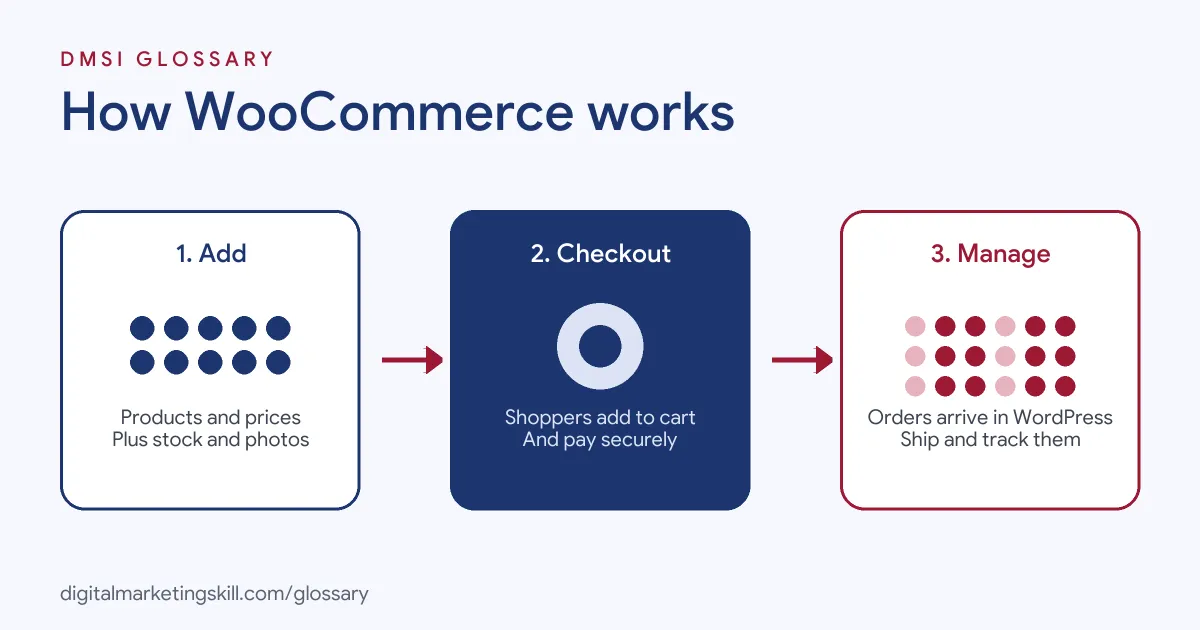
The plugin works in three stages. First, you add products, prices and stock levels. Next, shoppers browse, add items to the cart and check out. Finally, the order arrives in your dashboard, where you take payment, ship and track it.
Products and the Store
Each product gets its own page, with a title, description, images, price and stock settings. You can group products into categories and use tags to help shoppers browse. Because the shop runs inside WordPress, you edit products in the same dashboard you use for pages and posts.
Payments
Payments are flexible. The listing says you can “securely accept credit cards, mobile wallets, bank transfers, and cash thanks to 100+ payment gateways – including Stripe, PayPal, and Square.” It also offers its own WooPayments option in a set list of countries, including the UK, the US, Ireland, Australia, New Zealand, Canada, Spain, France, Germany and Italy.
Shipping, Tax and Extensions
You can set shipping options and connect “well-known carriers such as UPS and FedEx.” For tax, the listing says you can “add WooCommerce Tax or similar integrations.” Beyond that, you can “enhance store functionality with hundreds of free and paid extensions from the WooCommerce Marketplace.” There is also a free mobile app for Android and iOS, so you can manage the store from your phone.
WooCommerce Examples
Here are three made-up examples of how businesses might use it:
- Craft seller: A potter adds a shop to her existing WordPress blog. She lists 30 products, takes card payments and ships within the UK.
- Training provider: A course provider sells downloadable guides and workbooks alongside its free blog content.
- Local bakery: A bakery takes online orders for collection, so customers pay ahead and pick up in store.
In each case, the shop sits on the same site as the brand’s content, which helps with SEO and keeps everything in one place.
WooCommerce vs Hosted Shop Builders
Many sellers compare this plugin with hosted platforms. Here is a simple overview:
| Feature | WooCommerce | Hosted shop builder |
|---|---|---|
| Where it runs | On your own WordPress site and hosting | On the provider’s platform |
| Software cost | Free core plugin, with paid extensions if needed | Usually a monthly plan |
| Ownership and control | You keep full ownership of content and data | Set by the provider’s terms |
| Upkeep | You handle hosting, updates and security | The provider handles most of it |
In short, the plugin gives you more control, while hosted builders give you less to manage. So the right choice depends on your skills, your budget and how much you want to customise the store over time.
How to Set Up WooCommerce
- Check that your hosting meets the requirements. The listing says PHP 7.4 or greater is required, with PHP 8.0 or greater recommended.
- In WordPress, go to Plugins, then Add New, and install the plugin.
- Run the setup wizard, then add your store address, currency and selling locations.
- Choose your payment gateways, such as Stripe or PayPal.
- Set shipping zones, rates and tax settings.
- Add your products with clear titles, photos, descriptions and prices.
- Place a test order from start to finish, then launch.
New to WordPress? Start with our guide on how to build a WordPress website.
Best Practices
- Choose good hosting. A shop needs speed and reliability, especially at checkout.
- Keep extensions lean. Add only what you need, and keep everything updated.
- Write strong product pages. Use clear photos, honest descriptions and helpful details like sizes.
- Add structured data. For example, Yoast’s WooCommerce SEO add-on offers “product structured data for rich results, including price, reviews, and availability.”
- Test checkout often. Run a test order after every major update.
Marketing a WooCommerce Store
A shop needs visitors, so marketing matters as much as set-up. First, optimise product and category pages for search. Next, connect an email tool to send welcome and abandoned cart emails. Then add conversion tracking, so your ads can learn which visitors buy. Finally, collect reviews on product pages, since shoppers trust what other buyers say. Together, these steps turn a new shop into a steady source of sales.
A Product Page Checklist
Product pages do most of the selling. So before you publish each one, check that it has:
- A clear title that uses the words shoppers search for.
- Several sharp photos, including one in use or to scale.
- A short description of the main benefit, then the details.
- Price, delivery time and returns information near the button.
- Reviews from real buyers, once you have them.
For example, a candle shop might add burn time, size and scent notes. Those small details answer questions before shoppers need to ask.
Store Metrics to Watch
Numbers show where the shop is working and where it leaks. Track these each week:
- Conversion rate: the share of visitors who buy.
- Average order value: how much each order is worth.
- Cart abandonment: how many people add items but don’t finish checkout.
- Top products: which items sell best, so you can promote them more.
Then fix the weakest number first. For instance, if many carts are abandoned, simplify checkout or show delivery costs earlier.
Common Mistakes to Avoid
Many new store owners pick cheap hosting, then find the site slows down at busy times. Others install dozens of extensions, which can clash and slow checkout. Some skip test orders, so they only find payment problems when a real customer complains. Finally, many forget backups. A store holds orders and customer data, so regular backups are essential. Keep copies away from your host, and check now and then that you can restore them. That way, one bad update or hack won’t wipe out your business.
Where You’ll Use WooCommerce at Work
The plugin appears in WordPress, eCommerce and paid media job listings. For example, recent remote listings ask for:
- “Extensive experience with WordPress development, specifically with WooCommerce integration.” (WordPress WooCommerce Full-Stack Developer).
- “Experience implementing tracking for Shopify or WooCommerce.” (Google Ads Specialist, Advanced Tracking).
- “Experience with eCommerce platforms such as Shopify, BigCommerce, WooCommerce, or Magento” (Senior Paid Media Strategist).
So as a WordPress Developer, SEO Specialist or Website Manager, you may build, maintain and grow online stores with it.
Learn It in the WordPress and SEO Track
The AI-Powered WordPress and SEO Specialist track covers WordPress website and eCommerce development, search engine optimisation and content marketing. Your portfolio project is to build a WordPress site or store and rank it with an SEO content plan. You also get unlimited 1-on-1 mentoring and a U.S. Project Internship from day one.
To understand how add-ons work, read our entry on the WordPress plugin.
Frequently Asked Questions
Is WooCommerce free?
Yes, the core plugin is free and open source. However, you pay for hosting, and some extensions cost money.
Do I need WordPress to use WooCommerce?
Yes. It is a plugin for WordPress, so it runs on a WordPress site.
What payment methods does it support?
The listing says it supports more than 100 payment gateways, including Stripe, PayPal and Square, for cards, mobile wallets, bank transfers and cash.
Can I sell digital products?
Yes. Many stores sell downloads, such as guides, templates or music, as well as physical goods.
How many stores use WooCommerce?
Its WordPress plugin listing shows more than 7 million active installations.
Sources: WordPress.org: WooCommerce plugin; WordPress.org: Yoast SEO plugin; WordPress.org: Requirements; remote job listings on Himalayas.