
An Orphan Page is a page on your website that no other page on the same site links to. Visitors can’t click through to it, and search engines may struggle to find it. As a result, good content can sit unseen for months. So finding and fixing orphan pages is one of the quickest wins in a site audit.
Key Takeaways
- An orphan page has no internal links pointing to it from the rest of your site.
- Google mainly finds new pages by following links from pages it already knows.
- A sitemap can help Google find a page, but it doesn’t replace internal links.
- You find orphan pages by comparing a site crawl with your sitemap, analytics and Search Console data.
- The fix is to link the page from a relevant page, or redirect or remove it if it has no value.
What Is an Orphan Page?
Links join most pages on a website. For example, your home page links to a category, and that category links to a product. So a person or a bot can move from page to page. An orphan page breaks this chain. It exists and it loads, but nothing on your site points to it.
Think of a house with a room that has no door. The room is there, and it may look lovely. However, nobody can walk into it from the hallway. In the same way, an orphan page can only be reached if someone already knows its exact address.
Google is clear about why this matters. In its link best practices, it says: “Every page you care about should have a link from at least one other page on your site.” An orphan page fails that simple test. It is a common issue in technical SEO, next to broken links and redirect chains.
How Orphan Pages Happen
Teams rarely create orphan pages on purpose. Instead, they appear as a site grows and changes. For example, a team redesigns the menu and drops an old link. Or someone publishes a blog post but never adds it to a category. Also, landing pages built for ads are often left off the main navigation by design. Finally, a site migration can change URLs and leave old pages with no links at all.
Why It Matters
Why should you care? First, a page with no links is hard for Google to discover. Second, internal links pass context and value between pages. So an orphan page misses out on both. In addition, visitors can’t find it either, which means fewer views, leads or sales. On the other hand, linking it well can bring it back into search quickly.
How Orphan Pages Work
To understand orphan pages, it helps to know how Google finds content. Google calls this step “URL discovery”. It says that pages “are discovered when Google extracts a link from a known page to a new page”. So if no known page links to yours, that main path stays shut.
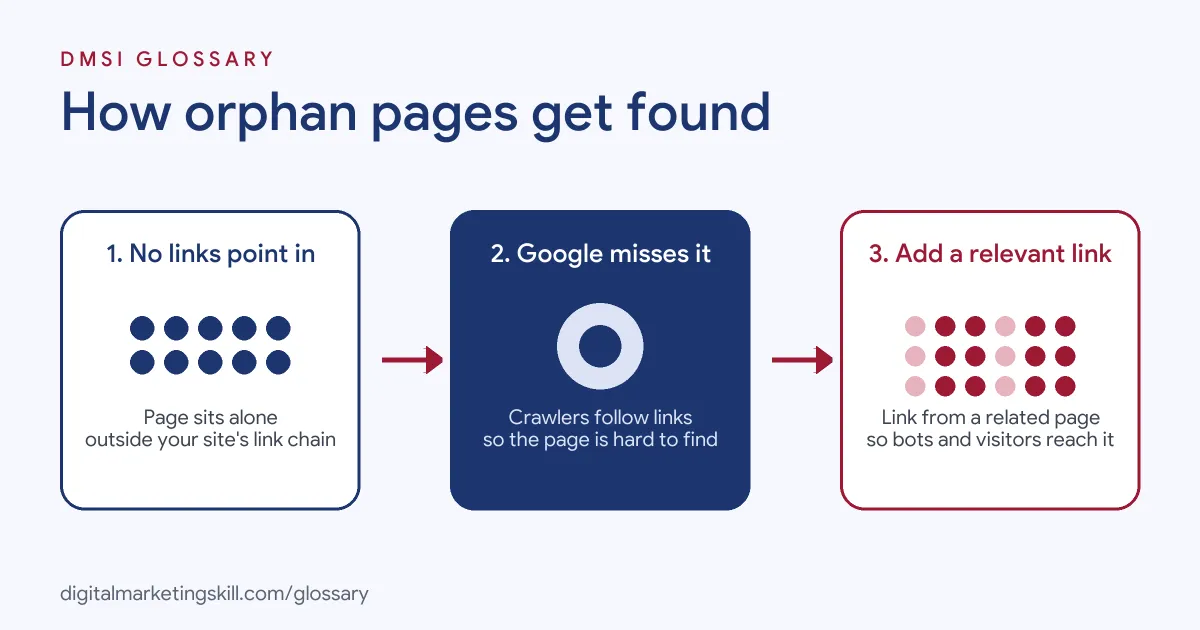
Step 1: Google Follows Links
Crawling starts with pages Google already knows. Then it follows the links on those pages to find new ones. Google says it uses links “to find new pages to crawl.” Also, it can generally only follow a link if it is a real <a> HTML element with an href. So a page linked only through a script or a button may still behave like an orphan.
Step 2: The Page Gets Missed or Found Late
Next, a page with no links has fewer ways in. For example, Google might still find it in your XML sitemap, or through a link from another website. However, it gets no internal signals that tell Google the page matters. As a result, it may be crawled less often, or it may never reach indexing at all.
Step 3: Links Bring It Back
Finally, once you add a link from a relevant page, you repair the chain. Google can now reach the page through normal crawling. In addition, the linking page passes context through its anchor text. So the page becomes easier to find and easier to understand.
Sitemaps Are Not Enough
Some people think a sitemap solves the problem. It helps, but it isn’t the full answer. Google notes that “on large sites it’s more difficult to make sure that every page is linked by at least one other page on the site.” That is exactly why sitemaps exist. Still, a sitemap only lists URLs. It doesn’t give a page context, and it doesn’t help visitors find it. So treat the sitemap as a safety net, not a fix.
Examples of Orphan Pages
- An online shop after a product range change. The team removes a category from the menu. However, several product pages still exist and still sell well through old emails. A crawl shows they now have no internal links, so the team adds them to a related category.
- A service business with old blog posts. Nobody added the early posts to any category or tag page. As a result, they only appear in the sitemap. The marketer links each useful post from a newer guide on the same topic.
- A software company with ad landing pages. Each paid campaign uses its own page, kept out of the menu on purpose. So the SEO team marks these pages as intended orphans and adds a
noindextag where they shouldn’t appear in search.
Orphan Page vs Related Terms
| Term | What it means | Can Google reach it? |
|---|---|---|
| Orphan page | Live page with no internal links to it | Only through a sitemap, external links or a known URL |
| Dead-end page | Page that has no links out to other pages | Yes, but crawling stops there |
| Broken link (404) | Link that points to a page that no longer exists | The link is found, but the page is gone |
| Noindex page | Page that asks search engines not to index it | Yes, but it is kept out of results |
How to Find and Fix Orphan Pages
- Crawl your site. Use a site crawler that starts from your home page. It lists every page it can reach by following links.
- Collect every known URL. Then export URLs from your sitemap, your analytics tool and Google Search Console.
- Compare the two lists. Any URL in your known list but not in the crawl is a likely orphan page.
- Check each page. Ask if the page is useful, up to date and meant to be found. Also, check its traffic and any backlinks.
- Decide what to do. Keep and link useful pages. Merge thin pages into stronger ones. Otherwise, redirect or remove pages with no value.
- Add relevant internal links. Link each kept page from one or more related pages, using clear anchor text.
- Redirect or remove the rest. Use a 301 redirect when a better page exists. If not, let the page return a 404 or 410 status.
- Check again later. Finally, run the same comparison after big site changes, so new orphans don’t build up.
Best Practices for Avoiding Orphan Pages
- Link every new page. Before you publish, add at least one link from a related page.
- Use clear site structure. Categories, hubs and breadcrumbs give every page a natural place to live.
- Build topic hubs. A pillar page that links to all its supporting articles stops them drifting into orphan status.
- Keep your sitemap clean. List only pages you want indexed, so your comparison stays accurate.
- Plan for migrations. Map old URLs to new ones, and check internal links before and after launch.
- Review on a schedule. Add an orphan page check to your regular content audit.
Common Mistakes to Avoid
- Relying only on the sitemap. A sitemap can help discovery, but it gives no context to Google or visitors.
- Adding random links. A link from an unrelated page helps little. Instead, link from pages on the same topic.
- Using script-only links. Buttons or click events may not count. So use real
<a href>links. - Linking pages that should go. You can often merge, redirect or remove outdated or thin pages instead.
- Forgetting intended orphans. Ad landing pages and thank-you pages may need
noindex, not new links. - Only crawling once. Sites change all the time. Therefore, orphan pages come back unless you check regularly.
Where You’ll Use Orphan Page Checks at Work
No current remote job listing we checked names orphan pages directly. However, the task sits inside everyday SEO work. For example, you’ll use it in these roles:
- SEO Specialist or Technical SEO. You run site crawls, spot orphan pages and agree fixes with the content and web teams.
- Content Manager. You make sure every new article sits in a category or hub, and you link older posts from newer ones.
- WordPress Developer or Web Manager. You keep menus, categories and redirects tidy during redesigns and migrations.
Learn It in the WordPress and SEO Track
You can learn how to find and fix orphan pages, and the wider skills of site audits, in the AI-Powered WordPress and SEO Specialist track. Every track includes a U.S. Project Internship from day one, with unlimited 1-on-1 mentoring.
Frequently Asked Questions
Can Google index an orphan page?
Yes, it can. For example, Google may find it in a sitemap or through a link from another site. However, the page gets no internal signals, so it is often crawled less and may rank poorly.
Are orphan pages bad for SEO?
They mean a missed chance rather than a penalty. Useful content stays hidden from visitors and search engines. So it can’t bring the traffic it should.
How many internal links does a page need?
Google says every page you care about should have a link from at least one other page on your site. In practice, important pages usually deserve several links from related content.
Should I delete orphan pages?
Not always. First, check if the page is useful. Then link it if it is, or redirect or remove it if it isn’t.
Do I need special tools to find them?
A site crawler plus exports from your sitemap, analytics and Search Console are usually enough. Then you compare the lists to spot the gaps.
Sources: Google Search Central: Link best practices for Google; Google Search Central: In-depth guide to how Google Search works; Google Search Central: Learn about sitemaps.