
The GCLID (Google Click ID) is a unique code that Google Ads adds to your landing page URL each time someone clicks your ad. It lets you tie a sale, sign-up or phone call back to the exact click that started it. As a result, you can see which campaigns and keywords really drive results. It also powers the link between Google Ads and Google Analytics.
Key Takeaways
- A GCLID is a URL parameter that identifies a single ad click.
- Google Ads adds it for you when auto-tagging is switched on.
- Google says it is required for Google Ads website conversion tracking.
- You can store GCLIDs in your CRM and import offline sales later.
- Redirects or forms that drop the parameter break your tracking.
What Is GCLID?
GCLID stands for Google Click ID. Google describes it simply: “Google Click ID (GCLID) is a URL parameter passed with ad clicks.” In other words, it is a short string added to the end of your web address.
For example, Google shows that a click on an ad for example.com can land on a URL like www.example.com/?gclid=123xyz. The real code is longer and random. However, the idea is the same. Each click gets its own ID, so no two visitors share one.
Think of a cloakroom ticket. When you hand over your coat, you get a numbered ticket. Later, that number links you back to your coat. In the same way, the GCLID is a ticket that links a visitor back to the ad they clicked.
You rarely type a GCLID yourself. Instead, Google Ads creates it. Google explains that “In Google Ads, this is activated by turning on the auto-tagging setting.” So if auto-tagging is on, every click carries its own ID.
Why It Matters
Without a GCLID, Google Ads struggles to know which click led to which result. Then your reports look weaker than they are. Also, smart bidding needs good conversion data to set bids well. So a working GCLID means better data, better bids and fewer wasted clicks.
It matters even more for lead-based firms. For instance, a law firm or a software company may close a deal weeks after the first click. Without the GCLID, that sale looks like it came from nowhere. With it, you can prove which ads bring in paying clients, not just form fills.
How GCLID Works
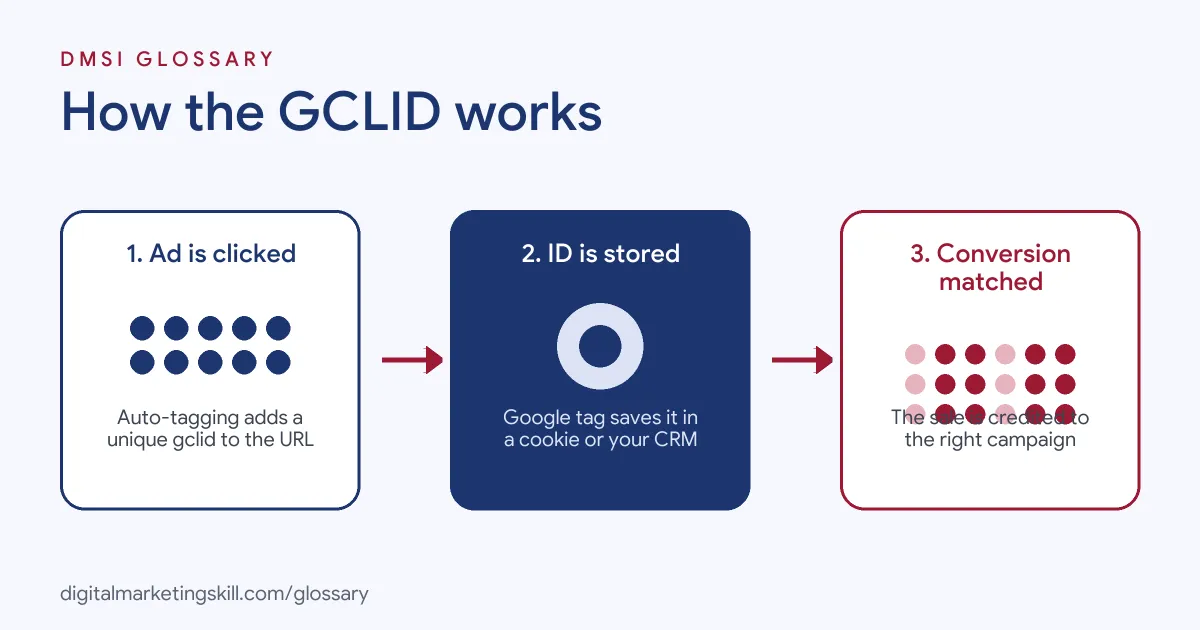
The GCLID follows a visitor from the ad to your site and then into your reports. It moves through a few clear stages, and each one can break if you are not careful.
Stage 1: The Click
First, a person clicks your ad. Because auto-tagging is on, Google Ads adds the gclid parameter to your final URL. According to Google, the parameter “identifies the campaign along with other attributes of the click.” So the ID links to the campaign, ad group and keyword behind that click.
Stage 2: The Landing Page
Next, the visitor lands on your page with the GCLID in the address bar. If you use the Google tag or Google Analytics 4, the ID is stored in a first-party cookie on your domain. Then it stays available while the person browses. However, if a redirect strips the parameter, it is lost. Google advises that you “make sure the GCLID is passed to the final landing page.”
Stage 3: The Conversion
When the visitor buys or signs up, your conversion tracking tag fires. It sends the stored click data back to Google Ads. As a result, the sale is credited to the right campaign and keyword.
Stage 4: Offline Sales
Some sales happen later, for example on a phone call. In that case, you can capture the GCLID in a hidden form field. Then you store it with the lead in your CRM. When the deal closes, you upload it back to Google Ads. Google notes that “The GCLID is case sensitive,” so you must store it exactly as it arrived.
Stage 5: Reports and Bids
Finally, Google Ads uses the matched results in your reports. For example, you can see cost per sale by campaign, keyword or search term. Then smart bidding learns which clicks tend to convert. Over time, it bids more for clicks like those and less for the rest. That is why one small code has such a big effect on your results.
What You Can Do With It
Google lists several uses for auto-tagging. First, you can track conversions on your website. Second, you can import key events from Google Analytics into Google Ads. Third, you can bring Google Ads cost and campaign data into Google Analytics. Also, Google notes that “Some browsers require auto-tagging to track conversions.” So leaving it on keeps your data more complete across browsers.
Examples of GCLID
- An online shop. The shop runs Google Shopping and search ads. Because auto-tagging is on, each order links to the click that started it. So the team can see which products and keywords earn the most.
- A B2B software firm. Leads fill in a demo form, but sales close weeks later. So the firm saves the GCLID in a hidden field and stores it in its CRM. After that, it imports closed deals as offline conversions.
- A dental clinic. The clinic’s booking tool used a redirect that dropped the parameter. As a result, no bookings showed in Google Ads. After the developer kept the GCLID through the redirect, bookings began to appear.
GCLID vs UTM Parameters
| Point | GCLID | UTM parameters |
|---|---|---|
| Who creates it | Google Ads, with auto-tagging | You, by hand or with a builder |
| What it tracks | One unique ad click | Source, medium and campaign names |
| Where it works | Google Ads and linked Google tools | Most analytics tools and any channel |
| Readable by people | No, it is a random code | Yes, plain words you choose |
| Offline imports | Yes, through your CRM | No direct link to a single click |
You can use both. However, Google notes that in GA4 “auto-tagging is prioritized over manual tagging.” Learn more in our guide to UTM parameters.
How to Set Up GCLID Tracking
- Check auto-tagging. In Google Ads, open Admin, then Account settings, then Auto-tagging. Make sure “Tag the URL that people click through from my ad” is ticked. Google says it is on by default for new accounts.
- Install the Google tag. Add the Google tag to every page, or use Google Tag Manager.
- Link Google Ads and GA4. Then your ad clicks and site data join up in both tools.
- Test a click. Click your own ad or use a preview link. After that, check that “gclid=” appears in the landing page URL.
- Check redirects. Follow the path from ad to final page. Also, make sure no step removes the parameter.
- Capture it in forms. For leads, add a hidden GCLID field. Then use a script to fill it from the URL or cookie.
- Store it in your CRM. Keep the GCLID next to each lead’s details, exactly as received.
- Import offline conversions. Finally, upload closed deals with their GCLIDs to Google Ads.
Best Practices for GCLID
- Keep auto-tagging on. Turning it off breaks the link between ads and results.
- Tag every page. Google strongly recommends adding its capture script to every page, so you don’t miss clicks.
- Respect consent. Follow local cookie consent rules when you store click IDs.
- Store it exactly. Never change the case or trim the GCLID.
- Test after site changes. New forms, plugins or redirects can quietly drop the parameter.
- Set conversion goals with care. Mark each imported action as primary or secondary, as Google advises.
Common Mistakes to Avoid
- Turning off auto-tagging. Without it, Google Ads adds no GCLID at all.
- Losing it in redirects. A redirect that drops URL parameters hides every conversion after it.
- Blocking the parameter. Some site set-ups reject unknown URL parameters, so test your pages.
- Not saving it on forms. If the ID never reaches your CRM, offline imports can’t work.
- Changing the case. A GCLID with altered letters won’t match the click.
- Uploading too late. Imports have time limits, so upload closed deals on a regular schedule.
Where You’ll Use GCLID at Work
We found no current remote job listings that name the GCLID directly. Still, the skill sits behind many paid search roles. For example, PPC specialists, paid search managers and Google Ads account managers check it when conversions go missing. Also, marketing operations and analytics roles use it to link CRM sales to ad clicks. In addition, web developers often help keep the parameter through forms and redirects.
Learn It in the Google Ads and Analytics Track
You can learn GCLID tracking, conversion set-up and offline imports in the AI-Powered Google Specialist track. Every track includes a U.S. Project Internship from day one, with unlimited 1-on-1 mentoring.
Frequently Asked Questions
What does GCLID stand for?
It stands for Google Click ID. It is a code that identifies one click on a Google ad.
Is the GCLID added to every Google Ads click?
It is added when auto-tagging is on. Google says auto-tagging is on by default for new accounts.
Does a GCLID contain personal data?
It is a random ID, not a name or email. Still, it can link to a person in your CRM, so follow your privacy and consent rules.
Can I remove the GCLID from my URLs?
You can turn off auto-tagging, but you lose key tracking. Instead, use a canonical tag so search engines treat tagged URLs as the main page.
Why is my GCLID missing?
Usually auto-tagging is off, or a redirect drops it. So check your settings, then follow the click path to your final page.
Sources: Google Ads Help: Google Click ID (GCLID); Google Ads Help: About auto-tagging; Google Ads Help: Set up offline conversions using Google Click ID (GCLID).