
DKIM (DomainKeys Identified Mail) is an email security method that adds a hidden digital signature to each message, so receiving servers can check it really came from your domain and wasn’t changed. The signature is checked against a public key you publish in your domain’s DNS. It matters because Gmail, Yahoo and other inbox providers trust signed mail more, so DKIM helps your emails reach the inbox.
Key Takeaways
- It is an internet standard, published as RFC 6376.
- Your mail server signs each email with a private key. Receivers check it with a public key in your DNS.
- Gmail and Yahoo ask all senders for SPF or DKIM, and ask bulk senders for both, plus DMARC.
- Google recommends 2048-bit keys where your domain host supports them. The standard sets 1024 bits as the minimum for long-lived keys.
- Each email tool that sends for you needs its own set-up, usually with its own selector.
What Is DKIM?
Think of it as a wax seal on a letter. Anyone can see the seal. However, only you hold the stamp that makes it. If the seal is intact, the reader knows the letter came from you and nobody opened it on the way.
The standard describes it in more formal terms. It lets the owner of a signing domain “claim some responsibility for a message” by linking the domain to that message. It then proves that claim with a cryptographic signature and a public key that receivers fetch from the signer’s domain.
Yahoo’s sender guide adds a practical point. A DKIM signature lets it link an email to the signer and check that the content of the email has not been altered.
How DKIM Works
The method uses a pair of keys. First, you keep a private key on your mail server, and you publish the matching public key in your DNS. Google’s help centre lists the steps that follow:
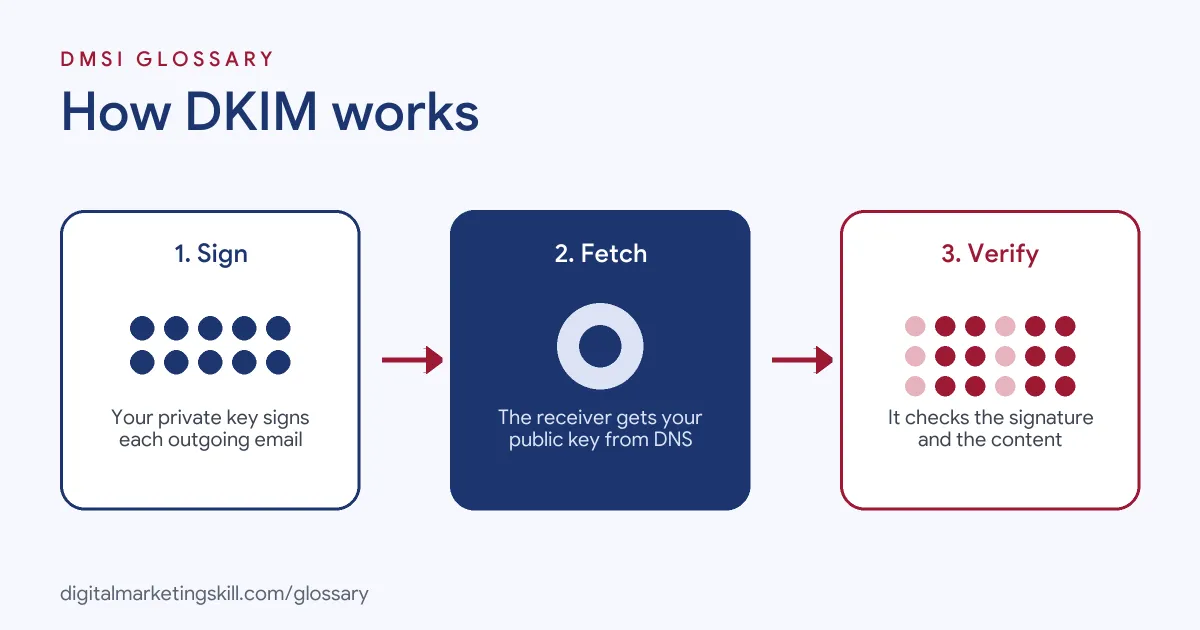
- Your private key adds a signature to the header of each outgoing email.
- The email travels to the receiver’s domain.
- The receiving server fetches your public key from your DKIM TXT record.
- It uses that key to read the signature and confirm the email is genuine.
Selectors
One domain often has several keys, for example one for Google Workspace and another for a newsletter tool. So the standard uses “selectors” to tell them apart. RFC 6376 says selectors let a domain hold multiple public keys at once. They also let you hand signing rights to a partner, such as an email service, without sharing your main key.
In practice, each key sits at an address like selector._domainkey.yourdomain.com. For instance, Google’s default selector for Workspace is “google”. Meanwhile, other tools use their own names.
Key Length
In general, longer keys are harder to crack. The standard says signers must use RSA keys of at least 1024 bits for long-lived keys. Google goes further and recommends 2048-bit keys if your domain provider supports them. It also notes that sending to personal Gmail accounts requires a key of at least 1024 bits.
DKIM Examples
Here are three made-up examples of it in everyday use:
- Workspace domain (example): A design studio turns on signing in the Google Admin console, picks a 2048-bit key and adds the TXT record at its domain host. As a result, its client emails now pass the check.
- Newsletter tool (example): A shop connects its email marketing tool. The tool gives it two DNS records with its own selector. Once added, the newsletter is signed with the shop’s domain, not the tool’s.
- Forgotten tool (example): A firm starts sending invoices from a new accounting app but never sets up signing for it. Some invoices land in spam until the records are added.
In each case, every service that sends as your domain needs its own working signature.
Why Signatures Survive Forwarding
Here is one reason inbox providers value this method. When someone forwards your email, it often leaves through a new server. As a result, SPF can fail, because that new server isn’t on your list. In fact, the SPF standard itself notes that forwarders can cause unintended failures. The signature, by contrast, travels inside the message itself. So as long as nobody edits the signed parts, the check can still pass at the final inbox.
That said, some mailing lists add footers or change subject lines. In that case, the signature can break too. That’s why Google suggests setting up all three checks, rather than relying on just one.
DKIM vs SPF vs DMARC
The three checks do different jobs. Even so, they work best together:
| Check | What it proves | What it can’t do alone |
|---|---|---|
| SPF | The sending server is allowed to send for the domain | It breaks easily when mail is forwarded, and it doesn’t check content |
| DKIM | The domain signed the message, and the signed parts weren’t changed | It doesn’t tell receivers what to do when a check fails |
| DMARC | The visible From domain matches a passing SPF or DKIM check | It needs SPF or DKIM in place to work |
Google explains the link clearly. To pass DMARC, a message must pass SPF or DKIM, and the authenticating domain must match the domain in the From header.
How to Set Up DKIM
The exact screens depend on your email provider. However, the steps are much the same everywhere:
- List every sender. Include your main email service, newsletter tool, CRM and any app that sends as your domain.
- Generate a key. In Google Workspace, go to the Gmail settings in the Admin console and choose “Authenticate email”. Other tools have a similar “domain authentication” page.
- Choose the key length. Pick 2048 bits if your domain host supports it, or 1024 if not.
- Add the TXT record. Copy the record name and value into your domain host’s DNS settings.
- Turn on signing. Go back to your email service and start authentication.
- Test it. Send a test email to your inbox, view the message source and check that DKIM passes for your domain.
Best Practices
A few habits keep your signatures strong:
- Sign with your own domain. Set up custom signing in every email tool, so mail is signed as yourdomain.com rather than the tool’s domain.
- Use strong keys. Choose 2048 bits where you can, as Google advises.
- Keep a list of selectors. Note which selector belongs to which tool, so you can remove old ones safely.
- Add DMARC. DKIM proves who signed the email, but DMARC tells receivers what to do when checks fail.
Common Mistakes to Avoid
First, many people paste the DNS record with a typo or a missing part, so the key can’t be read. Second, they add the record but forget to switch on signing. Third, they leave a tool signing with its own shared domain, which does not align with your From address. Finally, they delete an old selector that a tool still uses. Each of these breaks the signature quietly, so test after every change.
Where You’ll Use DKIM at Work
This skill comes up in email, outbound sales and IT roles. For example, current remote job listings ask for:
- “Working knowledge of email authentication (SPF, DKIM, DMARC, BIMI), domain and IP warming, reputation monitoring, and inbox placement testing” (Senior Manager, B2B Outbound Marketing).
- “Sound understanding of SPF,DKIM, DMARC, MTA-STS, SMTP, TLS, and email-routing concepts” (Cybersecurity Engineer).
- “Knowledge of email compliance tools (SpamAssassin, DKIM/SPF/DMARC) is a plus” (Backend Engineer, SaaS platform).
As an Email Marketing Specialist or Marketing Automation Specialist, you will often set this up when you connect a new sending tool. It works hand in hand with your SPF record.
Learn It in the Lead Generation and Email Track
You can learn to set up a trusted sending domain in the AI-Powered Lead Generation and Email Automation track. There, you build a lead magnet and an automated email sequence that converts. You also get unlimited 1-on-1 mentoring and a U.S. Project Internship from day one.
For more ways to reach the inbox, read our guide to email deliverability.
Frequently Asked Questions
What is DKIM in simple terms?
It is a digital signature on your emails. It proves the message came from your domain and wasn’t changed on the way.
Do I need DKIM if I have SPF?
Yes, if you send in bulk. Gmail and Yahoo require both for bulk senders, and DKIM still works in cases where SPF can break.
What DKIM key length should I use?
Google recommends 2048 bits if your domain host supports it. The standard sets 1024 bits as the minimum for long-lived keys.
What is a DKIM selector?
It is a label that tells receivers which public key to use. It lets one domain have several keys, one for each sending tool.
How do I check if DKIM is working?
Send yourself a test email and view the message source. Look for a DKIM pass that names your own domain.
Sources: IETF RFC 6376: DKIM Signatures; Google Workspace Help: Set up DKIM; IETF RFC 7208: SPF; Google: Email sender guidelines; Yahoo Sender Hub: Sender best practices; remote job listings on Himalayas.