
An email template is a reusable design for marketing emails, with a fixed layout, brand colours, fonts and sections that you fill with new content each time you send. Instead of building every email from scratch, you start from the template and swap in the text, images and links. It matters because templates save time, keep your brand consistent and reduce the chance of broken layouts in different inboxes.
Key Takeaways
- An email template sets the layout and style, so each new email only needs fresh content.
- Mailchimp’s HTML email guide says emails should be “600-800 pixels maximum width.”
- HTML emails are usually built with tables and inline CSS, because many email clients have limited code support.
- Gmail may clip an HTML email that goes over 102 KB, hiding the rest behind a “View entire message” link.
- Gmail’s sender guidelines require marketing emails to include a clearly visible unsubscribe link in the body.
What Is an Email Template?
Think of an email template as a ready-made page layout, like a magazine spread with empty boxes for words and pictures. The design stays the same. Each issue, you only change what goes in the boxes.
Most email tools offer two kinds. First, there are drag-and-drop templates, which you edit visually. Second, there are coded HTML templates, which developers build for full control. Either way, the template usually includes a header with your logo, a main content area, a call to action and a footer with your address and unsubscribe link.
For example, an online shop might have one template for its weekly newsletter, one for product launches and one for order updates. As a result, every email looks like it comes from the same brand. Our entry on the welcome email shows one email that often gets its own template.
How an Email Template Works
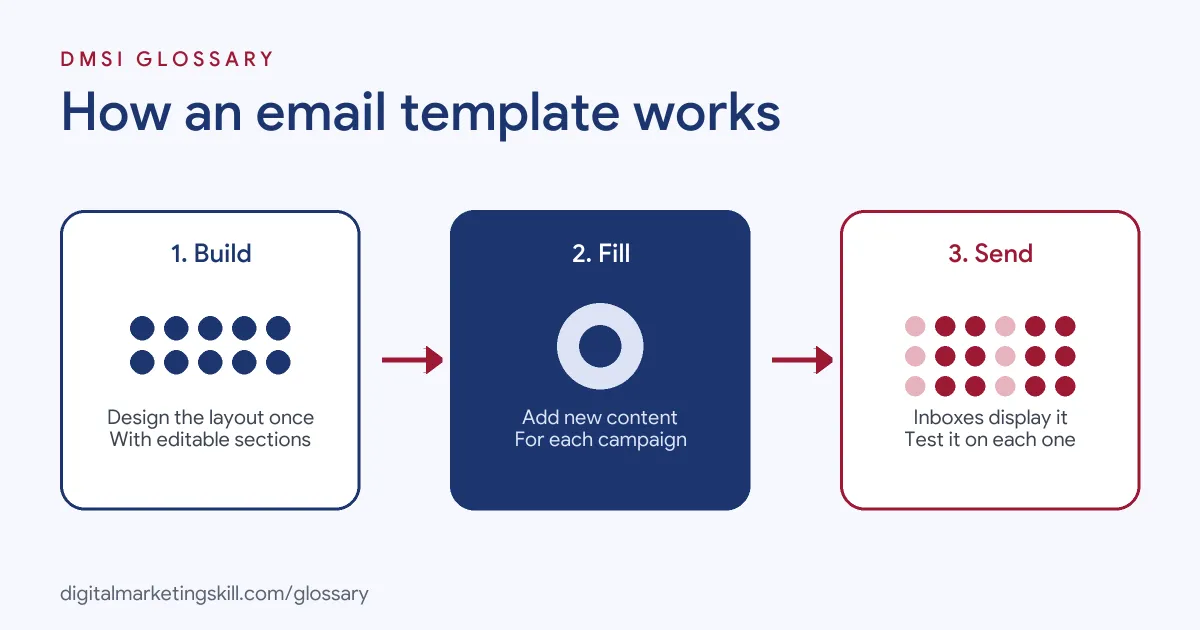
A template works in three steps. First, a designer or developer builds the layout once, with fixed styles and editable sections. Next, a marketer adds the content for each campaign. Finally, the email tool sends it, and each inbox displays the template as best it can.
Layout and Width
Email clients show messages in a preview pane, so width matters. Mailchimp’s guide says, “Emails should be 600-800 pixels maximum width.” It also advises you to “Design for simplicity” and avoid complex elements that need floats or positioning. For coded templates, it suggests building the structure “using the table element,” with nested tables for complex layouts.
Images and Fonts
Many inboxes block images until the reader allows them. So Mailchimp says to “Assume images will be initially blocked by email clients.” It also warns against designing “one large, sliced-up image,” because those emails “perform poorly.” For text, it suggests basic fonts such as Arial, Verdana, Georgia and Times New Roman, so the email looks right on most devices.
Code Limits
Email is not like a normal web page. For instance, Mailchimp advises you to “Inline all CSS before sending,” and says JavaScript and Flash are “largely unsupported by email clients.” If you need movement, it suggests a GIF instead. Size matters too. ActiveCampaign explains that if an HTML email “exceeds 102 KB, you risk Gmail ‘clipping’ your email.” Gmail counts the HTML code, not the file size of your images.
Email Template Examples
Here are three made-up examples of templates for different jobs:
- Newsletter template (example): A logo header, a featured story with an image, three short article links and a footer.
- Product launch template (example): A large product photo, a short benefit headline, one bold button and a small set of product details.
- Plain-text style template (example): A simple, letter-style layout with no images, used for personal updates from a founder.
In each case, the template matches the goal of the email, and the content changes each time.
Types of Email Template Compared
Here is how the main approaches differ:
| Type | How you edit it | Best for |
|---|---|---|
| Drag-and-drop template | Visually, in the email tool’s editor | Marketers who need speed without code |
| Custom HTML template | In code, by a developer | Brands that need full control over design |
| Plain-text style template | As simple text with few styles | Personal notes and one-to-one style emails |
In short, most teams start with drag-and-drop, then move to custom HTML when the brand needs it.
How to Create an Email Template
- Define the job. Decide what this template is for, such as a newsletter or a sale.
- Sketch the sections. Plan the header, main content, call to action and footer.
- Set the width. Keep it within 600 to 800 pixels, as Mailchimp suggests.
- Choose safe fonts and colours. Use basic fonts and your brand colours with strong contrast.
- Add the preview text. Place your preheader text at the top, so the inbox shows what you choose.
- Build the footer. Include your business address and a clear unsubscribe link.
- Make buttons easy to tap. Mailchimp suggests thumb-sized hit areas of about 46 by 46 pixels.
- Test it. Send tests to Gmail, Outlook and Apple Mail, on a phone and a computer.
How to Test a Template Before You Send
A template can look perfect in your editor and still break in an inbox. So run through a short checklist every time you build or change one:
- Images off: turn images off and check that the main message still makes sense.
- Small screen: open it on a phone and check that text is readable and buttons are easy to tap.
- Several inboxes: send tests to at least Gmail, Outlook and Apple Mail.
- Links: click every link and button, including the unsubscribe link.
- Size: check the HTML size, so Gmail doesn’t clip the message.
- Preview: look at the subject line and preview text together in the inbox.
For example, a team might find that its footer disappears in Gmail because the email is too large. Removing extra code fixes it before a single customer sees the problem.
Best Practices for Email Templates
- Keep it light. A smaller HTML file is less likely to be clipped in Gmail.
- Use real text, not just images. Then your message still shows when images are blocked.
- Add alt text to images. It explains the image when it doesn’t load and helps screen reader users.
- Make one action clear. For example, use one main button rather than five competing links.
- Lock key parts. In many tools, you can lock the header and footer, so nobody breaks them by accident.
Common Mistakes to Avoid
A common mistake is designing the whole email as one big image, which falls apart when images are blocked. Another is copying website code, such as JavaScript, that email clients don’t support. Some teams also forget mobile, so text is tiny and buttons are hard to tap. Others add so much code and tracking that Gmail clips the email, hiding the unsubscribe link. Finally, many never test in more than one inbox before sending.
Where You’ll Use Email Templates at Work
Building and editing templates is a common task in email and design roles. For example, real remote job listings ask for:
- The “Ability to code complex email templates from scratch, modify/update existing templates, and troubleshoot existing email code as needed.” (Email Developer).
- Someone to “Design mobile-first, on-brand email templates and campaign assets using Figma or Adobe XD” (Email Designer).
- Someone to “Build responsive, pixel-perfect HTML email templates from provided Figma or Photoshop designs” (Email HTML Developer).
So if you want to work as an Email Marketing Specialist or Marketing Automation Specialist, employers will expect you to use, adapt and test templates with confidence.
Learn It in the Lead Generation and Email Track
You can practise building email campaigns in the AI-Powered Lead Generation and Email Automation track. It covers AI fundamentals, lead generation, and email marketing and automation. Your portfolio project is a lead magnet and an automated email sequence that converts. You also get unlimited 1-on-1 mentoring and a U.S. Project Internship from day one.
Next, read our guide to email testing tools, which help you check templates before you send.
Frequently Asked Questions
What is an email template in simple terms?
It is a saved email design that you reuse. You keep the layout and change the words, images and links for each send.
How wide should an email template be?
Mailchimp’s guide suggests a maximum width of 600 to 800 pixels, so it fits well in most preview panes.
Why do email templates use tables?
Many email clients have limited support for modern layout code. Tables give a more reliable structure across inboxes.
Why does Gmail cut off my email?
Gmail may clip HTML emails that go over 102 KB. Remove extra code and content to keep the file smaller.
What must every marketing email template include?
At minimum, include a clear unsubscribe link. Gmail’s sender guidelines require one that is clearly visible in the message body.
Sources: Mailchimp: HTML email basics; ActiveCampaign Help: Why is Gmail clipping my email?; Google: Email sender guidelines; remote job listings on Himalayas.