
A merge tag is a short placeholder code in an email, such as *|FNAME|*, that your email tool replaces with each contact’s own details when the message is sent. It lets you send one campaign that still greets every person by name or shows their own information. It matters because small personal touches make emails feel written for the reader, and the same tags also power essentials like unsubscribe links.
Key Takeaways
- A merge tag pulls data from each contact’s profile into an email, such as a first name or city.
- Different tools use different formats. Mailchimp uses *|FNAME|*, while Klaviyo uses {{ first_name }}.
- Always set a default value. Without one, a missing field can leave a blank gap.
- Some tags handle legal and practical needs, such as unsubscribe links and “view in browser” links.
- Preview and test every send, including with contacts who have missing data.
What Is a Merge Tag?
Mailchimp explains that it “offers merge tags for all kinds of dynamic information.” You “Paste a merge tag into your email to send personalized content to your subscribed contacts.” When the email goes out, each tag is swapped for the matching data in that contact’s record.
Other tools call them different names, which can confuse beginners. You’ll see personalisation tags, tokens, variables or placeholders. The idea is always the same: a code in the template, filled in for each person at send time.
For example, you write “Hi *|FNAME|*, your order from *|CITY|* store is ready.” Sam in Leeds sees “Hi Sam, your order from Leeds store is ready.” Priya in Bristol sees her own name and city. You wrote one email, but each reader gets their own version.
How a Merge Tag Works
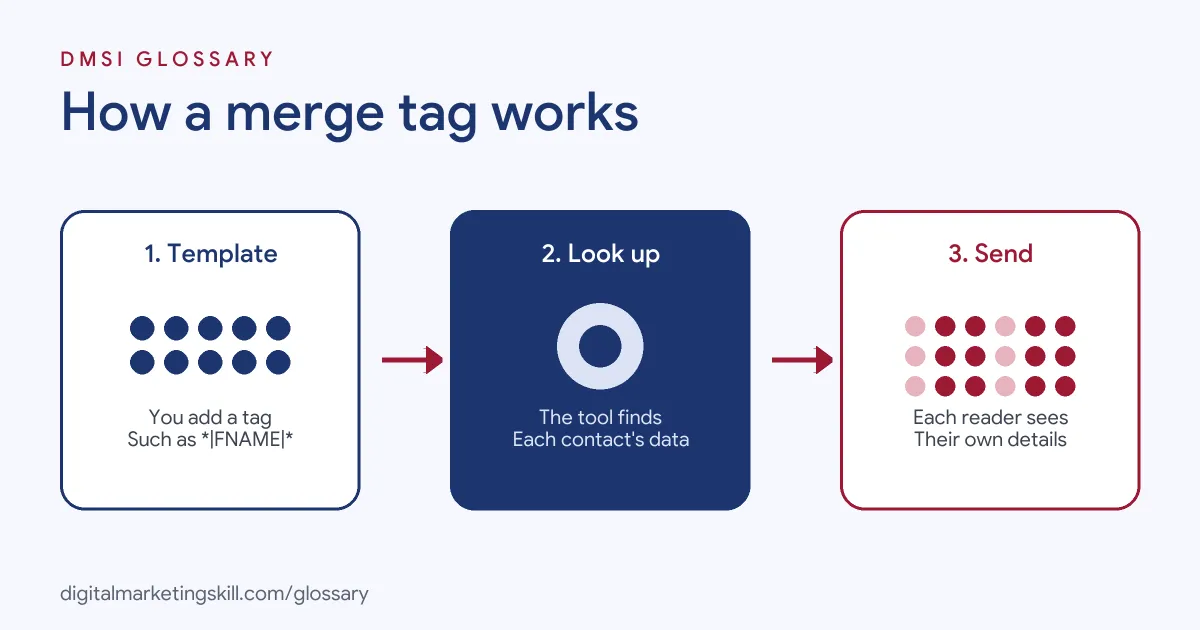
Each contact in your email tool has fields, such as first name, last name and email address. A tag points to one of those fields. At send time, the tool looks up the value for each person and drops it into the email.
Common Merge Tags in Mailchimp
Mailchimp’s cheat sheet lists dozens. Here are some of the most used:
- *|FNAME|* inserts “your contact’s first name, if it’s available”.
- *|LNAME|* inserts the last name, if it’s available.
- *|EMAIL|* inserts the contact’s email address.
- *|UNSUB|* “Gives your contacts the opportunity to unsubscribe from your emails, which is required by law and our Terms of Use.”
- *|UPDATE_PROFILE|* lets contacts change their preferences.
- *|ARCHIVE|* creates a “View this email in your browser” link.
Mailchimp also offers formatting tags. For instance, *|TITLE:YOUR_MERGETAG|* changes a value to title case, while *|UPPER:…|* and *|LOWER:…|* change it to capitals or lower case.
Merge Tag Formats in Klaviyo
Klaviyo uses curly brackets. Its help centre shows {{ first_name }} for a first name and {{ person|lookup:’Favorite Color’ }} for a custom property. Klaviyo notes that these tags work in emails, including the subject line, as well as SMS and push notifications.
Default Values
What if a contact has no first name saved? Both tools let you set a fallback. Klaviyo’s default filter “sets a default value to appear if a message recipient doesn’t have that property set”, such as “friend”. Mailchimp works the same way: with a default of “customer”, a contact with no name sees “Dear customer”. Without a default, Mailchimp shows a blank space instead.
Going Further With Conditional Content
Basic tags insert a value. More advanced set-ups change whole sections of an email. Mailchimp’s cheat sheet includes conditional merge tags. Klaviyo’s tags can also use filters, such as default and title, which changes a value to title case. For example, you could show one paragraph to customers and another to people who haven’t bought yet. This is powerful, but it adds risk. So keep the logic simple, and test every branch with real contact profiles before you send.
Merge Tag Examples
Here are three made-up examples:
- Subject line: “*|FNAME|*, your free guide is inside” becomes “Ana, your free guide is inside”.
- Event reminder: “See you at the *|EVENT_CITY|* workshop” pulls each person’s chosen city from a custom field.
- Footer: Every email includes *|UNSUB|* and *|UPDATE_PROFILE|*, so people can leave or change preferences in one click.
Custom fields, like EVENT_CITY, only work if you collect that data first, usually on your sign-up form. So plan your fields before you plan your tags.
Merge Tag Formats Compared
Here is how the same idea looks in two popular tools:
| Task | Mailchimp | Klaviyo |
|---|---|---|
| First name | *|FNAME|* | {{ first_name }} |
| Custom field | *|YOUR_TAG|* | {{ person|lookup:’Property’ }} |
| Fallback value | Default value set on the field | The default filter |
| Where it works | Emails, including footers and subject lines | Emails, subject lines, SMS and push |
The syntax differs, so always copy tags from your tool’s own menu rather than typing them by hand.
How to Use Merge Tags
- Decide what to personalise, such as the greeting, subject line or a product detail. Start with one or two tags.
- Check the data exists. Make sure the field is collected and filled in for most contacts.
- Set a sensible default value for every field you use, such as “there” for a missing first name.
- Insert the tag from your editor’s menu to avoid typos. Mailchimp’s editor has a Merge tag menu for this.
- Preview the email as different contacts, including one with missing data.
- Send a test to a small group before the full send. Mailchimp suggests sending a real email to a small test segment.
- Check the footer includes your unsubscribe tag, made clickable with the link tool.
Best Practices for Merge Tags
- Always set defaults. “Hi there” is better than “Hi ,”.
- Clean your data. Fix names stored in capitals or with typos, or use a title case tag. Messy data makes even a perfect template look careless.
- Don’t overdo it. A name in every line feels forced. Once in the subject or greeting is usually enough.
- Use the right tags for each list. If you have several audiences, check the tags match the one you’re sending to.
- Go beyond names. Tags for city, plan or last purchase often add more value than a first name.
Common Merge Tag Mistakes
The most visible mistake is a broken tag that shows up raw, such as “Hi *|FNAME|*”. This usually means a typo or a tag that doesn’t match any field. Another is forgetting a default, which leaves an awkward gap. Some teams copy tags from one tool into another, where the format is different. Others personalise with data that is out of date, such as an old job title. Finally, many skip the test send, so mistakes reach thousands of inboxes at once. A two-minute test would have caught the problem.
Where You’ll Use Merge Tags at Work
Job ads rarely say “merge tag”, but they often ask for the same skill under names like tokens, variables or dynamic content. For example, recent remote job listings ask candidates to:
- “Maintain and improve global program templates, tokens, folder structure, engagement programs, nurture streams, triggered and batch smart campaigns, dynamic content, and segmentations” (Marketing Automation and Campaign Operations Manager).
- “Use Liquid/dynamic content, variables, and conditional logic in templates” (CRM Marketing Specialist).
- “Perform end-to-end QA testing on template rendering, responsive design, dynamic personalization, links, and deliverability across clients using Litmus or similar testing tools” (Associate Marketing Production Manager).
So if you want to work as an Email Marketing Specialist or Marketing Automation Specialist, expect to build templates with tags and test them before every send.
Learn It in the Lead Generation and Email Track
You can learn to personalise emails with tags in the AI-Powered Lead Generation and Email Automation track. It covers AI fundamentals, lead generation, and email marketing and automation. Your portfolio project is a lead magnet and an automated email sequence that converts. You also get unlimited 1-on-1 mentoring and a U.S. Project Internship from day one.
Next, read our Mailchimp setup guide and our list of email testing tools. You may also like our glossary entry on personalisation.
Frequently Asked Questions
What is a merge tag in email?
It is a placeholder, such as *|FNAME|*, that your email tool replaces with each contact’s data when the email sends.
What does *|FNAME|* mean?
This is Mailchimp’s tag for first name. It inserts each contact’s first name, if one is saved in your audience.
What happens if a contact has no data for a tag?
If you set a default, that value appears instead. Without a default, the email may show a blank space.
Can I use merge tags in subject lines?
Yes. Klaviyo, for example, says its tags work in subject lines as well as in the email body, SMS and push notifications.
Are merge tags the same in every tool?
No. The idea is the same, but the format differs. Always copy tags from your own tool’s menu.
Sources: Mailchimp: All the merge tags cheat sheet; Mailchimp: Getting started with merge tags; Klaviyo Help: Message personalisation reference; remote job listings on Himalayas.