
Server-side tagging is a way of running your tracking tags on a server you control, instead of loading them all in each visitor’s browser. Your website sends data to your own tagging server first. Then that server decides what to pass on to tools such as Google Analytics or ad platforms. As a result, you get more control over your data, fewer scripts on your pages and a clearer view of what each tag can do.
Key Takeaways
- Server-side tagging moves tag processing from the browser to a server you manage.
- In Google Tag Manager, it uses a server container with clients, tags, triggers and variables.
- You decide which data leaves your server and where it goes.
- Google recommends running the tagging server on your own first-party subdomain.
- It adds hosting costs and set-up work, so it suits teams with serious tracking needs.
What Is Server-Side Tagging?
Most websites use tags to measure what visitors do. For example, a tag might record a page view, a sign-up or a sale. Usually, these tags run in the browser through a tool such as Google Tag Manager. So every tag loads its own script and sends data straight to its vendor.
Server-side tagging changes that path. Instead, the browser sends one stream of data to your own server. Then the server processes it and forwards the parts each tool needs. Google describes it as “a new way to use Google Tag Manager to instrument your application across devices.”
Think of a post room in a large office. Without one, every courier walks into every room and picks up whatever they like. With a post room, all mail goes to one desk first. Then staff check it and send each item to the right place. In the same way, your tagging server is the post room for your tracking data.
Google is clear about who holds the data. In its words, “Only you have access to the data in the server until you choose to send it elsewhere.” That is a big shift from browser tags, which send data directly to each vendor.
Why It Matters
Why does this matter? First, browsers and privacy rules are changing how tracking works. For instance, limits on third-party cookies make browser-only tracking less reliable. In addition, many sites carry so many tags that pages slow down. So moving work to a server can help on both fronts. It also gives you one place to remove personal data before it reaches other tools.
Who Needs It
Not every site needs a tagging server. For example, a small blog with one analytics tag may gain very little. On the other hand, a busy shop with many ad platforms often gains a lot. So think about how much your business relies on accurate conversion tracking. Also, think about how much first-party data you collect and how carefully you must handle it. If both matter a great deal, server-side tagging is worth a close look. Then weigh the hosting costs and the skills you need to run it well.
How Server-Side Tagging Works
Server-side tagging adds a step between your website and your marketing tools. First, the website sends events to your tagging server. Next, the server container reads and processes them. Finally, it sends clean data on to the tools you choose.
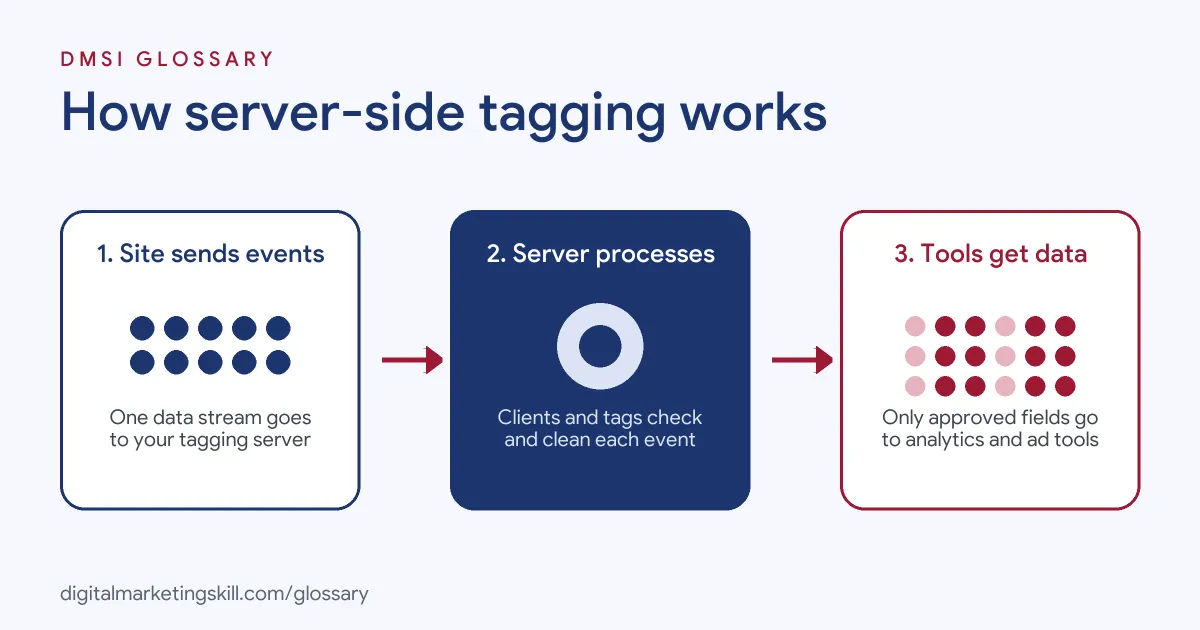
The Server Container
In Google Tag Manager, you create a special server container. Unlike a web container, Google says “a server container doesn’t run in the user’s browser or on their phone.” Instead, it runs on a server you manage. For example, Google states that “The server runs in your own Google Cloud Platform project,” though you can choose another environment too.
Clients
Next, clients receive the incoming data. Google explains that “Clients are adapters between the software running on a user’s device and your server container.” So a client reads a request, such as a Google Analytics 4 hit, and turns it into an event the container understands.
Tags, Triggers and Variables
Then the container handles each event. In Google’s words, “Each event is processed by the container’s tags, triggers, and variables.” Tags then send the data to tools such as GA4 or an ad platform. Also, server tags have permissions. Google notes that “Permissions give you the visibility into what the tag can do.”
The First-Party Domain
Finally, where the server lives matters. Google says it “strongly” recommends installing the server on your first-party domain before you send real traffic. For example, you might use a subdomain such as a “metrics” address on your own site. As a result, you gain what Google calls “the security and durability benefits of server-set cookies.”
Examples of Server-Side Tagging
- An online shop with many ad tags. The shop sends one GA4 data stream to its tagging server. Then the server forwards purchase events to analytics and ad platforms. So the product pages load fewer scripts.
- A healthcare brand with strict privacy rules. The team uses the server to strip personal details from events. After that, only the approved fields reach outside tools.
- A software company running paid social. The team pairs its Meta Pixel with a server-side feed for Meta. In addition, it checks that both send matching event IDs, so sales are not counted twice.
Server-Side Tagging vs Client-Side Tagging
| Point | Server-side tagging | Client-side tagging |
|---|---|---|
| Where tags run | On a server you manage | In the visitor’s browser |
| Data control | You choose what each vendor gets | Each tag sends data straight to its vendor |
| Page load | Fewer scripts on the page | Every tag adds its own script |
| Cookies | Server-set cookies on your own domain | Mostly cookies set by scripts |
| Cost and effort | Hosting fees and technical set-up | Free to start and quick to add |
How to Set Up Server-Side Tagging
- Agree your goals. Decide why you need it, such as data control, better cookies or faster pages. Then list the tools that must receive data.
- Create a server container. In Google Tag Manager, add a new container and choose the server type.
- Choose hosting. Follow Google’s guide to deploy on Cloud Run, or pick another supported host. Google recommends at least two instances to lower the risk of data loss.
- Map a custom subdomain. Point a subdomain of your site to the tagging server, so it runs in a first-party context.
- Send data to the server. Update your Google tag so it sends events to your server address.
- Add clients and tags. Set up the GA4 client, then add tags for each tool you use.
- Test in preview mode. Check that every event arrives and leaves with the right fields.
- Monitor and review. Watch server health and costs. Also, review tags and permissions on a regular basis.
Best Practices for Server-Side Tagging
- Start with one stream. Move GA4 first, then add other tools once it is stable.
- Use your own subdomain. This gives you the cookie and security benefits Google describes.
- Respect consent. Keep your consent mode set-up working, so the server only forwards data people agreed to share.
- Remove what you don’t need. Strip personal data before it reaches outside tools.
- Document every tag. Write down what each tag sends and why, so others can audit it.
- Plan for uptime. Run more than one server instance, so an outage doesn’t lose data.
Common Mistakes to Avoid
- Skipping the custom domain. Without it, you lose many first-party benefits.
- Treating it as a consent workaround. Server-side tagging does not remove your duty to get valid consent.
- Double counting. Running browser and server tags for the same event, without deduplication, can inflate conversions.
- Forgetting the costs. Servers cost money each month, so budget for hosting before you start.
- Moving everything at once. A big switch makes errors hard to trace. However, a step-by-step move is easier to test.
- No owner. A server container still needs someone to watch it and update it.
Where You’ll Use Server-Side Tagging at Work
Server-side tagging shows up in analytics, paid media and tracking roles. For example, real remote job listings ask for:
- “GTM, server-side tagging, offline conversion uploads, CRM integration (HubSpot/Salesforce or similar).” (Senior Google Ads Manager).
- “Lead analytics audits of tracking implementations (GA4, GTM, server-side tagging, Shopify Customer Events, Amplitude, Triple Whale, etc.) and identify gaps in data accuracy, visibility, and compliance.” (Senior Digital Analyst).
- “Set up, audit and maintain conversion tracking: Meta Pixel and Conversions API, Google Ads conversions, GA4, call and form tracking, and server-side tagging where relevant.” (Senior Paid Media Specialist).
Learn It in the Google Ads and Analytics Track
You can learn server-side tagging and wider tracking skills in the AI-Powered Google Specialist track. Every track includes a U.S. Project Internship from day one, with unlimited 1-on-1 mentoring.
Frequently Asked Questions
Is server-side tagging free?
The Tag Manager container is free to create. However, the server it runs on has hosting costs, which grow with your traffic.
Do I still need a web container?
Usually, yes. The browser still needs to send data to your server. So most set-ups use a web container or the Google tag alongside the server container.
Does server-side tagging replace consent?
No. You still need valid consent where the law requires it. The server simply gives you more control over what you forward.
Can I use it with Meta?
Yes. Many teams send events to Meta from the server alongside the browser pixel. Then they use event IDs to avoid counting the same sale twice.
Who usually sets it up?
Analytics specialists or developers often handle the set-up. Then marketers use the cleaner data in reports and ad platforms.
Sources: Google for Developers: An introduction to server-side tagging; Google for Developers: Custom domain configuration; Google for Developers: Set up server-side tagging with Cloud Run; remote job listings on Himalayas, Himalayas and Himalayas.