
Offline Conversion Import is a Google Ads feature that lets you send sales and other results that happen away from your website back into Google Ads, so you can see which ads led to them. Many leads click an ad, fill in a form and then buy over the phone or in person. Without an import, Google Ads only sees the form. As a result, you can’t tell which keywords bring real customers. Offline conversion import closes that gap, so you can spend more on the ads that drive revenue.
Key Takeaways
- Offline conversion import links offline sales back to the ad click that started them.
- The classic method stores the Google click ID (GCLID) with each lead.
- Enhanced conversions for leads adds hashed customer data, such as email addresses.
- Imported results feed your reports and help bidding focus on valuable leads.
- You need auto-tagging, a CRM that saves lead data and a regular upload routine.
What Is Offline Conversion Import?
A conversion is an action you value, such as a purchase or a sign-up. Usually, a tag on your website records it. However, many important actions happen later and somewhere else. For example, a sales rep closes a deal on a call, or a customer signs a contract in your office.
Offline conversion import is how you tell Google Ads about those results. In Google’s words, it helps you “measure what happens in the offline world after your ad results in a click or call.” So your account learns about outcomes it could never see on its own.
Here is an everyday example. A kitchen fitter runs search ads. A visitor clicks, books a free quote and, two weeks later, pays for a new kitchen. The form fill appears in Google Ads straight away. Then, after the sale, the fitter imports it, and the ad gets credit for the real job.
Why It Matters
Not every lead is equal. For instance, one campaign may bring lots of cheap form fills that never buy. Another may bring fewer leads that turn into big deals. Without offline data, both look the same in your conversion tracking. With it, you can judge campaigns on sales, not just leads. In addition, automated bidding can learn from those sales. So your budget moves towards the searches that bring paying customers.
How Offline Conversion Import Works
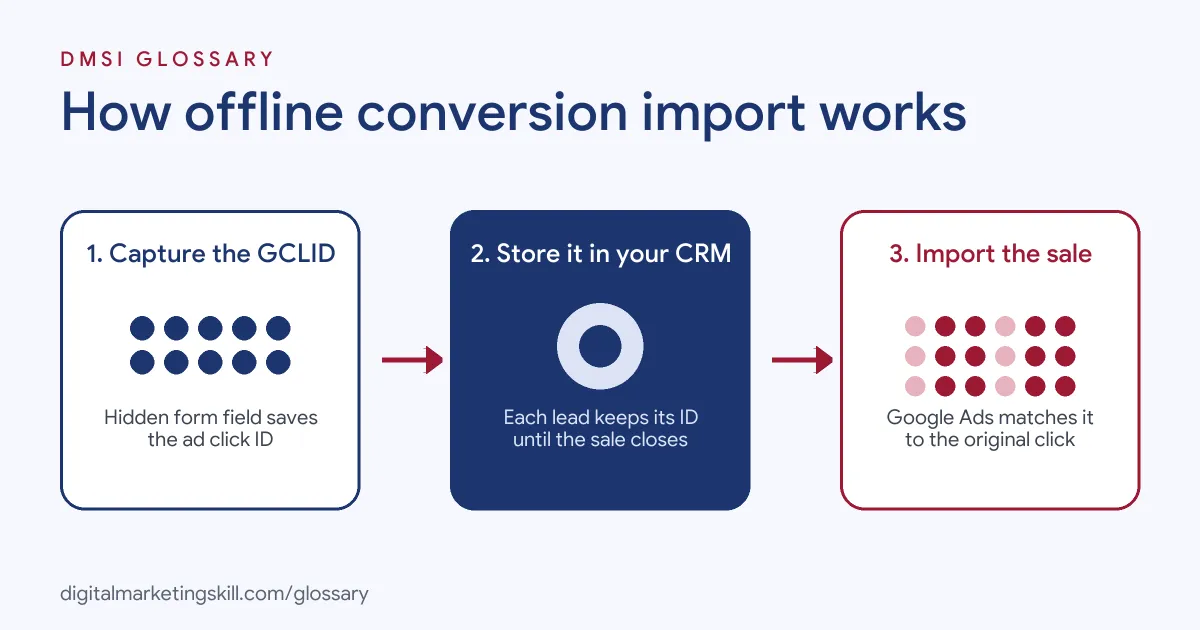
The process has three parts. First, you capture an identifier when someone clicks your ad and becomes a lead. Then you store it with the lead in your CRM. Finally, when the lead turns into a sale, you send that identifier and the result back to Google Ads.
Capturing the Click ID
Google Ads gives each ad click a unique code called the Google click ID, or GCLID. It appears in the landing page URL when auto-tagging is on. Google’s set-up guide says you need to “capture the GCLID (Google Click Identifier) parameter that’s appended to the URL.” Usually, a hidden field in your form picks it up.
Storing It With the Lead
Next, the GCLID travels with the form data into your lead system. Google advises you to “Update every lead submission form page so that the GCLID will be passed to your lead management system.” So each record in your customer relationship management tool carries its own click ID.
Sending the Result Back
When the lead buys, you send the GCLID, the conversion name, the time and the value to Google Ads. You can do this with a file upload, a scheduled import, a CRM connection or the API. Google then matches the ID to the original click. As a result, the sale shows up against the right campaign, ad group and keyword.
Enhanced Conversions for Leads
Google also offers a newer option. It describes enhanced conversions for leads as “an upgraded version of offline conversion import that uses user-provided data, such as email addresses.” Instead of relying only on the GCLID, it matches hashed details from your lead form. Google says this can “Get more accurate conversion reporting compared to standard offline conversion import.” It also recommends this route for new set-ups, often through its Data Manager tool.
Examples of Offline Conversion Import
- A B2B software company. Leads book demos through a form. Later, the sales team marks deals as won in the CRM. So a daily import sends those wins to Google Ads, and the team can see which keywords bring paying clients.
- A car dealer. Shoppers click ads and book test drives online. However, the purchase happens on the forecourt. The dealer imports each sale, so campaigns are judged on cars sold, not just bookings.
- A private clinic. Patients enquire online and book by phone. The clinic imports booked appointments as a conversion. As a result, it stops paying for searches that bring enquiries but no bookings.
Offline Conversion Import vs Online Conversion Tracking
| Point | Offline conversion import | Website conversion tag | Enhanced conversions for leads |
|---|---|---|---|
| What it records | Results in your CRM, office or phone | Actions on your website | Offline results matched by customer data |
| How it matches | GCLID stored with the lead | Tag fires on the page | Hashed email or phone, plus GCLID if you have it |
| Timing | Uploaded after the sale | Recorded straight away | Uploaded after the sale |
| Best for | Long sales cycles | Online shops and simple forms | New lead-gen set-ups |
How to Set Up Offline Conversion Import
- Turn on auto-tagging. Check your Google Ads account settings, because the GCLID only appears with auto-tagging enabled.
- Create the conversion action. In Goals, choose to create a conversion action and select the offline option.
- Wait before uploading. Google says to “wait 4–6 hours before uploading conversions for that conversion action.”
- Capture the GCLID. Add a hidden field to each lead form that reads the GCLID from the URL.
- Store it in your CRM. Map the hidden field to a field on the lead record.
- Define your stages. Decide what counts, such as “qualified lead” or “closed deal”, and give each one a value.
- Send the data. Upload a file, schedule an import or connect your CRM. Then check the upload results for errors.
- Use it in bidding. Once data flows, set the offline action as a primary goal if you want bidding to optimise for it.
Best Practices for Offline Conversion Import
- Upload often. Daily imports give bidding fresh data and keep reports current.
- Send real values. Use the deal value or a fair estimate, so bidding can tell big deals from small ones.
- Track more than one stage. Import qualified leads as well as sales, because early stages give more data points.
- Add first-party data. Collect email and phone with consent, so enhanced conversions for leads can match more sales. This builds your first-party data too.
- Respect privacy. Follow your consent rules and only upload data you are allowed to use.
- Agree the process. Sales and marketing should share one set of stage names, so nobody marks deals the wrong way.
Common Mistakes to Avoid
- Losing the GCLID. Redirects, forms or CRM fields can drop it. Then nothing can match.
- Auto-tagging switched off. Without it, no GCLID appears in your URLs at all.
- Counting twice. If both the form tag and the import are primary goals for the same lead, bidding may chase double counts.
- Wrong time zones. Conversion times in the wrong format or zone cause upload errors.
- Uploading too late. Imports only accept recent clicks, so slow processes lose data.
- Setting and forgetting. Scheduled imports can fail quietly. So check the upload history each week.
Where You’ll Use Offline Conversion Import at Work
This skill shows up in paid search and tracking roles, especially for lead generation accounts. For example, real remote job listings ask you to:
- “Set up, audit and troubleshoot conversion tracking across Google Ads, GA4, Google Tag Manager and Cloudflare Zaraz, including Enhanced Conversions, Consent Mode v2, call tracking and offline conversion imports.” (AU Google Ads Specialist (Advanced Tracking & AI Automation)).
- “GA4, GTM, Shopify goal imports versus a raw Google Ads tag, enhanced conversions, offline conversion imports for the lead gen accounts.” (Paid Search Strategist, DTC eCommerce).
- “Collaborate with data/analytics teams to ensure accurate conversion value modeling, offline conversion tracking (OCT), first-party data integration, and attribution accuracy.” (Paid Search Manager).
It also links closely to enhanced conversions and Smart Bidding, so expect to use them together.
Learn It in the Google Ads and Analytics Track
You can learn offline conversion import and full Google Ads tracking in the AI-Powered Google Specialist track. Every track includes a U.S. Project Internship from day one, with unlimited 1-on-1 mentoring.
Frequently Asked Questions
What is a GCLID?
It is the Google click ID, a unique code added to your landing page URL when auto-tagging is on. You store it with each lead, then send it back with the sale.
Do I need a CRM for offline conversion import?
You need somewhere to store leads and their status. A CRM is easiest, but a well-kept spreadsheet can work for small accounts.
How soon can I upload after creating the conversion action?
Google says to wait four to six hours after creating a new conversion action before you upload conversions to it.
Is enhanced conversions for leads the same thing?
It is an upgraded version. Instead of relying only on the GCLID, it also matches hashed customer data such as email addresses.
Can I import phone sales?
Yes. If the call started from an ad click, you can import the sale. Google also supports importing call conversions.
Sources: Google Ads Help: About offline conversion imports; Google Ads Help: Set up offline conversions using Google click ID (GCLID); Google Ads Help: About enhanced conversions for leads; remote job listings on Himalayas, Himalayas and Himalayas.